Arrange what is open on the board
Minimise, maximise and tile the cards open on Circin Canvas, and use the Windows switcher to get back to one you put away.
Updated
Teacher
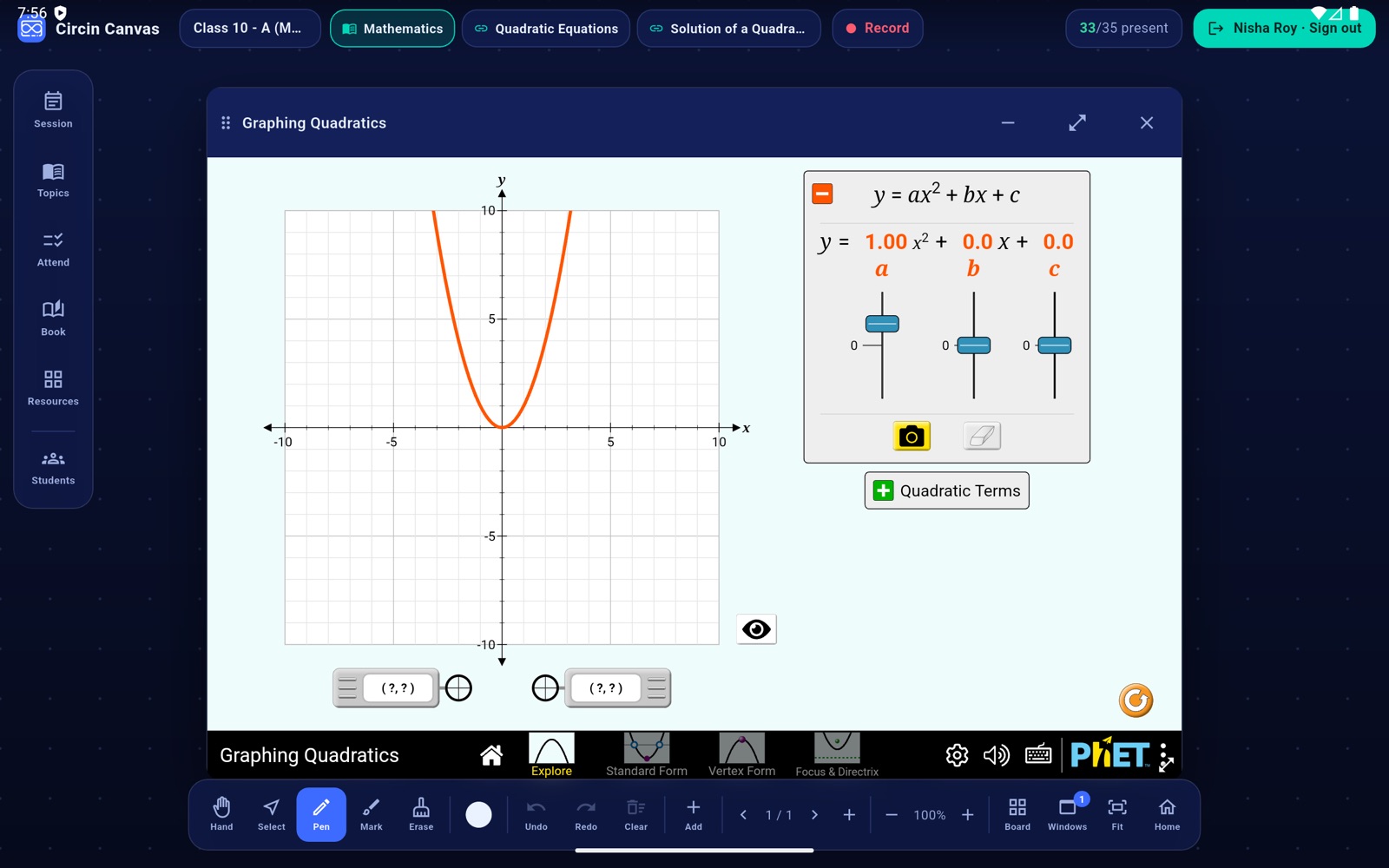
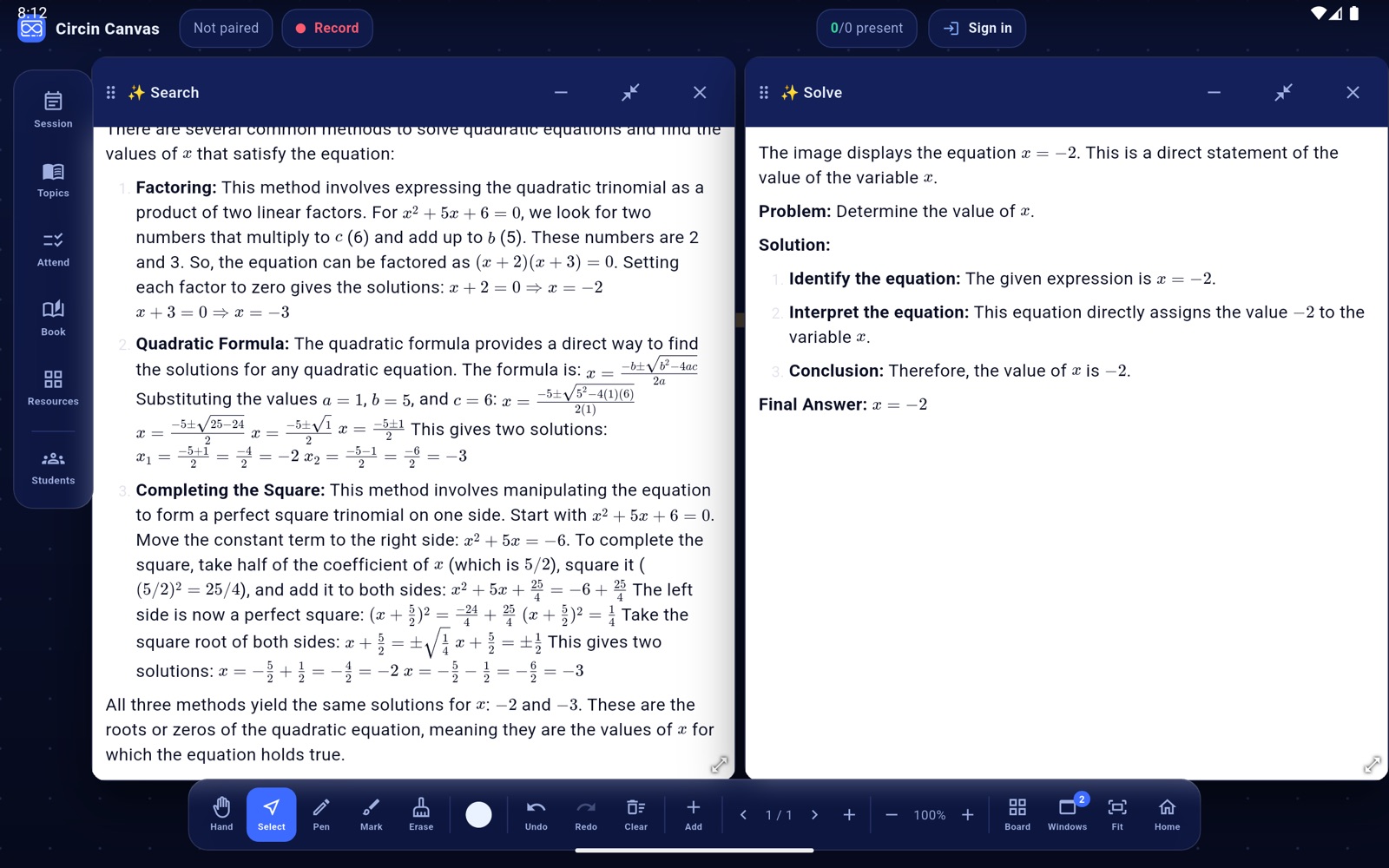
By the middle of a period you may have a textbook page, a simulation and an answer card open at once. Each card can float on the canvas or snap into a tiled layout, and the Windows switcher is how you find one again after you have put it away.
How do I arrange the cards?
- Every card header carries three controls on the right: Minimise, Maximise and Close.
- Tap Maximise to snap the card into the board's tiled layout. It stops moving with the canvas and fills its slot. The icon becomes Restore, which puts it back on the canvas exactly where it was.
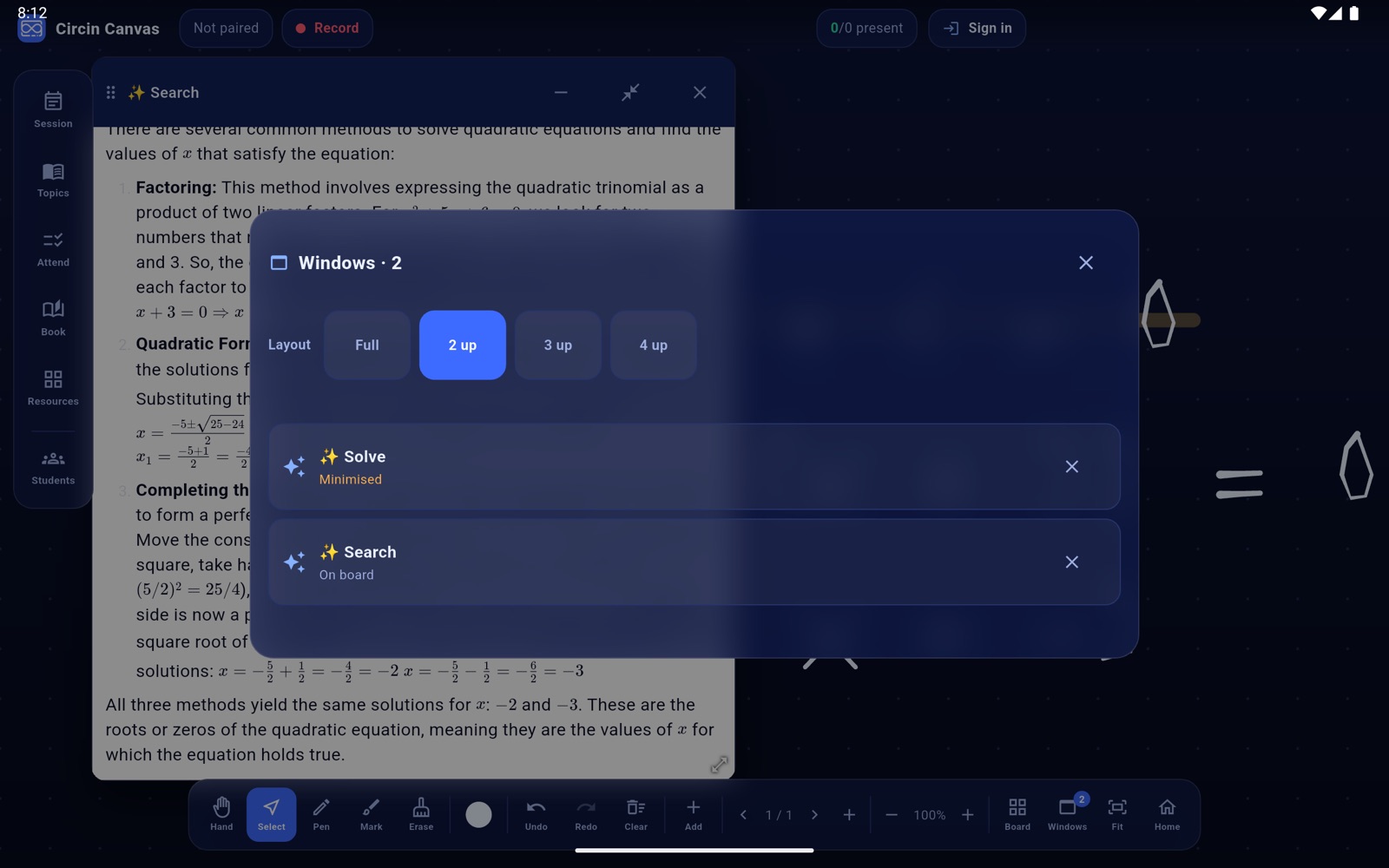
- Tap Windows in the bottom dock — it carries a count badge — to open the switcher. Every open card appears as a chip labelled with its state: On board, On canvas or Minimised. Above them is the layout picker: Full, 2 up, 3 up and 4 up.
- Tap a chip to bring that card to you. A minimised card is restored first. Tap the ✕ on a chip to close it from there.
Rules and gotchas
- A minimised card keeps running. A simulation is not reset and a video does not restart, which is why the switcher is the way back to it rather than opening it again.
- Touching a card raises it to the front, so the card you touch is the card you get.
- When a layout is full the board says so instead of leaving you hunting: Layout is full — close or minimise a window first, and it will tell you when it has minimised or reopened a card on your behalf.
- Maximising closes an open left panel to free up the width.
- The switcher shows labelled chips rather than thumbnails, because a live web card cannot be previewed accurately.
- Close shuts the card's browser down rather than hiding it, which is how you stop a video that is still playing audio.