Record the lesson and save the transcript
Record your teaching on Circin Canvas. Speech is transcribed on the panel itself and only the text is saved to the session — no audio leaves the room.
Updated
Teacher
Recording turns what you say into a text transcript on the session record, which is what the study materials are later written from. The speech recognition runs on the panel itself: no audio ever leaves the room, and only the text is uploaded.
How do I record a lesson?
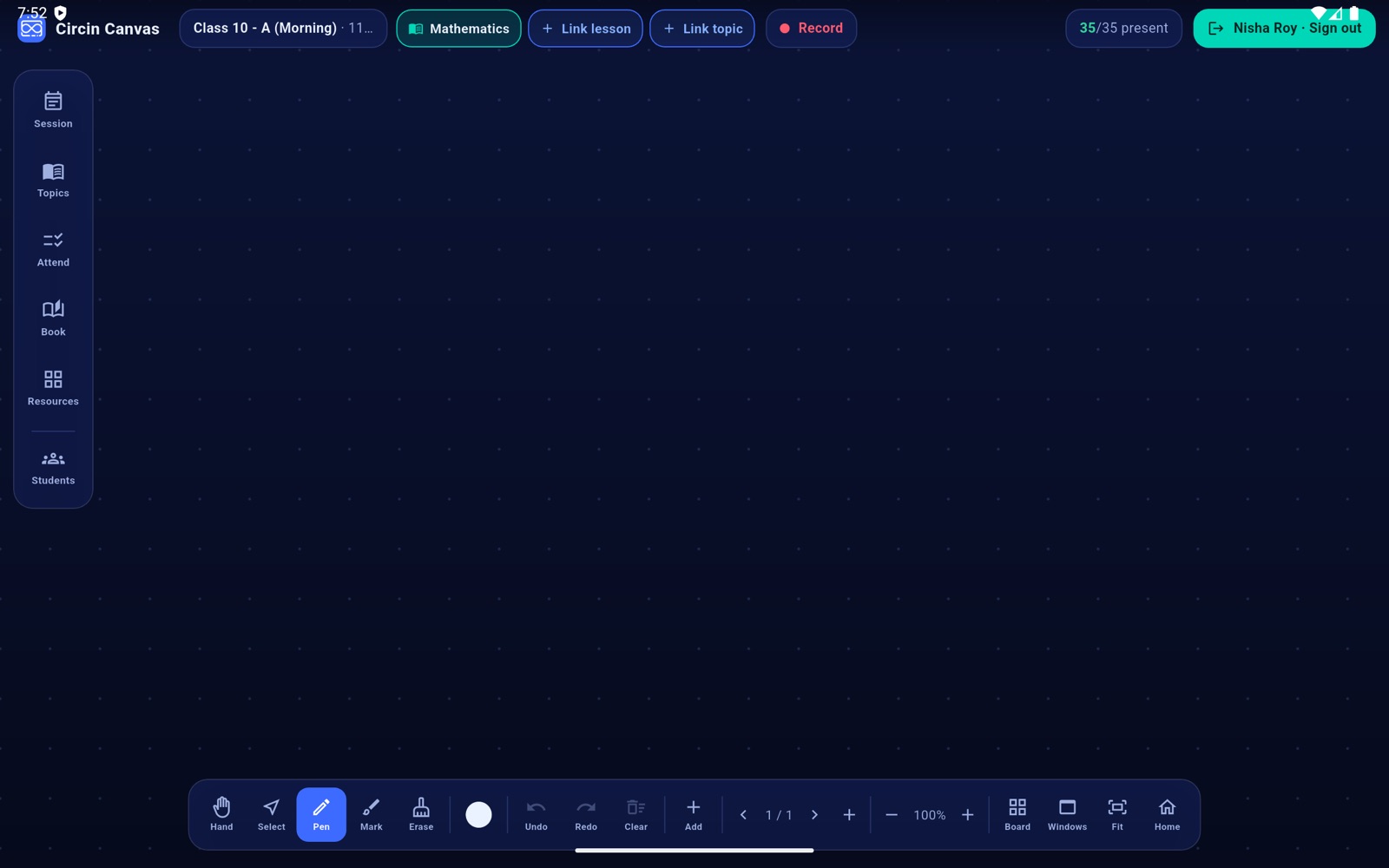
- Start a session first, from the timetable or ad-hoc — see Start the period on Circin Canvas.
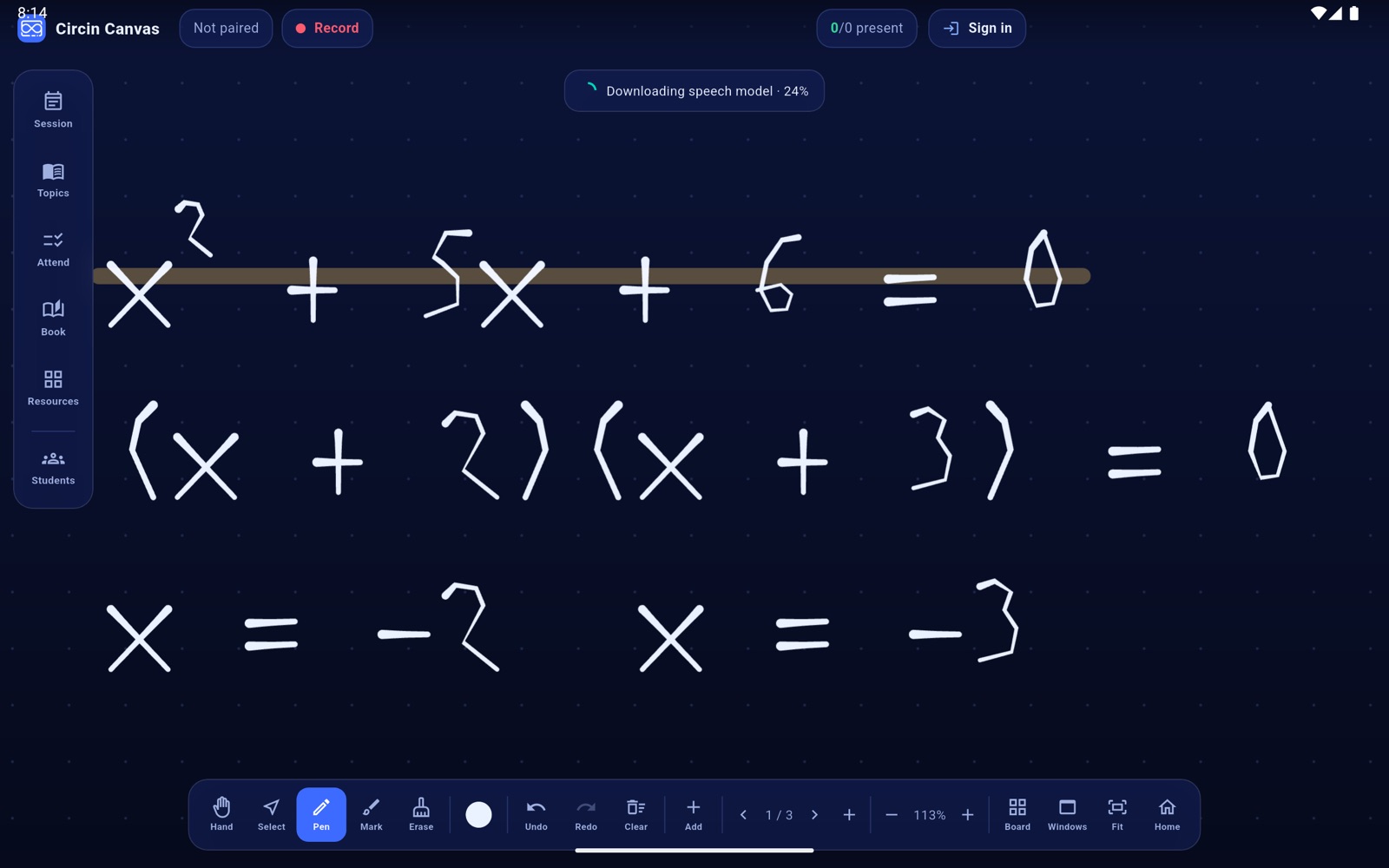
- Tap Record in the top bar. The first time, the board asks for microphone permission and then downloads the speech model once: Downloading the speech model (~105 MB, one-time)… with a progress chip.
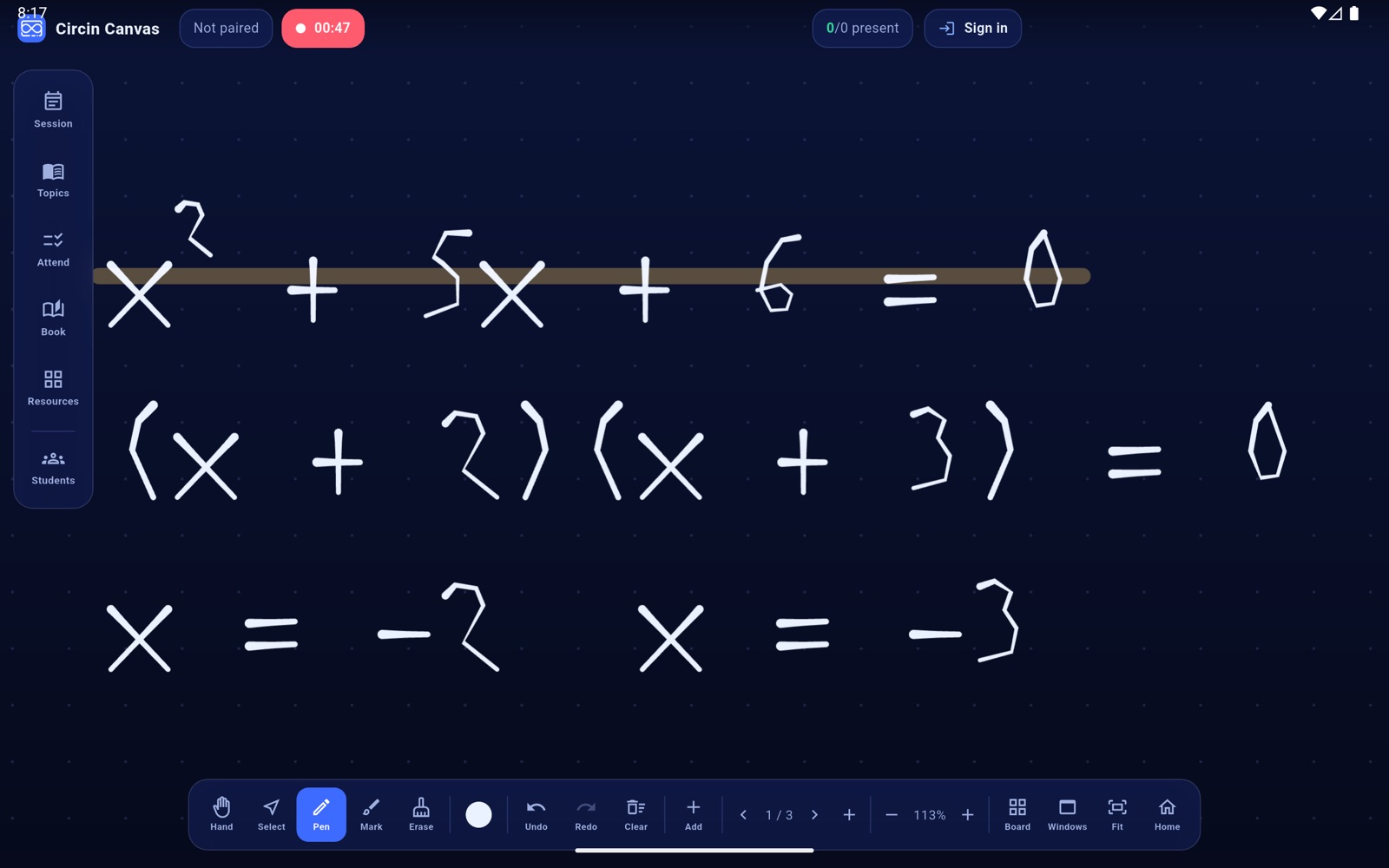
- Recording starts. The button turns solid red and becomes a running clock.
- Teach as normal. Speech is transcribed as you go.
- Tap the clock to stop. The board finishes decoding, then confirms Transcript saved to the session with the character count.
Rules and gotchas
- A running recording blocks sign-out, a session change and closing the app until you stop it and it saves. That is deliberate: the transcript held on the panel is the only copy.
- The speech model is English. Do not count on it for a lesson taught in another language.
- If nobody spoke: Recording stopped — no speech detected. Without a session the text is still captured but only held on the panel: Transcript captured with the character count.
- If permission is refused: Microphone permission is needed to record. Other failures read Could not start recording or Recording could not be finalized.
- Ending the session stops and saves a running recording for you, so you do not have to remember both.
Once the session is ended you can turn the transcript into revision material — see Generate study materials from what you just taught.