Bring a simulation, video or 3D model onto the board
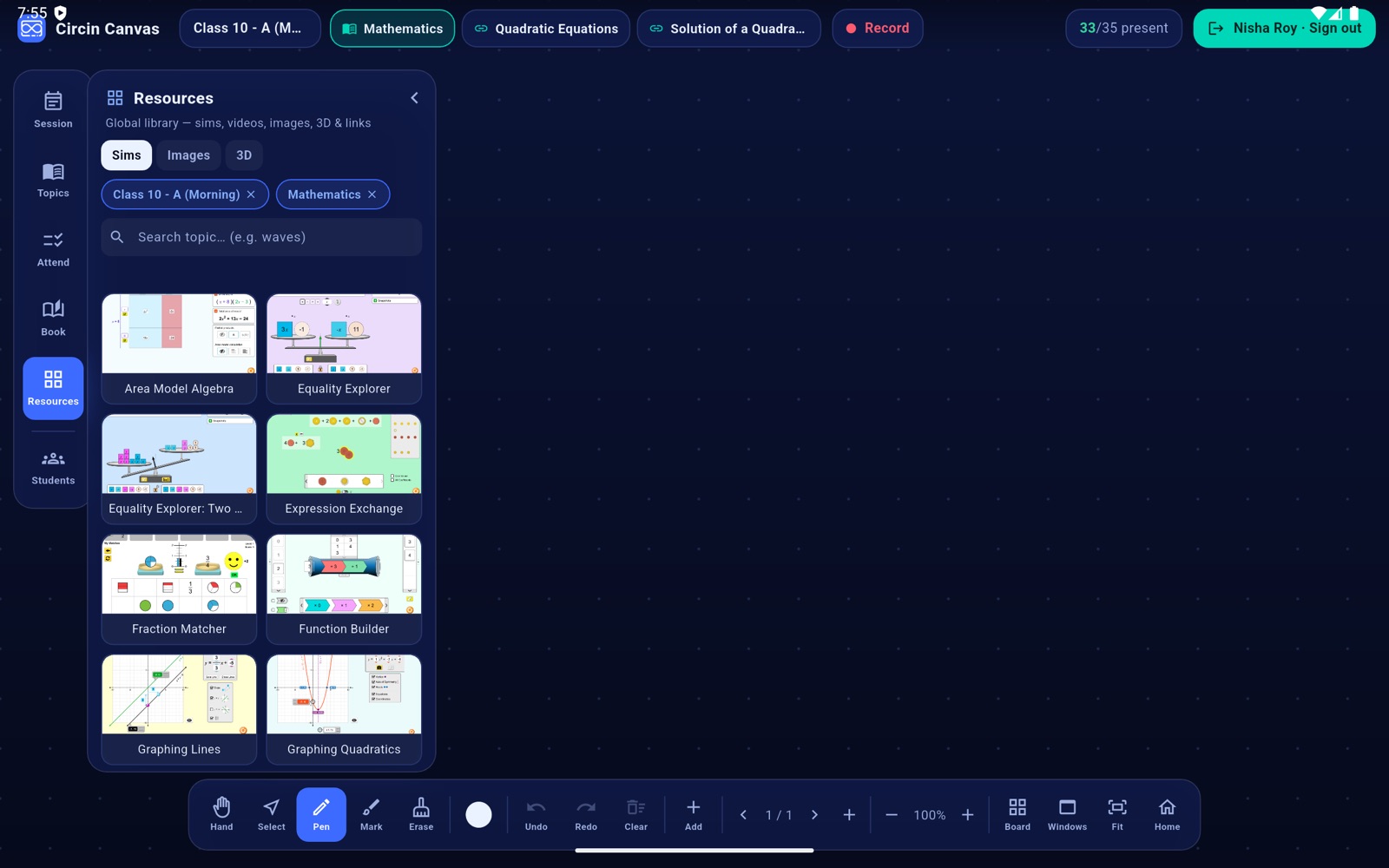
Search Circin's resource library from the board and drop a live simulation, video, image, 3D model or link straight onto the Circin Canvas canvas.
Updated
Teacher
The resource library is Circin's catalogue of simulations, videos, images, 3D models and links. The board pre-filters it to the class and subject you are teaching, so the first screen is usually already the right shelf.
How do I find and place a resource?
- Tap Resources on the left rail, or Add in the bottom dock — both open the same panel. It is headed Resources, with the subtitle Global library — sims, videos, images, 3D & links.
- Pick a type tab: Sims, Videos, Images, 3D or Links. Only the tabs that have something in them are shown.
- Your class and subject appear as removable filter chips, for example
Class 10 ✕andScience ✕. Tap a chip to drop that filter and widen the results. - Type in the box marked Search topic… (e.g. waves). It searches as you pause typing.
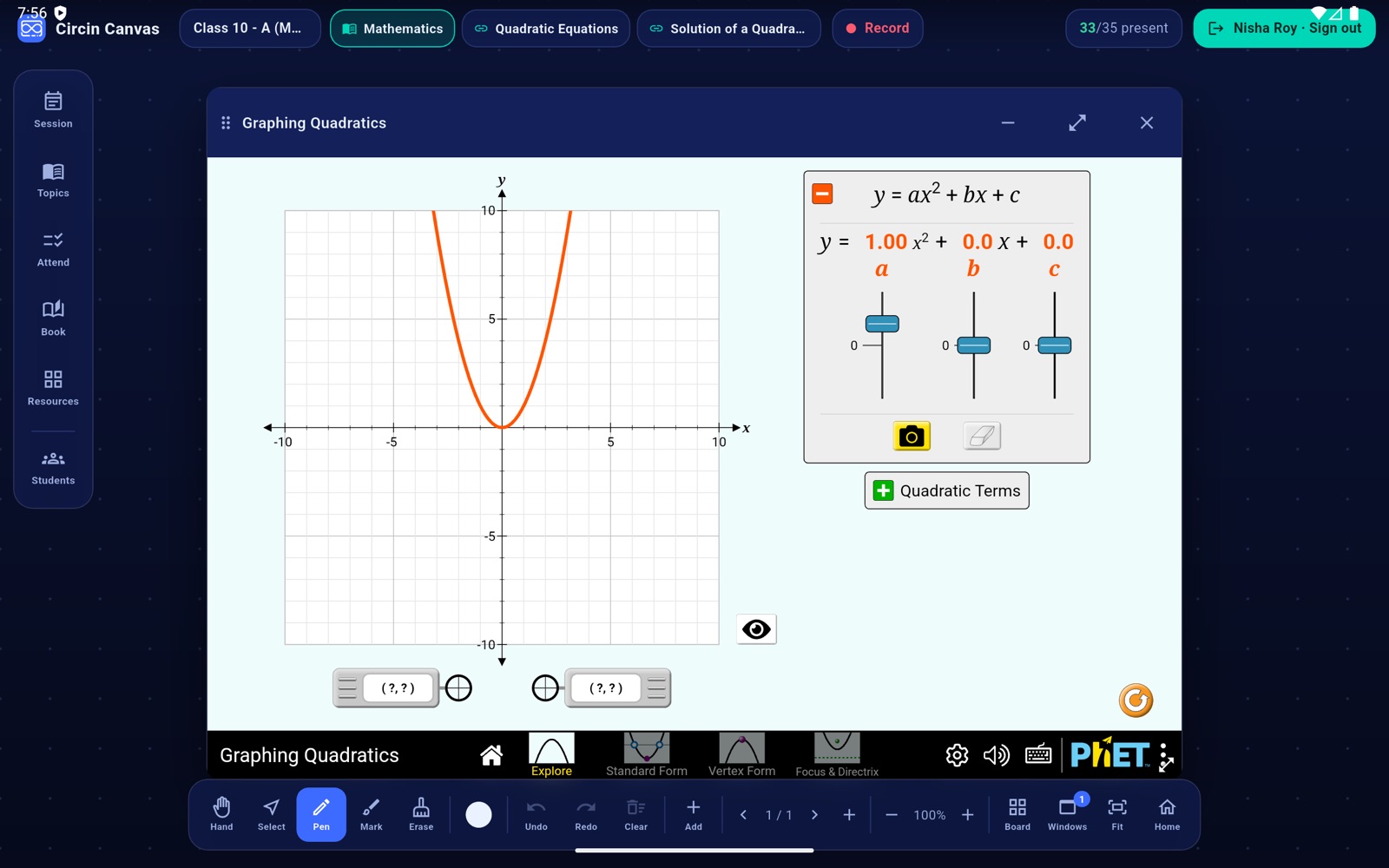
- Tap a tile. It lands on the canvas as a live card — a simulation or video you can interact with, an image, or a model you can spin with a finger.
Rules and gotchas
- When a filter has no results the board widens the search itself — dropping the class, then the subject — and tells you in amber that it did, rather than showing you an empty shelf.
- The empty and error states are literal: Pair the board to browse the resource library, Couldn't load the resource library with a Retry, The resource library has no content yet, and Nothing matches your query.
- Simulations, videos and links are live web content, so they need the network. On a Windows 10 panel they also need the WebView2 runtime — see Run Circin Canvas on a Windows panel.
- Creative Commons items carry an attribution strip along the bottom of the card. Leave it visible; it is the licence condition.
- Changing class or subject while the panel is open refetches the results for the new scope.
A card you leave running keeps running when you minimise it, which is what makes a simulation worth opening early in the period — see Arrange what is open on the board.