Start the period on Circin Canvas
Pick the subject you are teaching and start the class from today's timetable, so everything the board captures lands on the right session.
Updated
Teacher
A teaching session on Circin Canvas belongs to exactly one subject, so the board asks which subject you are teaching and which period. Everything it then captures — the transcript, your writing, the final picture of the board — is filed against that one session.
How do I pick the subject I am teaching?
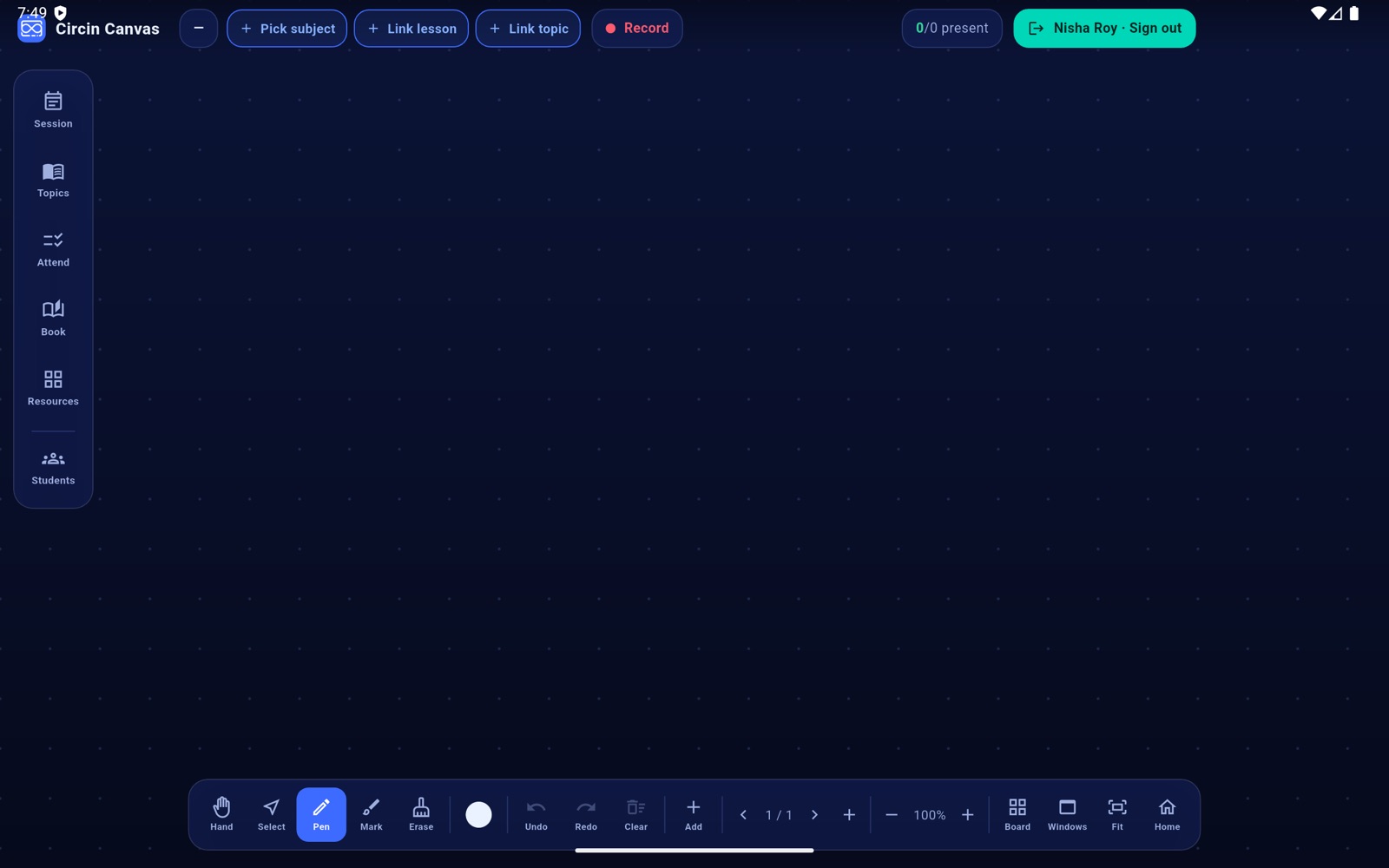
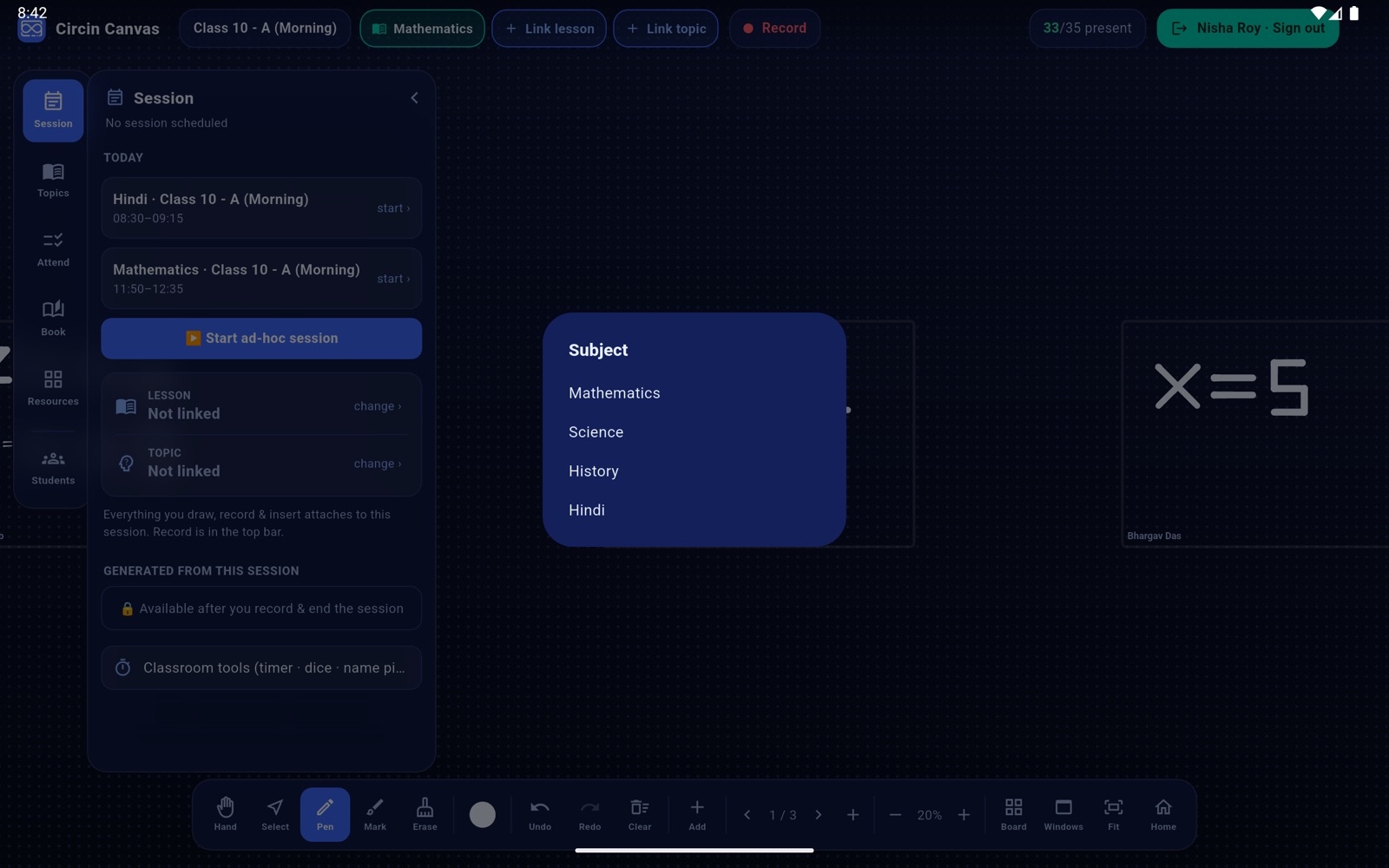
- Tap the chip in the top bar reading Pick subject.
- A Subject list appears, containing only the subjects you actually teach in this section.
- Tap one. The chip turns teal and shows the subject, and that subject's lessons, topics and today's session load.
Teach only one subject in that section and the board picks it for you, so the chip is already filled. If nothing is assigned to you, the list says No subjects assigned to you for this class.
How do I start the class from today's timetable?
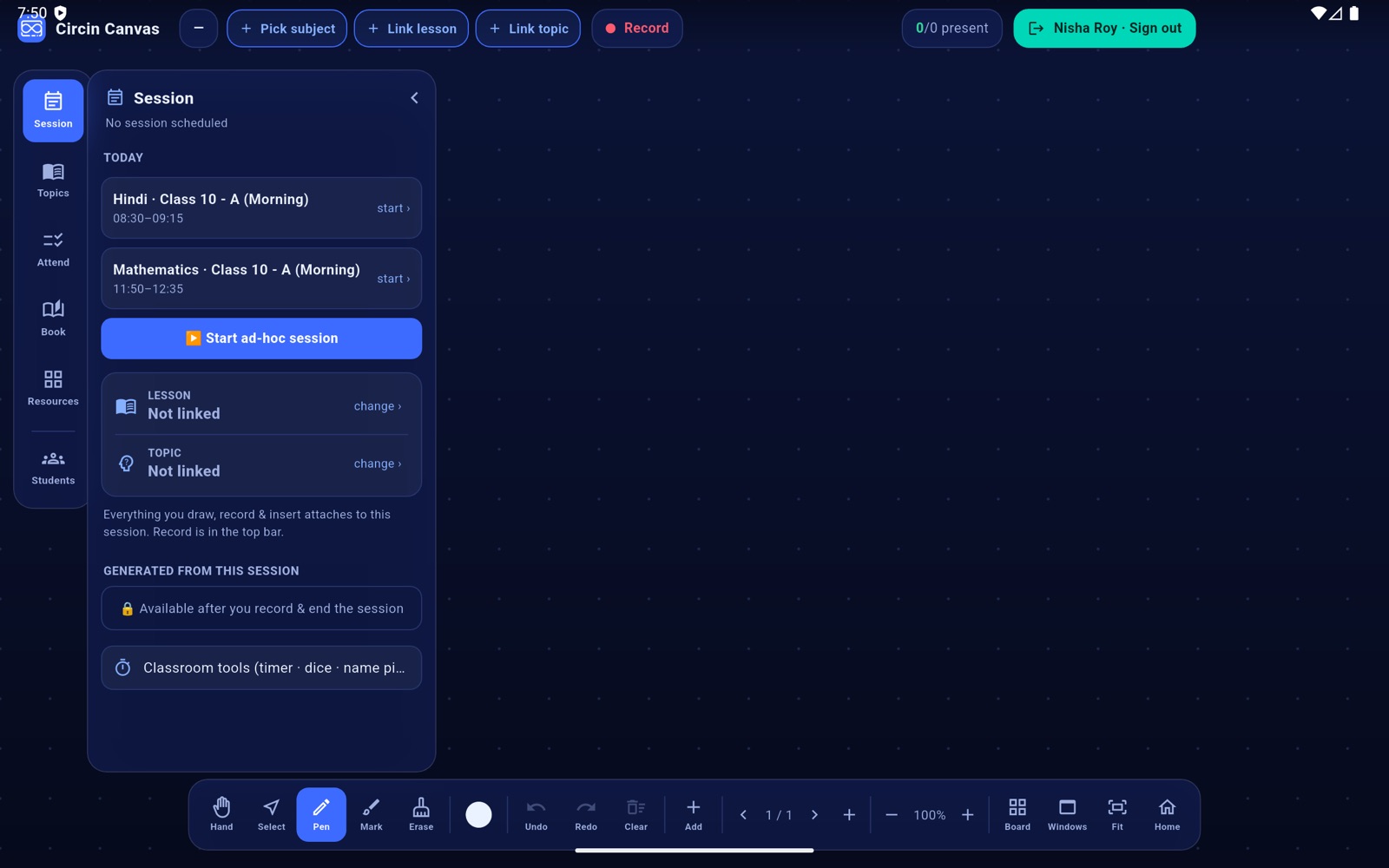
- Tap Session on the left rail. The panel header reads Session, with either No session scheduled or Today and the time range beneath it.
- Under TODAY are your real classes for the day, earliest first. The period happening right now carries a green NOW badge. Each row shows the subject, the class and the time range, with start › on the right.
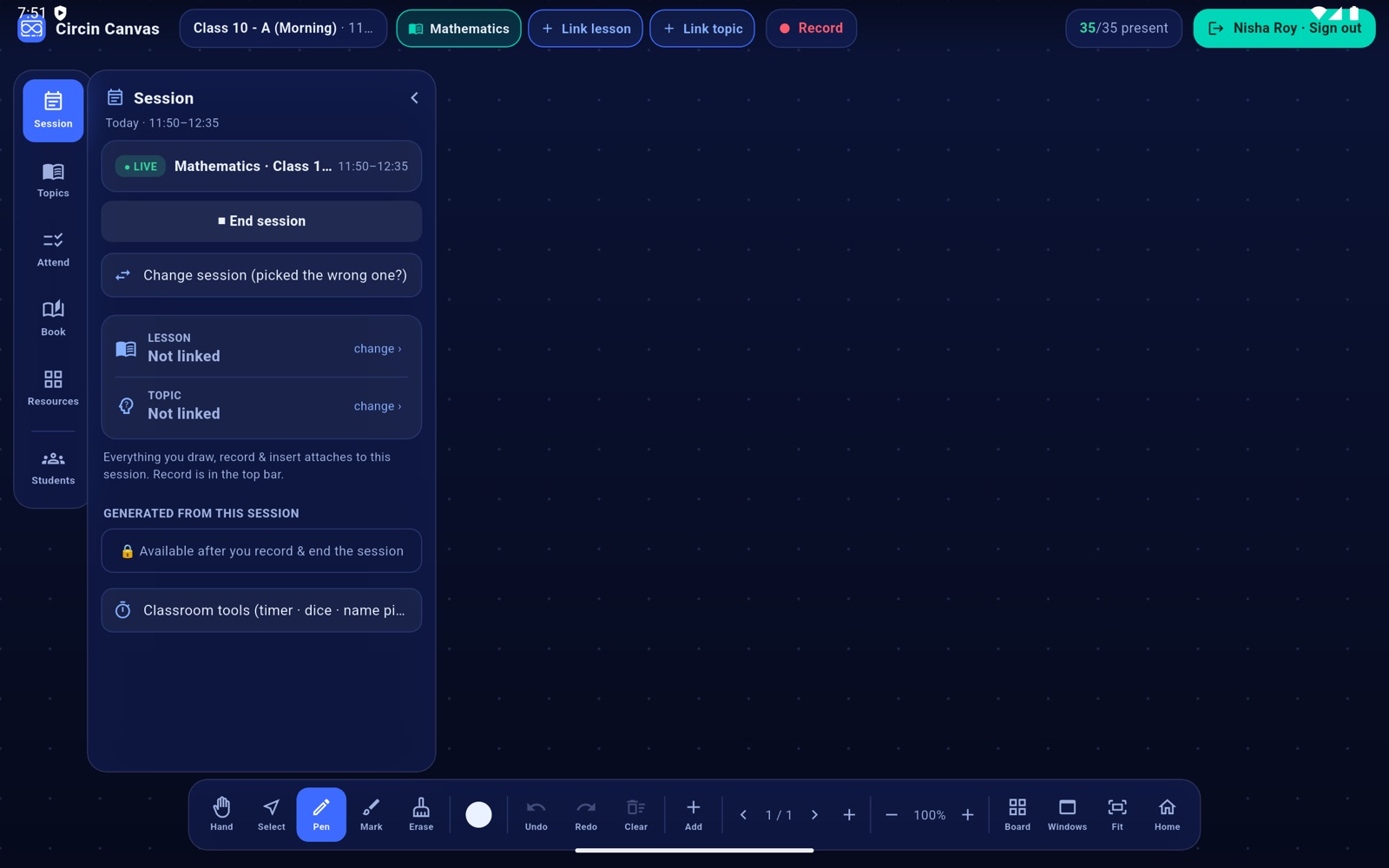
- Tap the row. The board binds to that slot's class and subject, creates or resumes the session, and confirms Session started ✓.
- The panel becomes a live card — a green ● LIVE pill, the subject, class and time range, then ■ End session and Change session (picked the wrong one?) — and the roster and curriculum reload for the newly bound class.
Rules and gotchas
- Today's list comes from your weekly timetable, filtered on the IST weekday, so a panel with the wrong device clock still shows the right day. An empty day reads No classes on the timetable today.
- Tapping a slot again resumes the same session rather than creating a second one, so it is safe after a panel restart.
- While a session is live the subject is locked. Tapping the chip says Change the session to switch subject — see Fix a session you started by mistake.
- A slot will not start while the previous session is still saving. Failures read Could not start the session.
For a period the weekly timetable does not carry, use Start a session that is not on the timetable.