Start a session that is not on the timetable
Start a 40-minute ad-hoc session on Circin Canvas for a substitution, a remedial class or anything the weekly timetable does not carry.
Updated
Teacher
Substitutions, remedial classes and extra periods are not on the weekly timetable. An ad-hoc session gives them a real session record, so the transcript, the board picture and the study materials are filed the same way as a timetabled period.
How do I start an ad-hoc session?
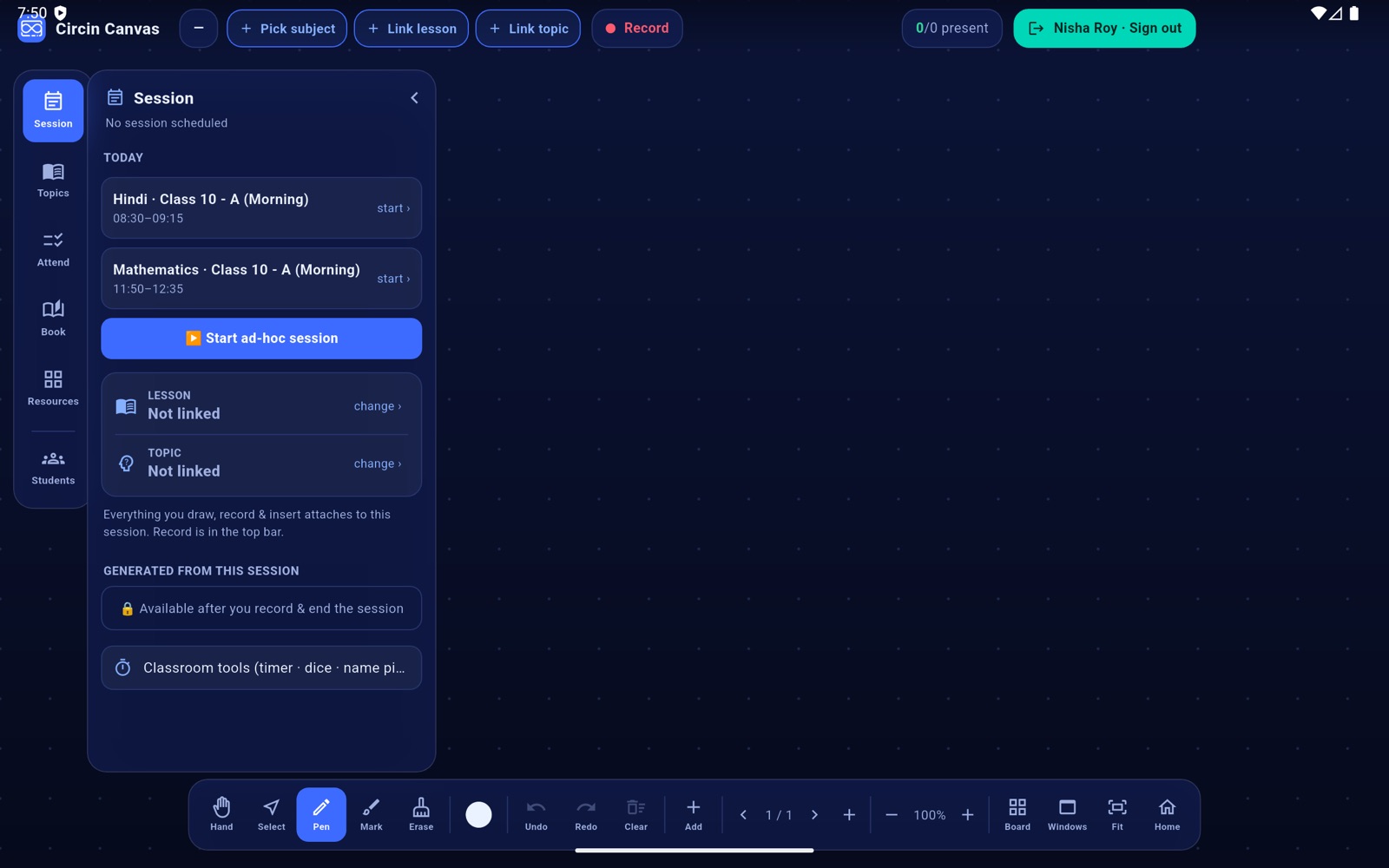
- Tap Session on the left rail.
- Check that the subject chip in the top bar shows a subject. If it reads Pick subject, tap it and choose one — see Start the period on Circin Canvas.
- Tap ▶ Start ad-hoc session.
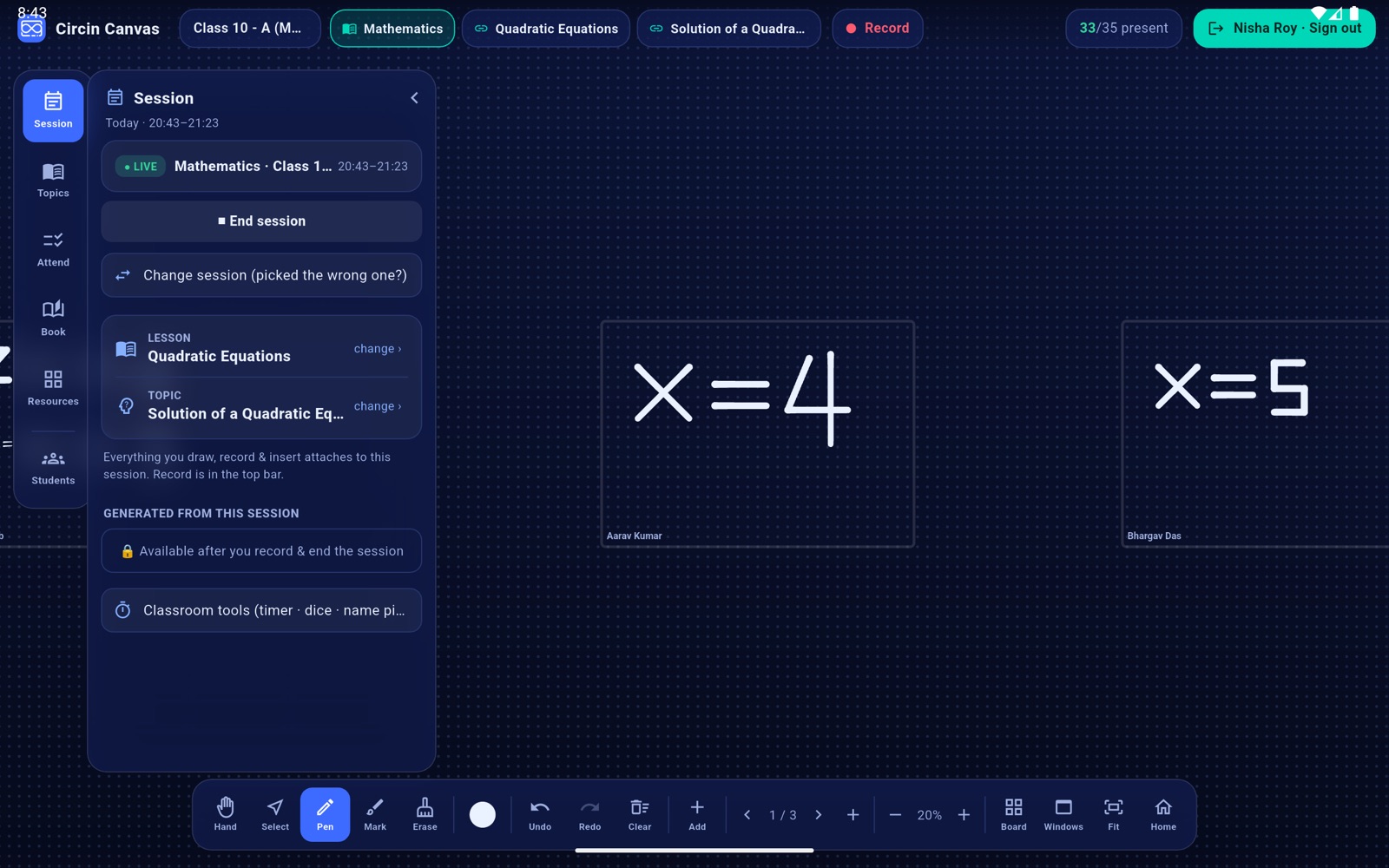
- The board creates a session running from now until 40 minutes from now and confirms Ad-hoc session started ✓. The time range appears in the top bar and on the live card.
Rules and gotchas
- You need both a class and a subject. Without a class the board says Pair with a class (or pick a slot) first; without a subject, Pick a subject first (top bar), and it opens the picker for you.
- The 40-minute window is fixed. There is no duration field, and the session does not stop itself at the end of the window — end it yourself when the class is over.
- Tapping the button again for the same date and start time resumes the same session instead of creating a duplicate.
An ad-hoc session behaves exactly like a timetabled one from here on, so you can link the lesson and topic, record it and generate study materials as usual.