Move around the Circin Canvas board
Pan and zoom the infinite Circin Canvas board, frame everything you have written with Fit, and get back to where you started with Home.
Updated
Teacher
The board does not end at the edge of the panel. You can keep writing past it, pull back to show the whole working, and jump home — which means you rarely need to erase just to make room.
How do I pan and zoom?
- Two fingers pan and pinch-zoom from any tool, so you do not have to change tools to move the view.
- Tap Hand in the bottom dock to make one finger pan. This is worth doing when a student is at the board and you do not want stray ink.
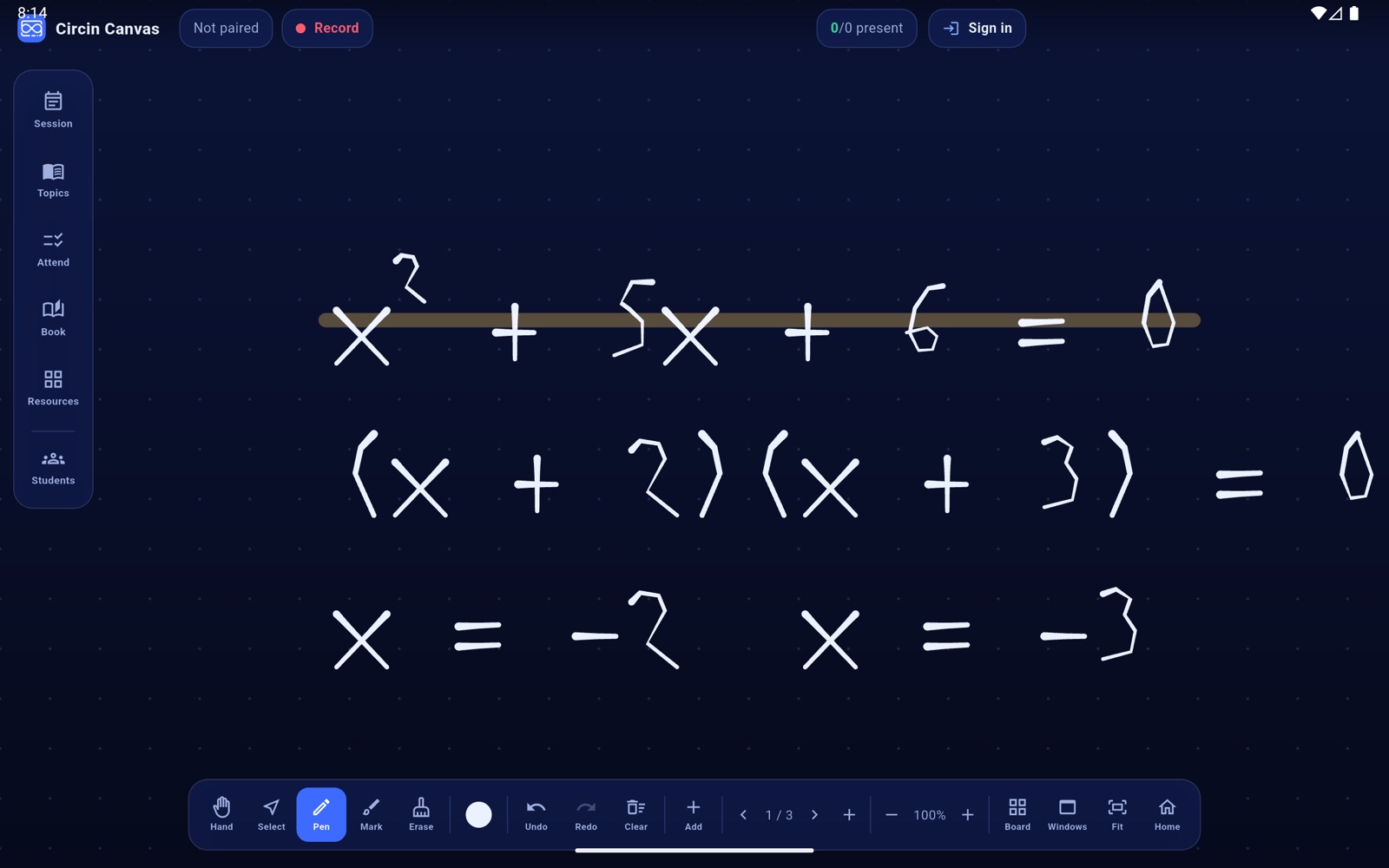
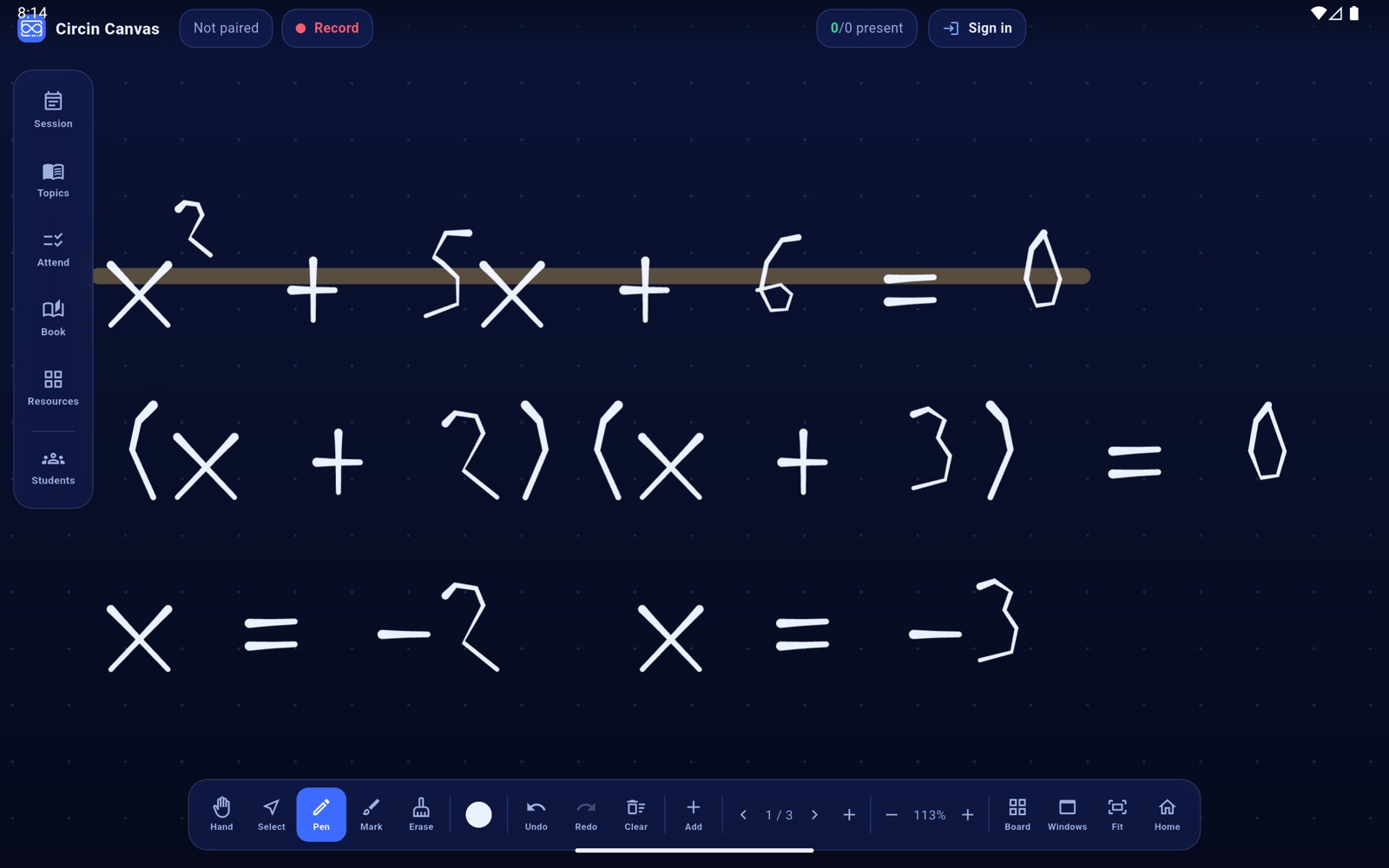
- Tap − and + in the zoom cluster to step out and in by 10% around the centre of the screen. The live percentage sits between them. On a Windows panel, the mouse wheel zooms around the pointer.
How do I get back to my writing?
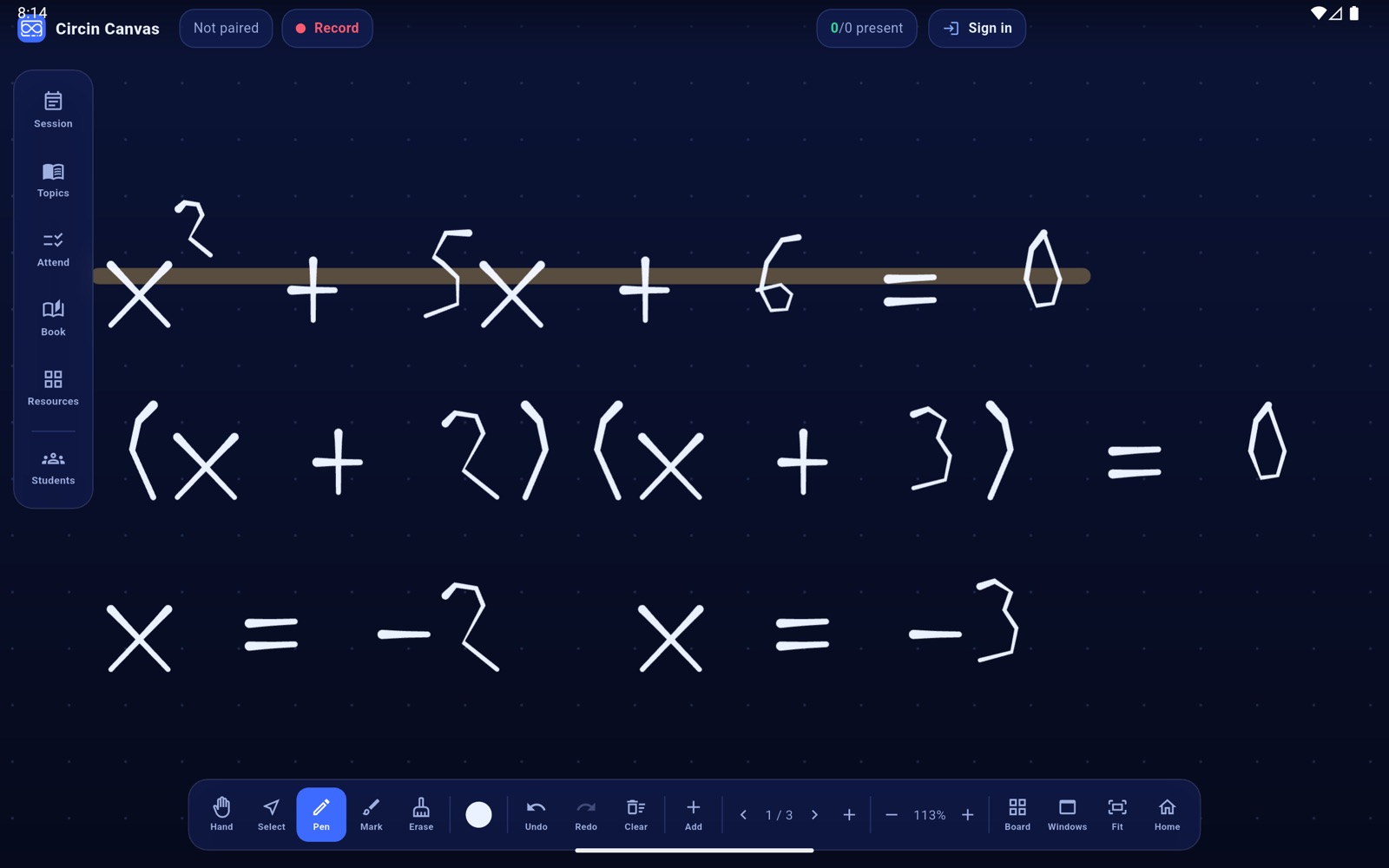
- Tap Fit to frame everything you have written in one view.
- Tap Home to return to the origin at 100%.
Rules and gotchas
- Zoom is limited to between 20% and 600%.
- Fit frames your ink only. It does not take placed cards into account, and it does nothing on an empty page.
- Home moves the camera and nothing else. It never erases.
- The dot grid keeps the same spacing at every zoom level, so at extreme zoom it is your only cue to how far in or out you are. The percentage in the dock is the reliable answer.
If you are running out of room in a way that panning does not solve, start a fresh page instead — see Board pages and the board surface.