Pair Circin Canvas with your phone
Sign in to the classroom board by scanning one QR code with Circin Maestro on your phone. No password is ever typed on the glass.
Updated
Teacher
Also on Circin Maestro: Pair a Circin Canvas board from Circin Maestro
Signing in to Circin Canvas takes one scan. The board shows a QR code, you scan it with Circin Maestro on your phone, and the board is yours — no password is ever typed on the classroom glass.
How do I pair the board?
- On the board, tap Sign in at the far right of the top bar. A full-screen panel opens, headed "Sign in — pair with maestro", with a QR code and a spinner reading Waiting for approval…
- On your phone, open Circin Maestro and tap the cast icon in the top bar. If the period you are about to teach is on the Today card, tap Pair a board there instead — that route passes the class and subject through, so the board arrives already scoped.
- Point the camera at the board. The hint on the phone reads Point the camera at the QR on the whiteboard.
- The scan is the approval — there is no confirm button. Your phone shows Board signed in.
- The board's top bar changes from Not paired to your class, and the chip on the right shows your name next to Sign out. The roster, today's timetable and this class's subjects load.
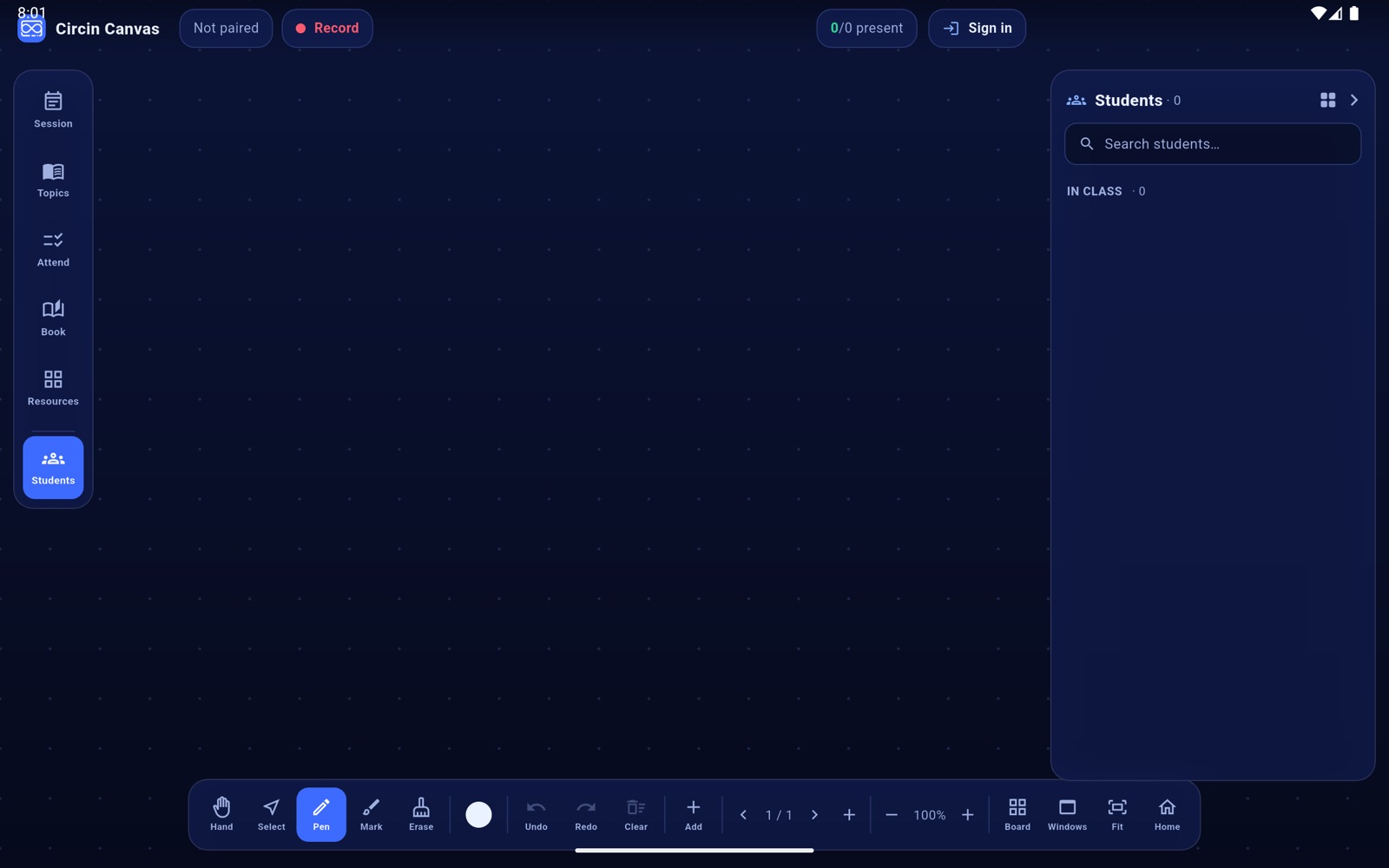
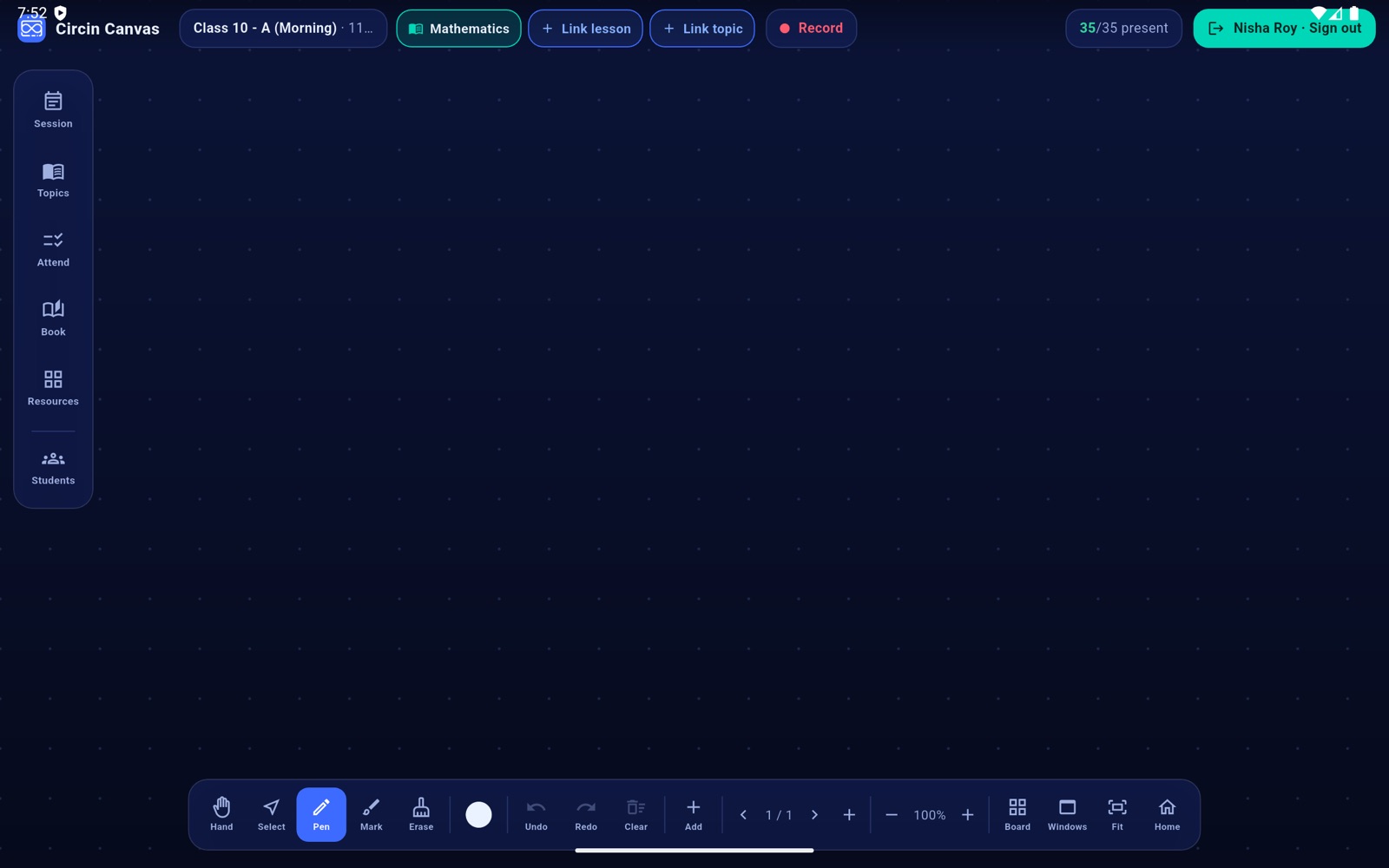
Rules and gotchas
- The QR code is valid for 10 minutes, then the board silently shows a fresh one. If you walked away, scan the new code.
- Photographing the QR gives nobody your session. The half of the exchange that proves possession never leaves the board.
- Pairing from the cast icon carries no subject, so the board shows Pick subject and refuses an ad-hoc session until you choose one. See Start the period on Circin Canvas.
- If the pairing fails the phone says Couldn't pair the board. Please try again. and the scanner restarts.
- The name on the board is read live from your school profile record. If it is wrong, correct it in the admin panel — you do not need to pair again.
Pair once at the start of your day and switch subject on the board between periods. When you are finished, sign out so the next teacher can take the board.