Link the lesson and topic you are teaching
Attach the lesson and topic to the live session on Circin Canvas, so the transcript, board picture and study materials are filed against the right curriculum.
Updated
Teacher
Linking the lesson and topic tells the board which part of the syllabus this period covers. Everything the session captures is then filed against that topic, which is what lets a student find today's material next to the right chapter.
How do I link a lesson and topic?
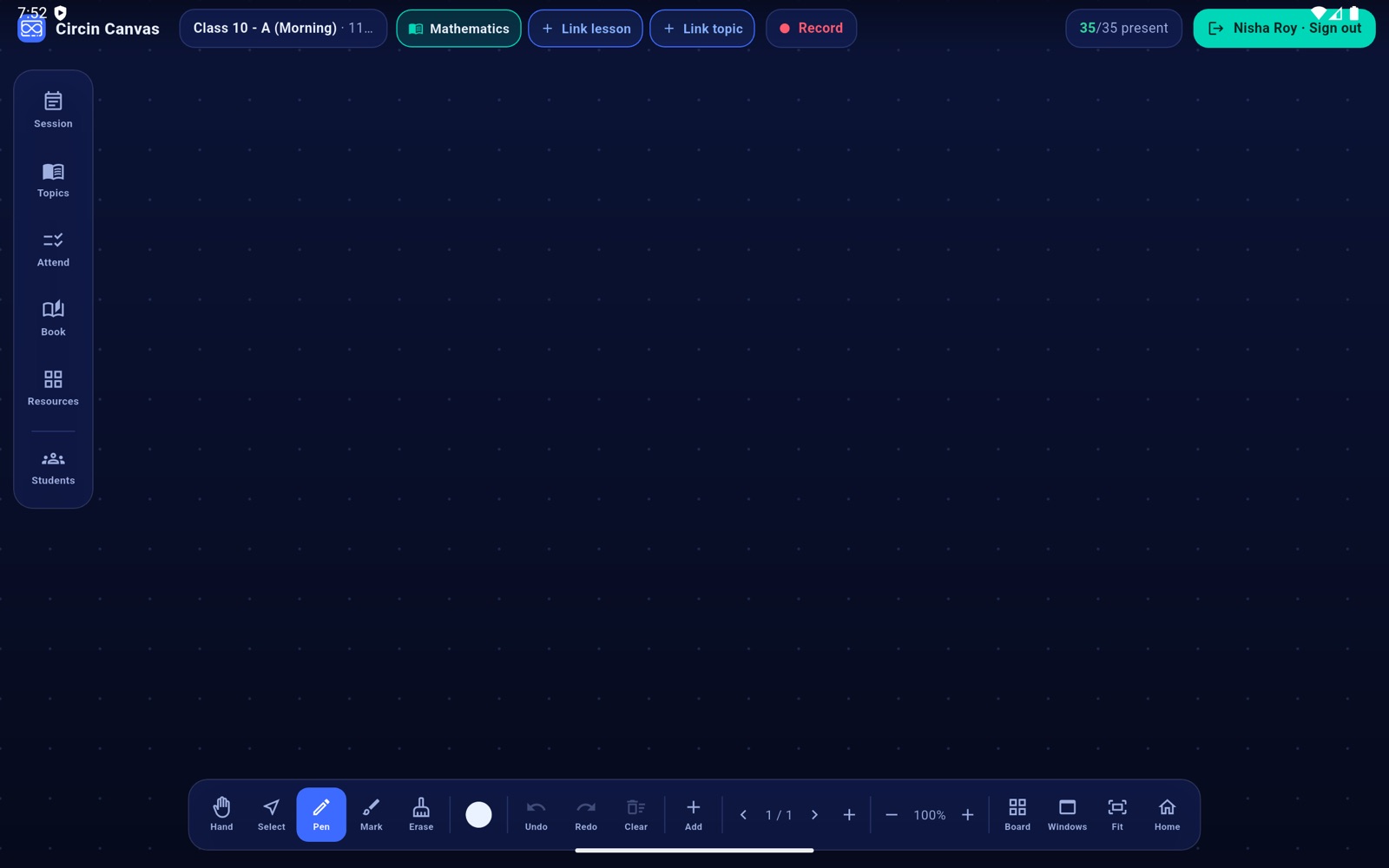
- Tap + Link lesson in the top bar.
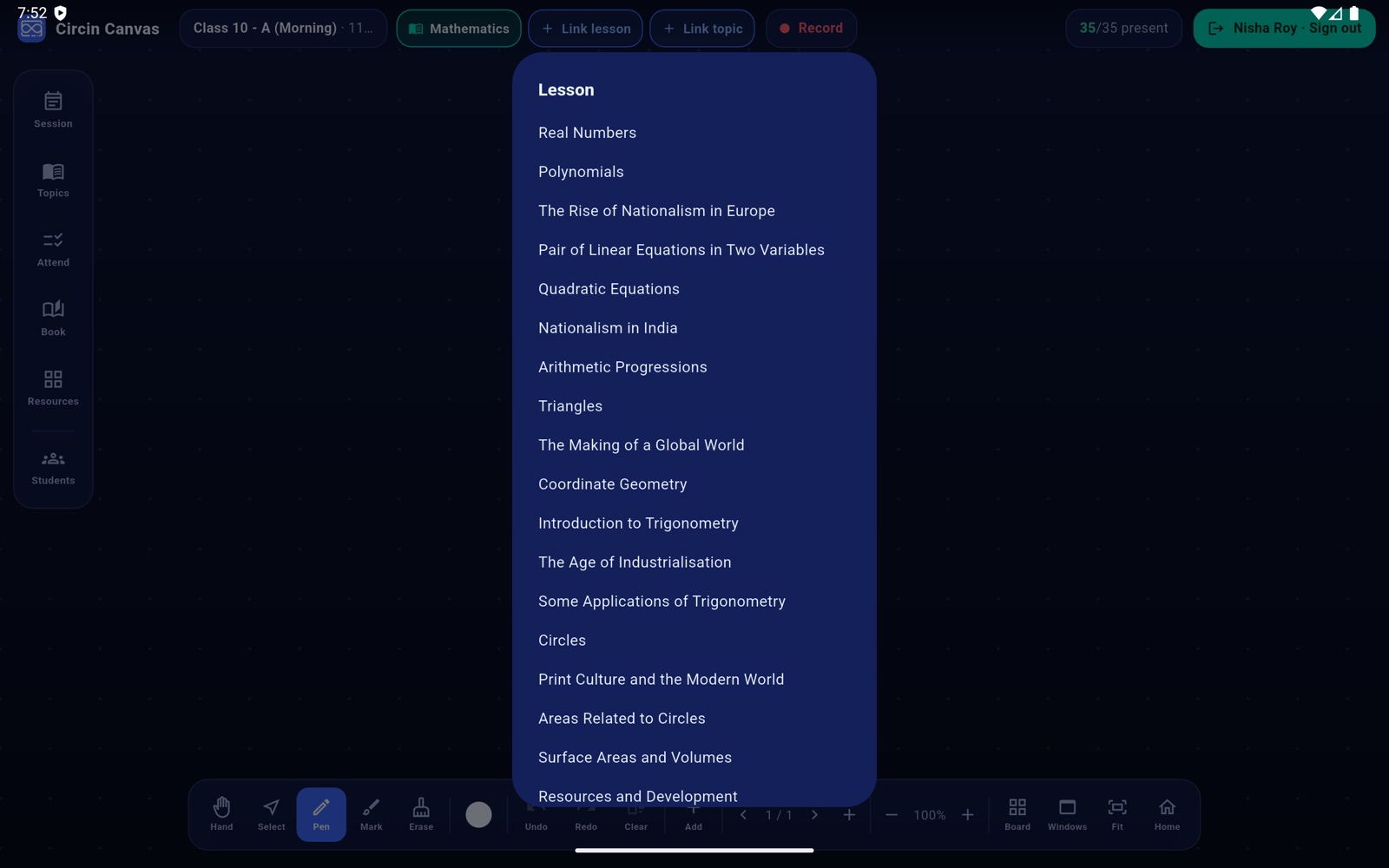
- A Lesson list of that subject's real lessons appears. Tap one.
- If the lesson has topics, a Topic list follows. Tap one, or dismiss the list to link just the lesson.
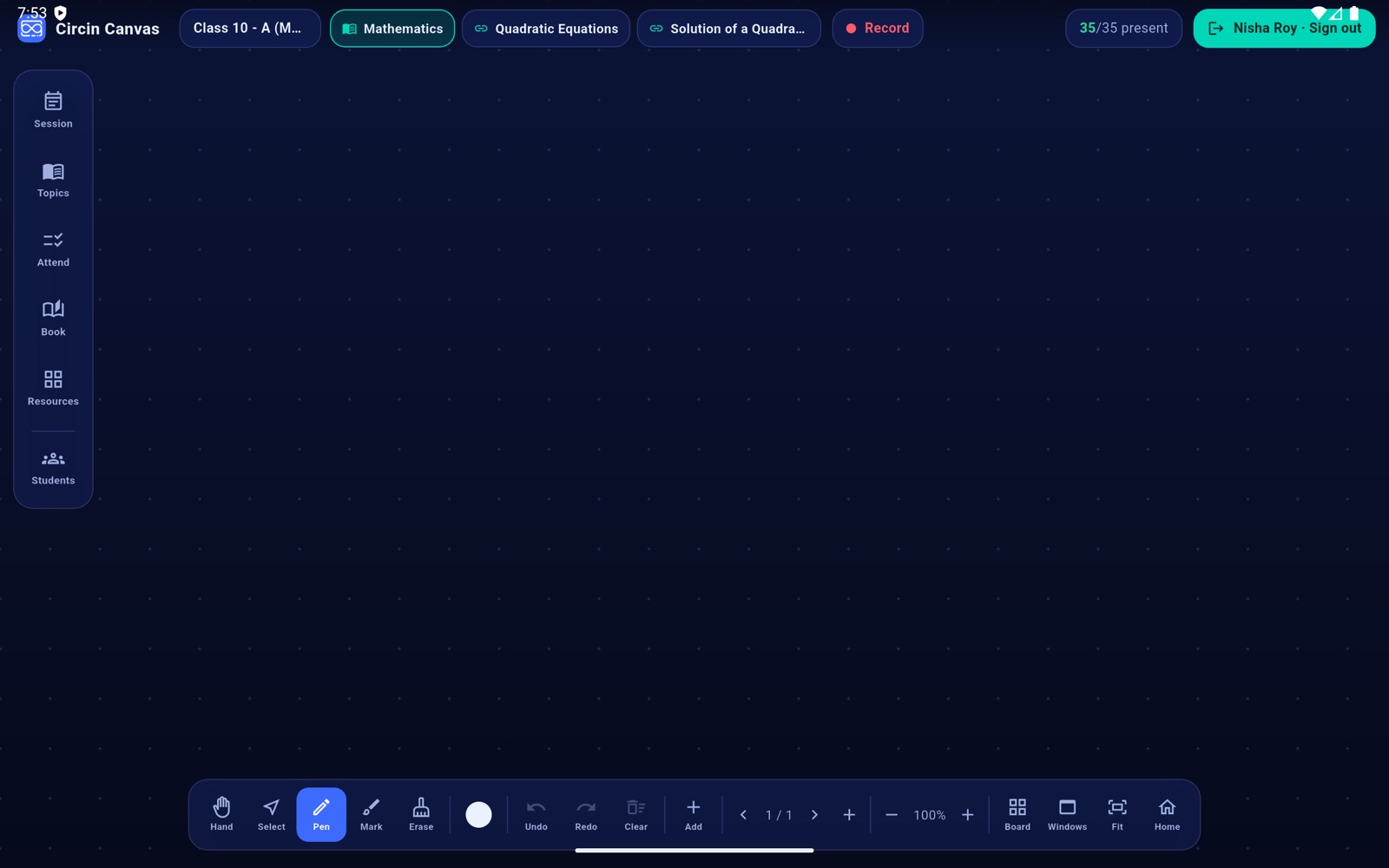
- The chips fill in with the names and the board confirms Linked · followed by the topic name.
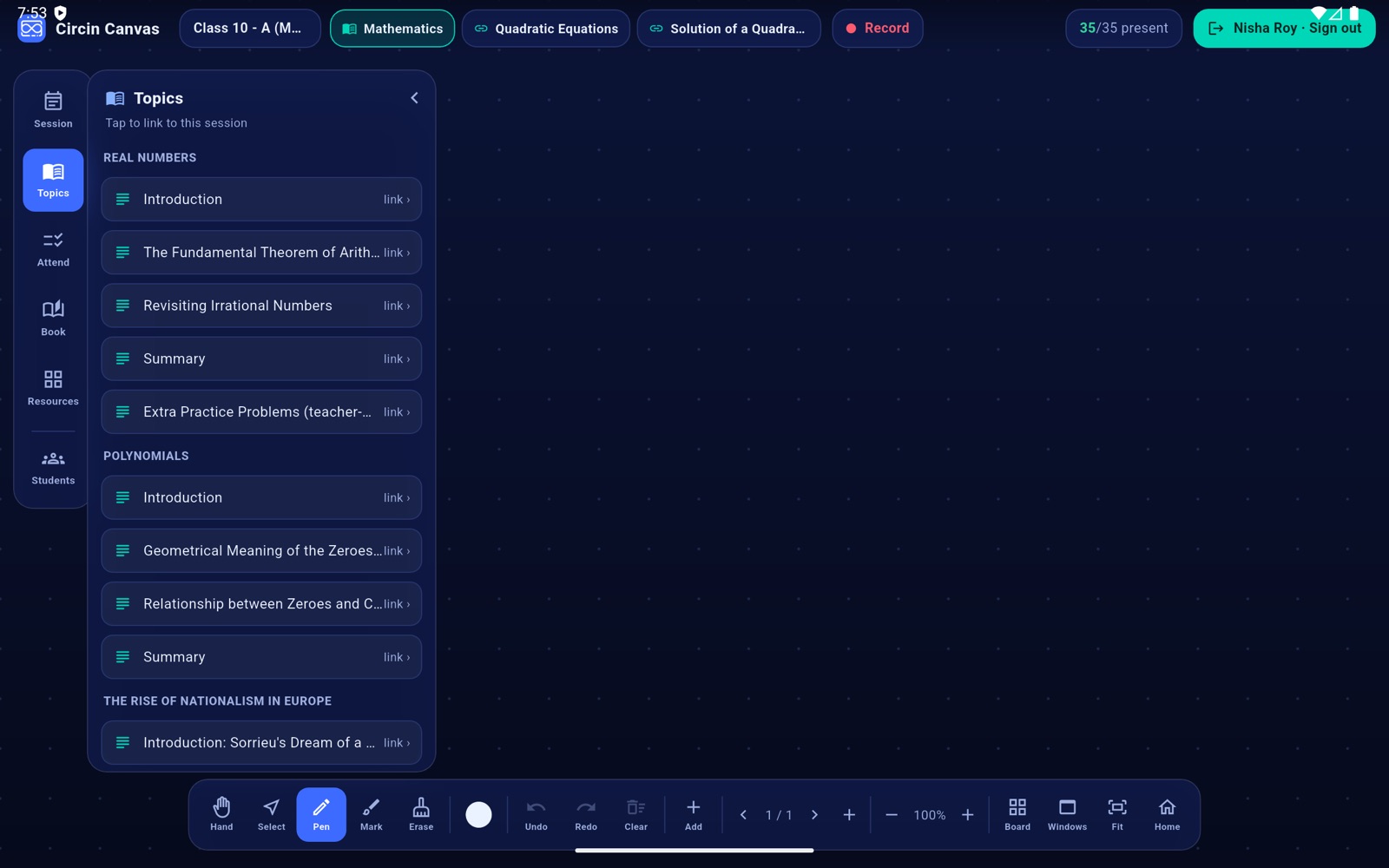
- The same links are available from the left rail: Session shows LESSON and TOPIC rows with change ›, and Topics lists lessons as headings with topics as rows ending in link › — one tap links.
Rules and gotchas
- Lessons are subject-scoped. You will never see another subject's curriculum, which is why the subject chip has to be set first: with no subject, Topics reads Pick a subject (top bar) to see its lessons.
- Linking needs a live session. Without one the chips change on screen but the board warns Start a session first to link a topic, and nothing is saved.
- A subject with no curriculum attached shows No lessons linked for that subject in the panel and No lessons linked for this class in the picker. Ask whoever maintains Academics in the admin panel to attach them.
- Unlinked rows read Not linked rather than a plausible-looking placeholder, so you can always tell.
- If the save fails you get Could not save the lesson link — the link did not persist, so try again.
Tapping a topic only links it. To put its attached material on the glass, tap the file chips underneath — see Put a textbook page or topic file on the board.