Sign out of Circin Canvas and hand over the board
Sign out of Circin Canvas at the end of your period. The board saves the session first, then wipes everything so the next teacher starts clean.
Updated
Teacher
The board is shared. Signing out saves your period to the backend and then wipes the glass, so the next teacher finds an empty board with nothing of yours on it. Sign-out is also how you unpair — there is no separate unpair control.
How do I sign out?
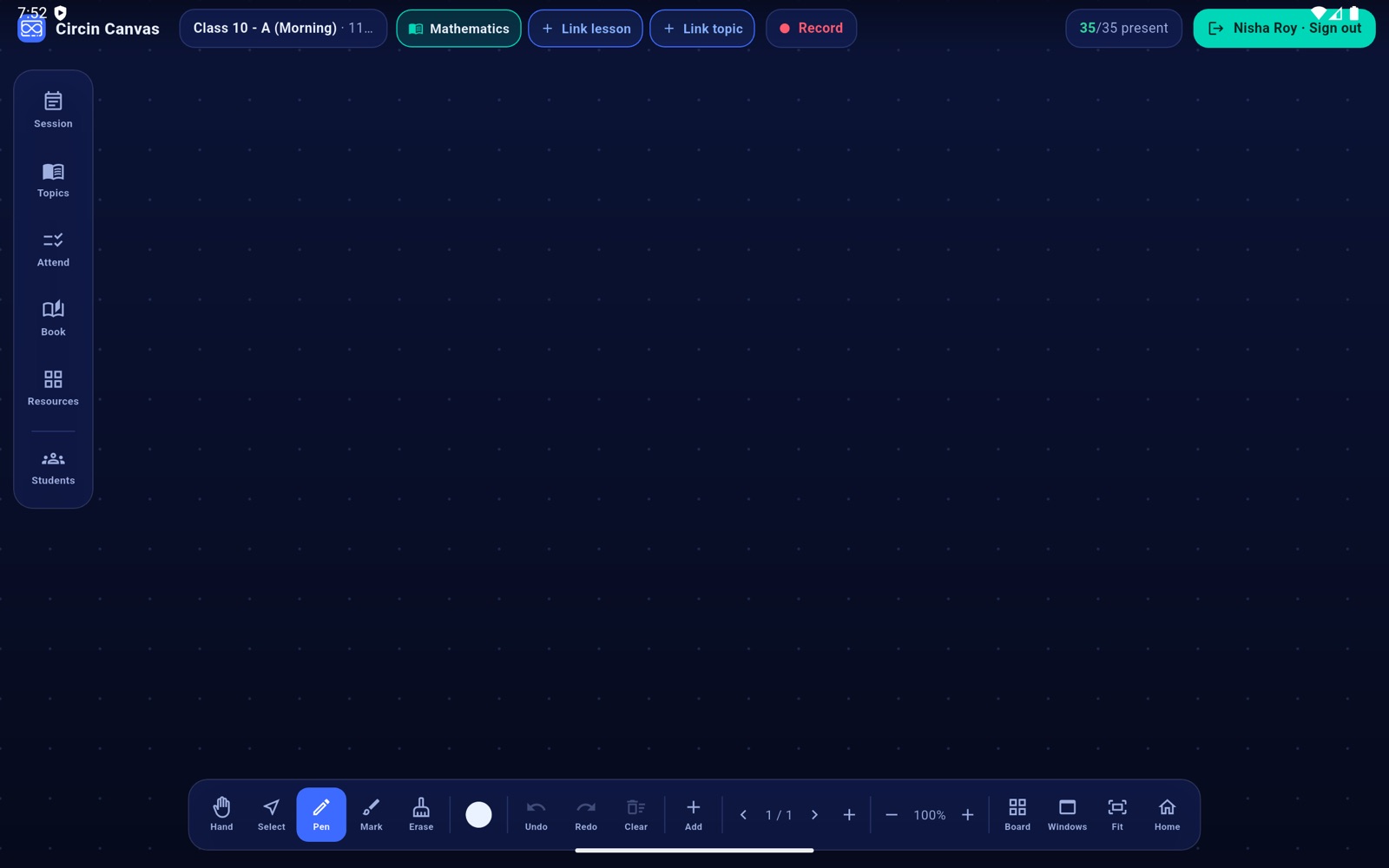
- Tap the chip at the far right of the top bar — it shows your name next to Sign out.
- Confirm in the dialog: "Sign out?" — "The session is saved to the backend first. This can take a few seconds." Tap Sign out.
- The board blocks with Saving your session… don't turn off while it stops any recording, uploads the final picture of the board and flushes every pending write.
- It then shows Signing out…, wipes the board, and confirms Signed out ✓.
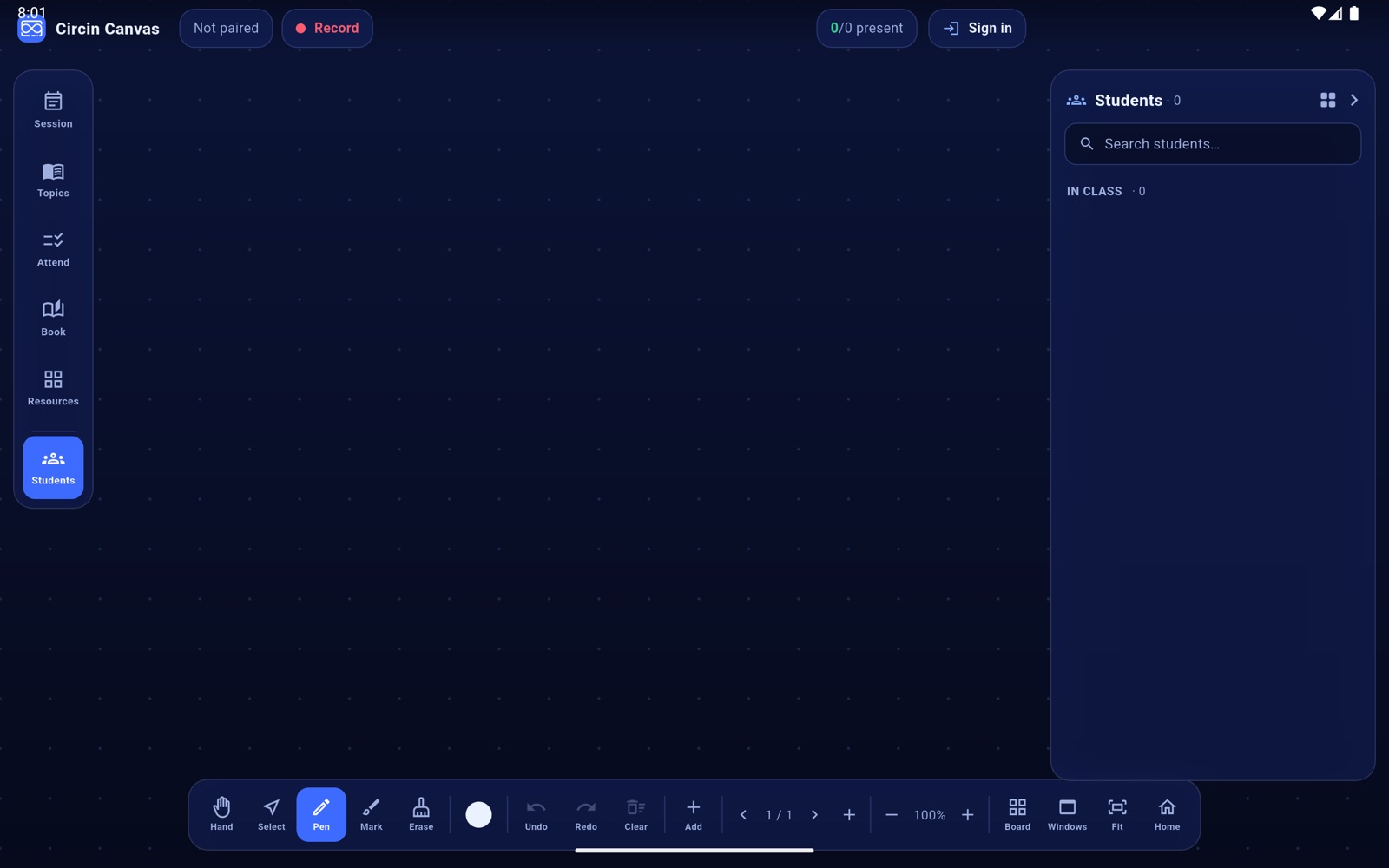
- The board returns to the guest state with Not paired and Sign in, ready for the next teacher to scan a fresh code.
Rules and gotchas
- Save first, wipe second, always. If the save cannot finish inside its 20-second budget, nothing is wiped, you stay signed in, and the board says Couldn't save the session — check the connection and try again.
- The wipe clears all ink and all pages, the window layout and minimised list, every open web and PDF card, the student boards, and the image clips taken for Google searches.
- A running recording blocks sign-out: Stop the recording — the current session is still being saved. Stop the recording, let it save, then sign out.
- Sign-out returns to the guest board rather than jumping to the QR screen. Guest is already the secure state — without a token the board can read nothing.
If you only picked the wrong class or subject, you do not need to sign out. Use Fix a session you started by mistake instead.