Board pages and the board surface on Circin Canvas
Add and move between pages on Circin Canvas, and switch the board between dark and light with dots, grid, lines or a blank surface.
Updated
Teacher
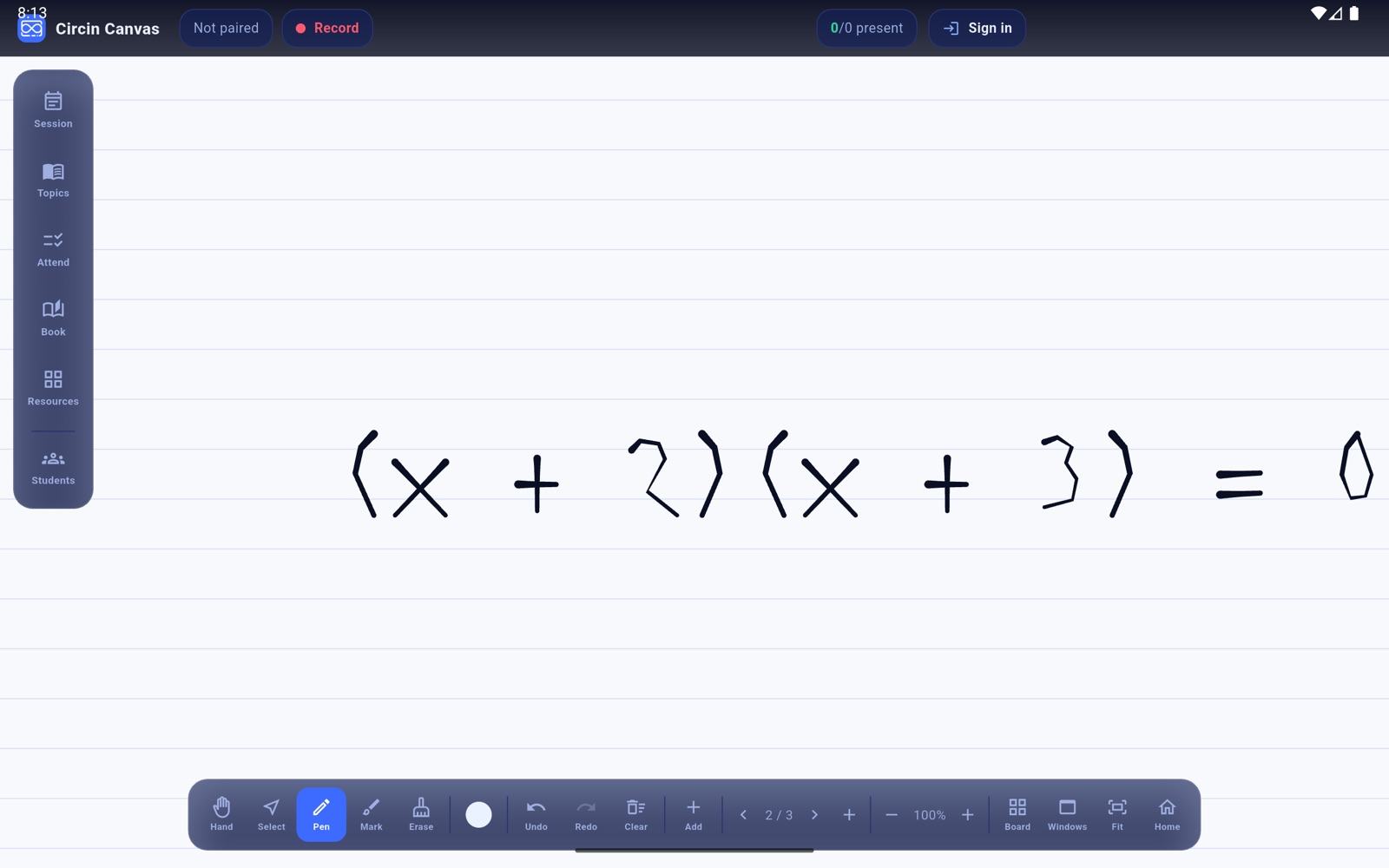
A fresh page gives you a clean board without erasing what you have already written, and the surface picker changes how the board looks behind your writing — dark or light, with dots, a grid, ruled lines or nothing.
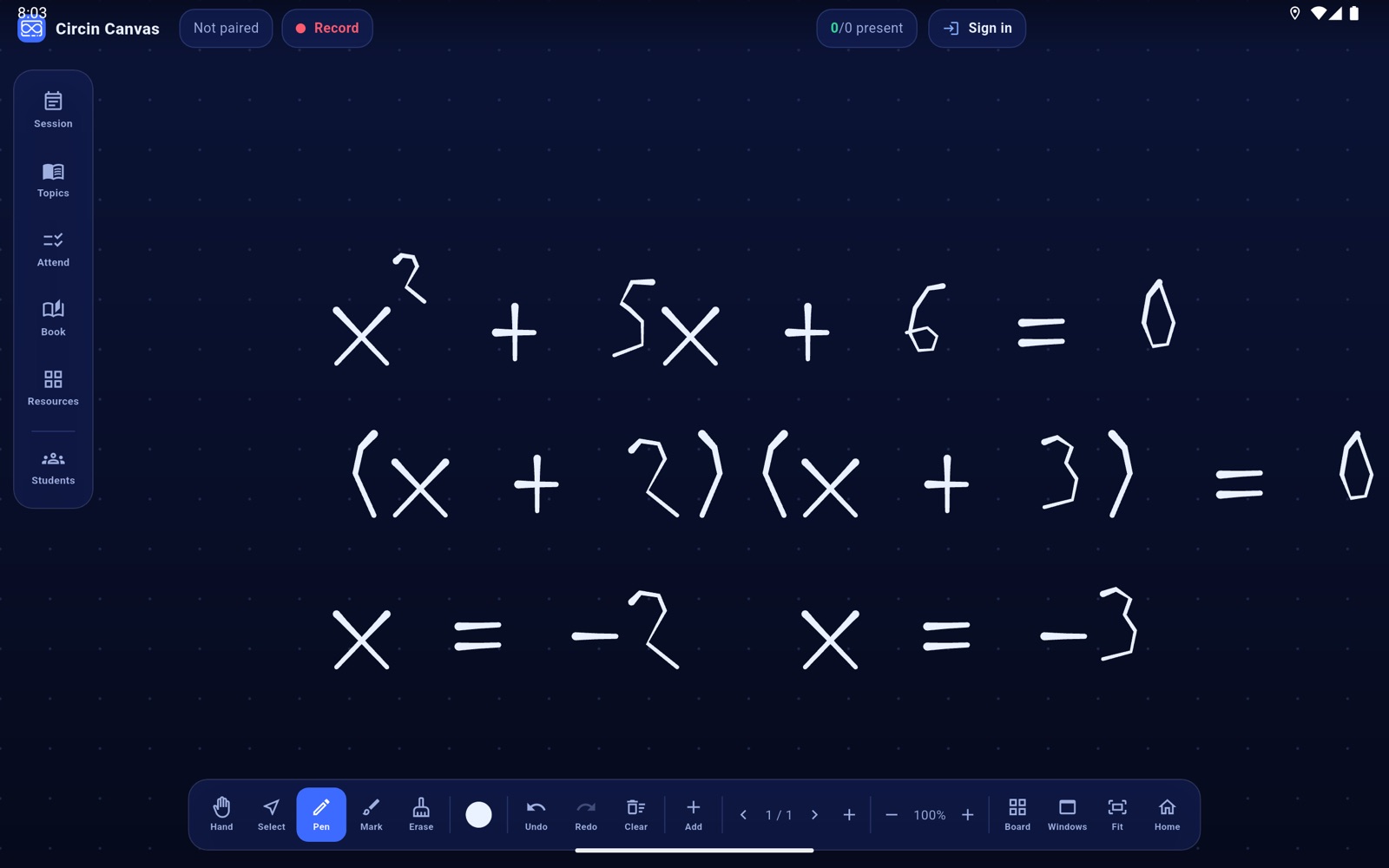
How do I add and move between pages?
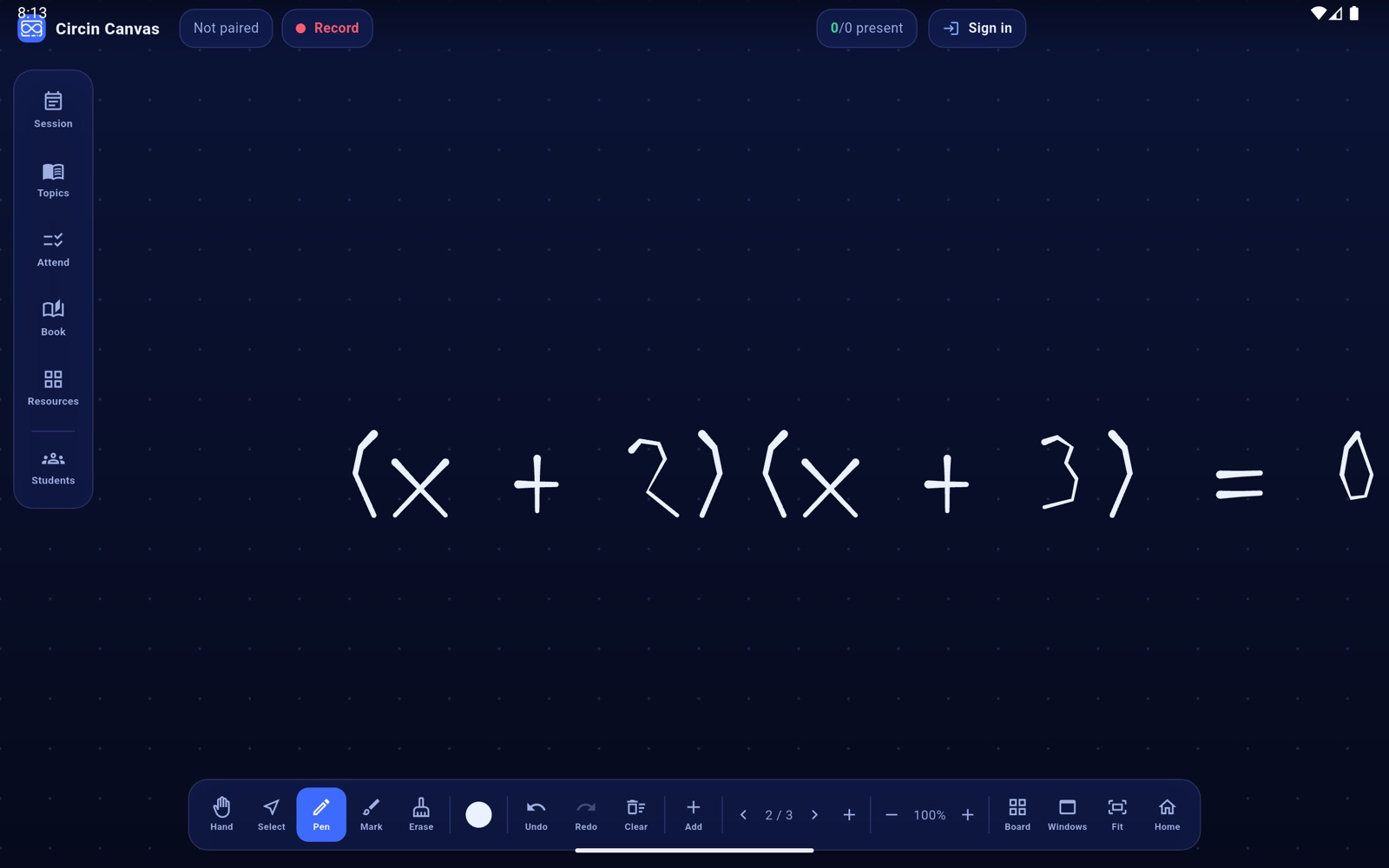
- Tap + in the page cluster at the bottom of the dock. The counter moves to, for example,
2 / 2and the new page opens at the origin. - Tap ‹ and › to step back and forward. The counter always reads current page over total.
How do I change the board surface?
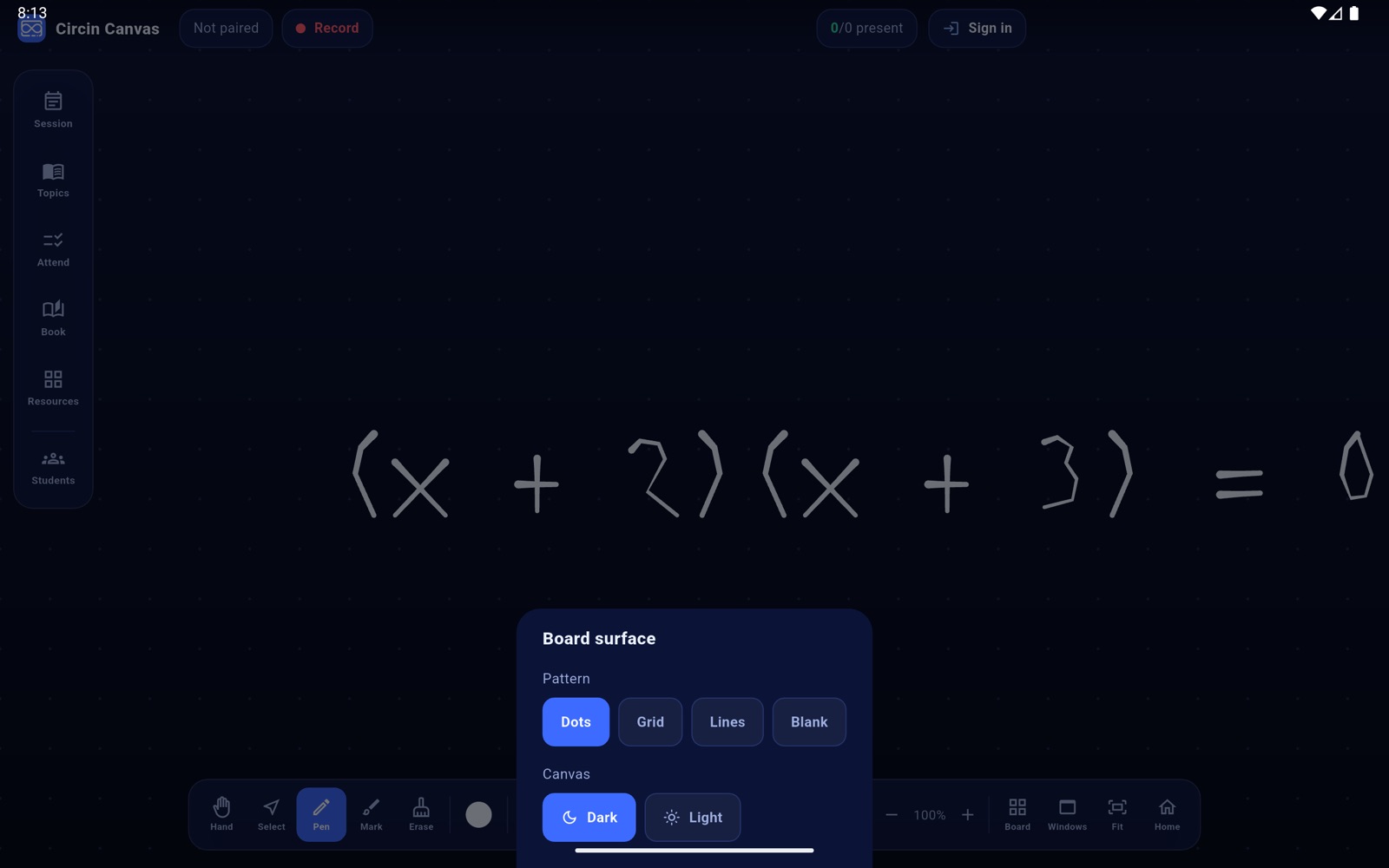
- Tap Board in the bottom dock. A sheet titled Board surface slides up.
- Under Pattern, choose Dots, Grid, Lines or Blank.
- Under Canvas, choose Dark or Light.
- The board changes immediately, and the choice is remembered the next time the panel starts. The board opens dark with dots until you change it.
Rules and gotchas
- Each page keeps its own writing and its own cards. The arrows stop at the ends rather than wrapping round.
- Pages live in the panel's memory only. There is no page save or reopen in this build, and signing out clears every page. The one thing that survives the period is the picture taken when you end the session.
- Only the canvas changes colour when you switch to Light. The floating bars and panels stay dark, by design, so they read against either surface.
- Ink set to Auto re-colours itself when you switch surface, so nothing disappears. A pinned colour does not, so a black stroke on the dark board stays black and invisible.
- The page cluster and the zoom cluster both have a +. They sit in different groups at the bottom of the dock.