Write on the Circin Canvas board
Use the pen and highlighter on Circin Canvas, choose ink colour and thickness, and erase, undo or clear what you have written.
Updated
Teacher
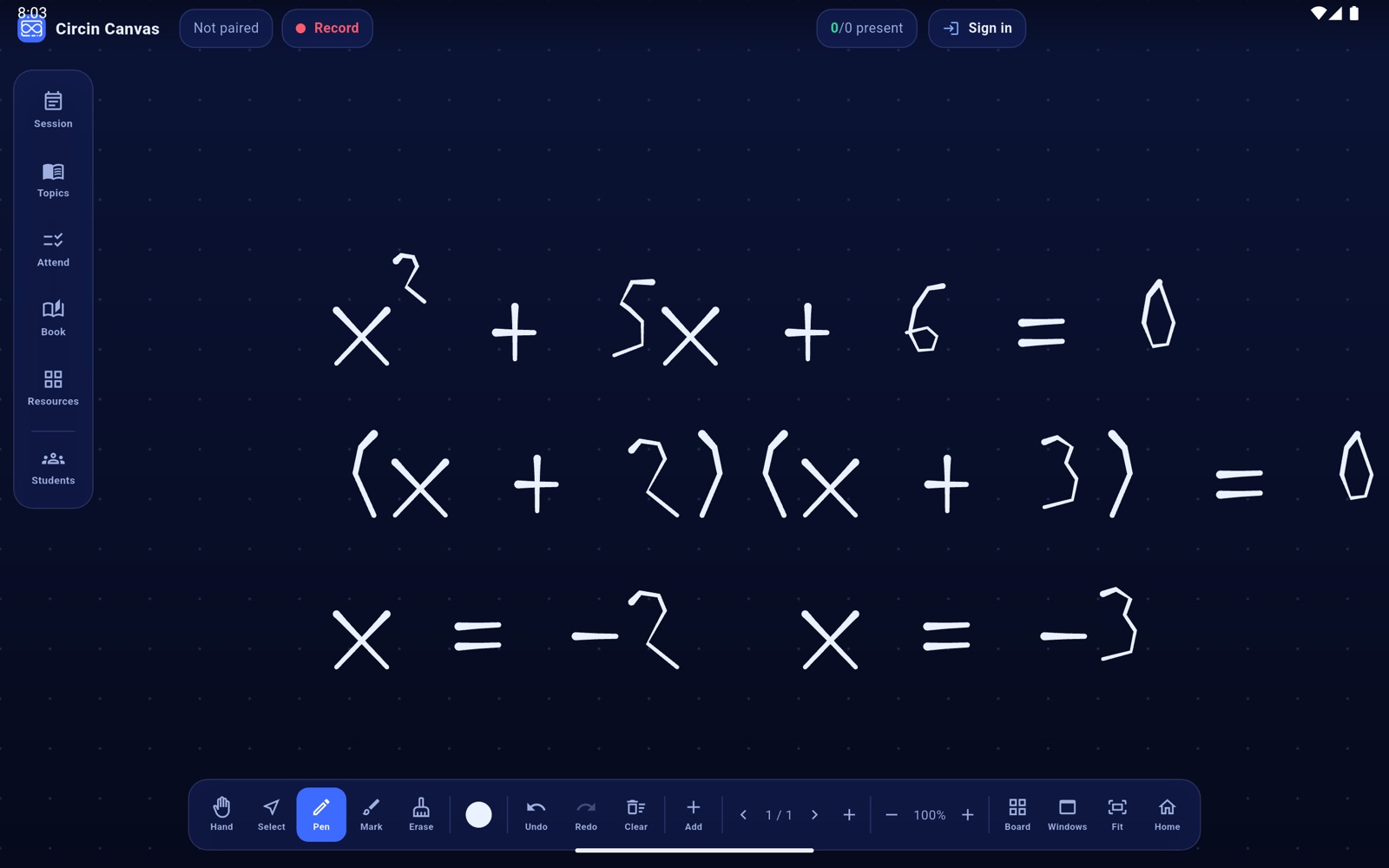
Writing is the board's default state: open Circin Canvas, put a finger or a stylus on the glass, and it draws. The rest of this page is the ink you can choose and the four ways to take writing back off again.
How do I write and highlight?
- Tap Pen in the bottom dock — it is already selected when the app opens — and write. One finger draws.
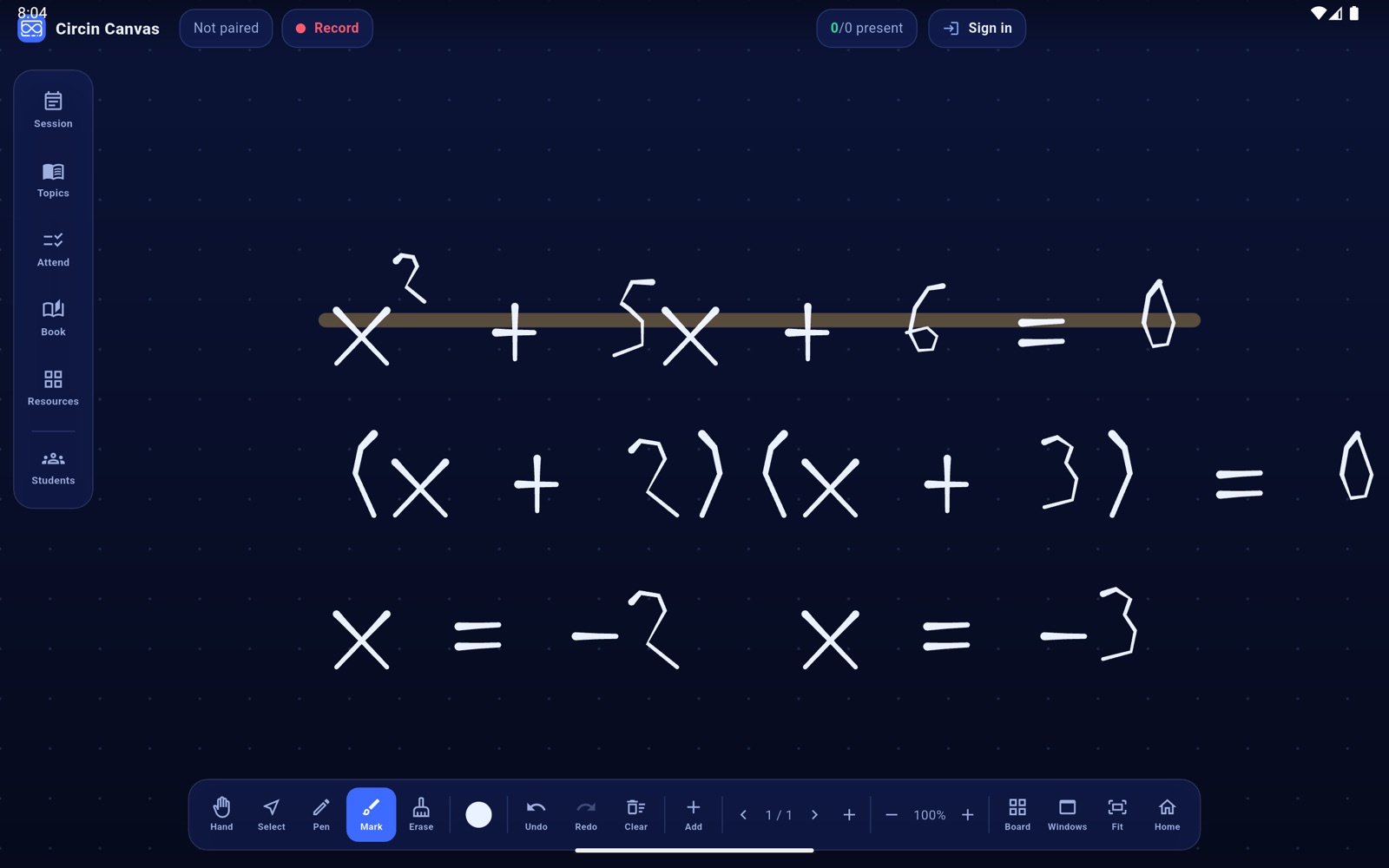
- Tap Mark for the highlighter: a wider, translucent stroke that sits over what is underneath instead of hiding it.
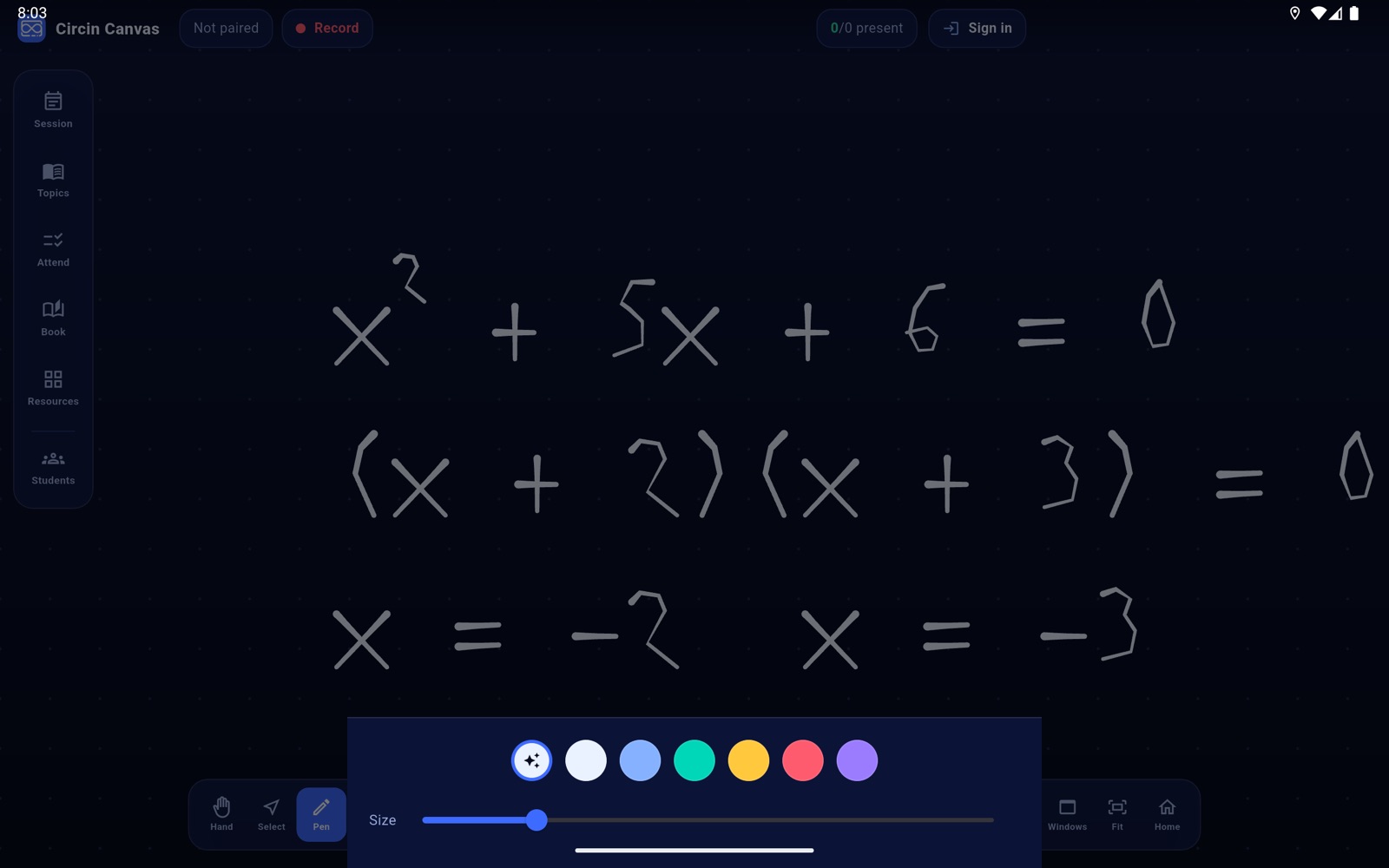
- Tap the round colour swatch to open the pen sheet. The first swatch is Auto, marked with a sparkle: ink that stays readable on whichever board surface you are on, and that re-colours itself if you switch surfaces later. Tap any other swatch to pin a fixed colour.
- Drag the Size slider for thickness.
How do I erase, undo or clear?
- Tap Erase and drag across what you want gone. It removes whole strokes it touches, not pixels, so you do not have to trace over your own writing.
- Tap Undo to take back the last stroke and Redo to put it back. Both grey out when there is nothing to do.
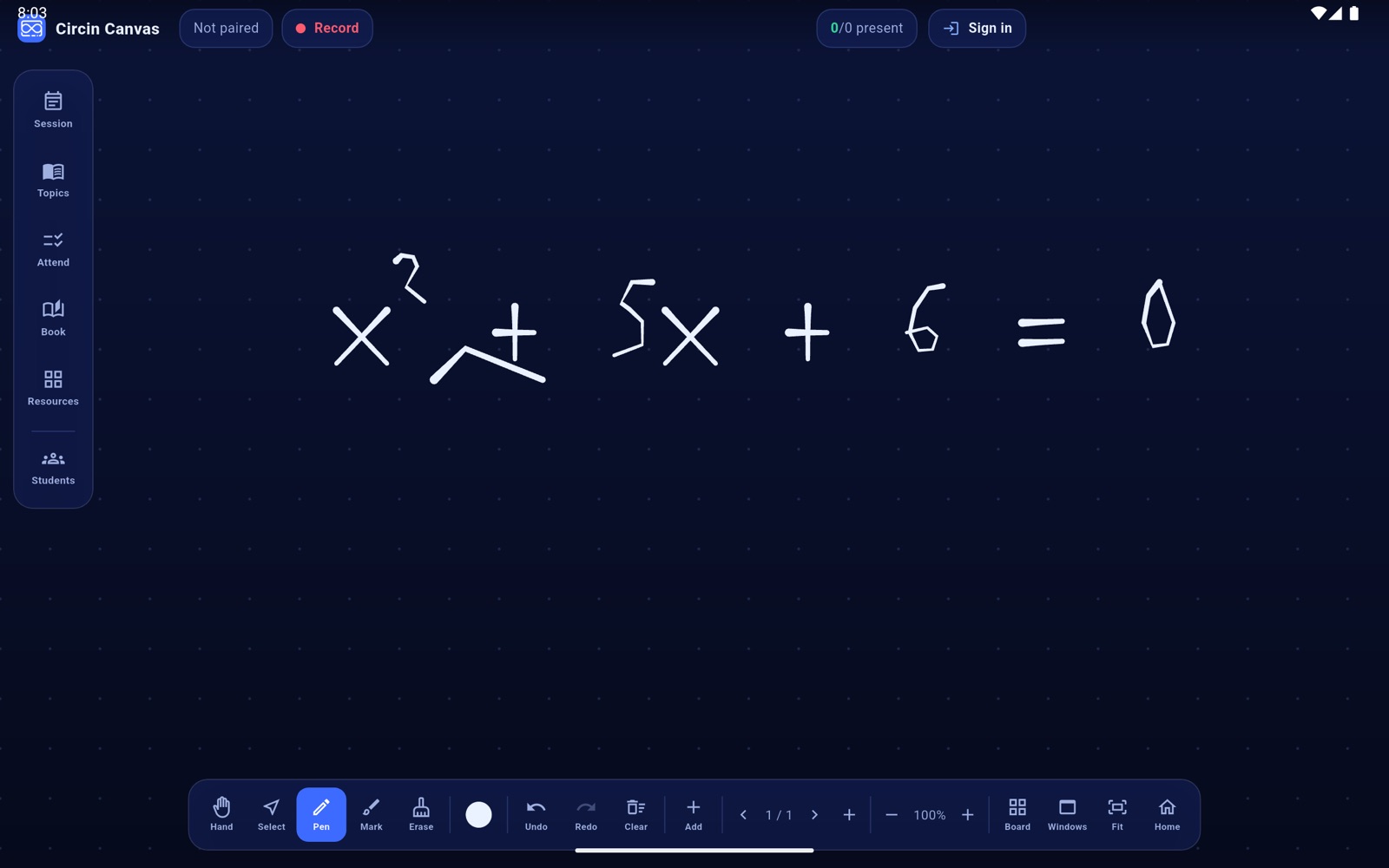
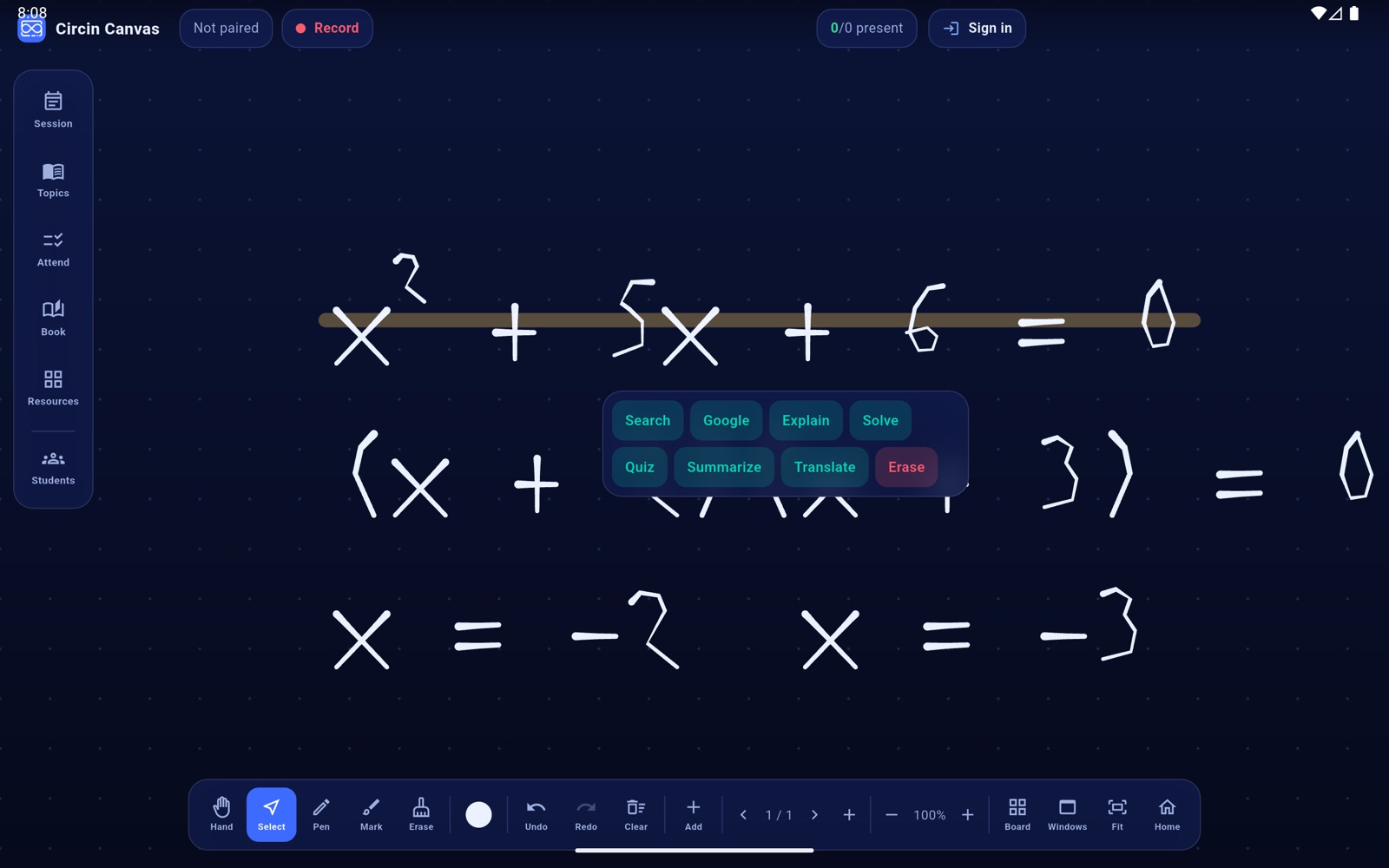
- To wipe a region, tap Select, drag a rectangle round it, and choose Erase from the menu that pops up. Every stroke overlapping the rectangle goes.
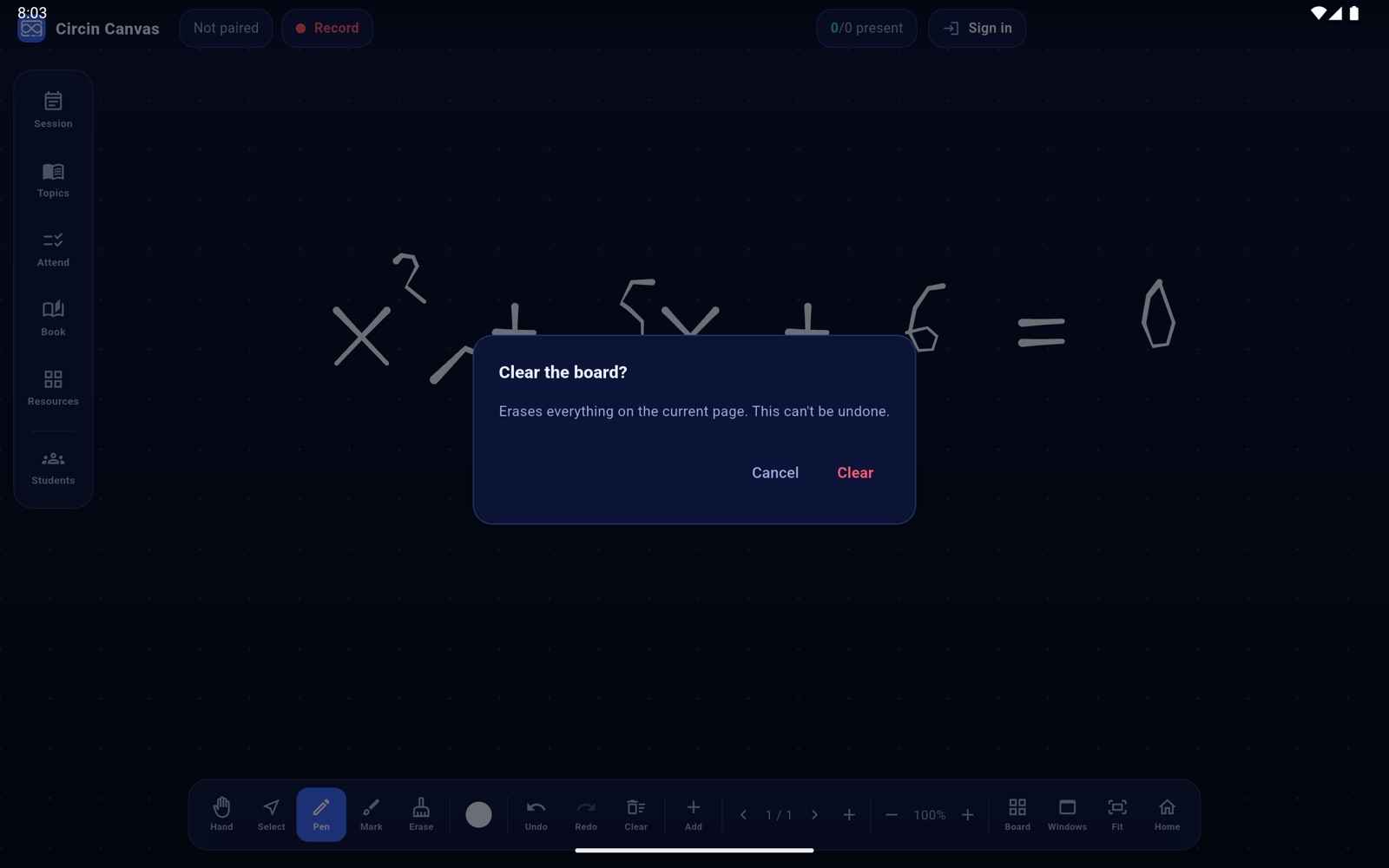
- Tap Clear to empty the page you are on. The board asks first: "Clear the board?" — "Erases everything on the current page. This can't be undone."
Rules and gotchas
- Auto ink is the safe default. Pinning a colour opts out, and a dark stroke on the dark board is invisible. Choosing a colour also takes you out of the eraser.
- Clear empties only the page you are on, cannot be undone, and empties the undo stack with it. It leaves placed cards alone — close those from the ✕ in their own header.
- Strokes live in the canvas, not on the screen, so they pan and zoom with everything else.
- This build has no pressure sensitivity, no shape or ruler snapping, and no text boxes. Select draws a rectangle for erasing and for asking AI; it does not pick up and move strokes.