Fix a session you started by mistake
Unbind the wrong period on Circin Canvas and pick the right one, without signing out and without losing anything already saved.
Updated
Teacher
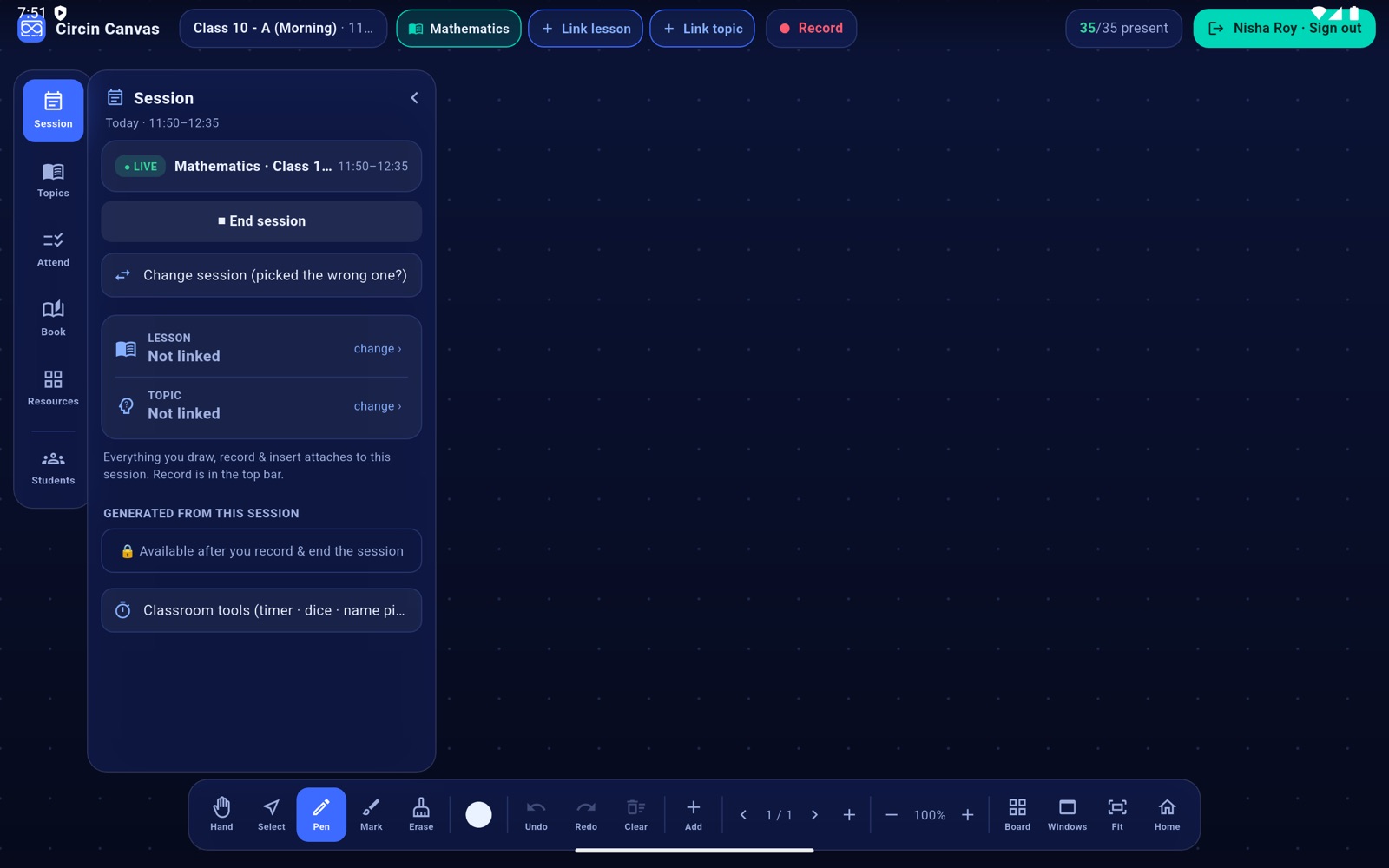
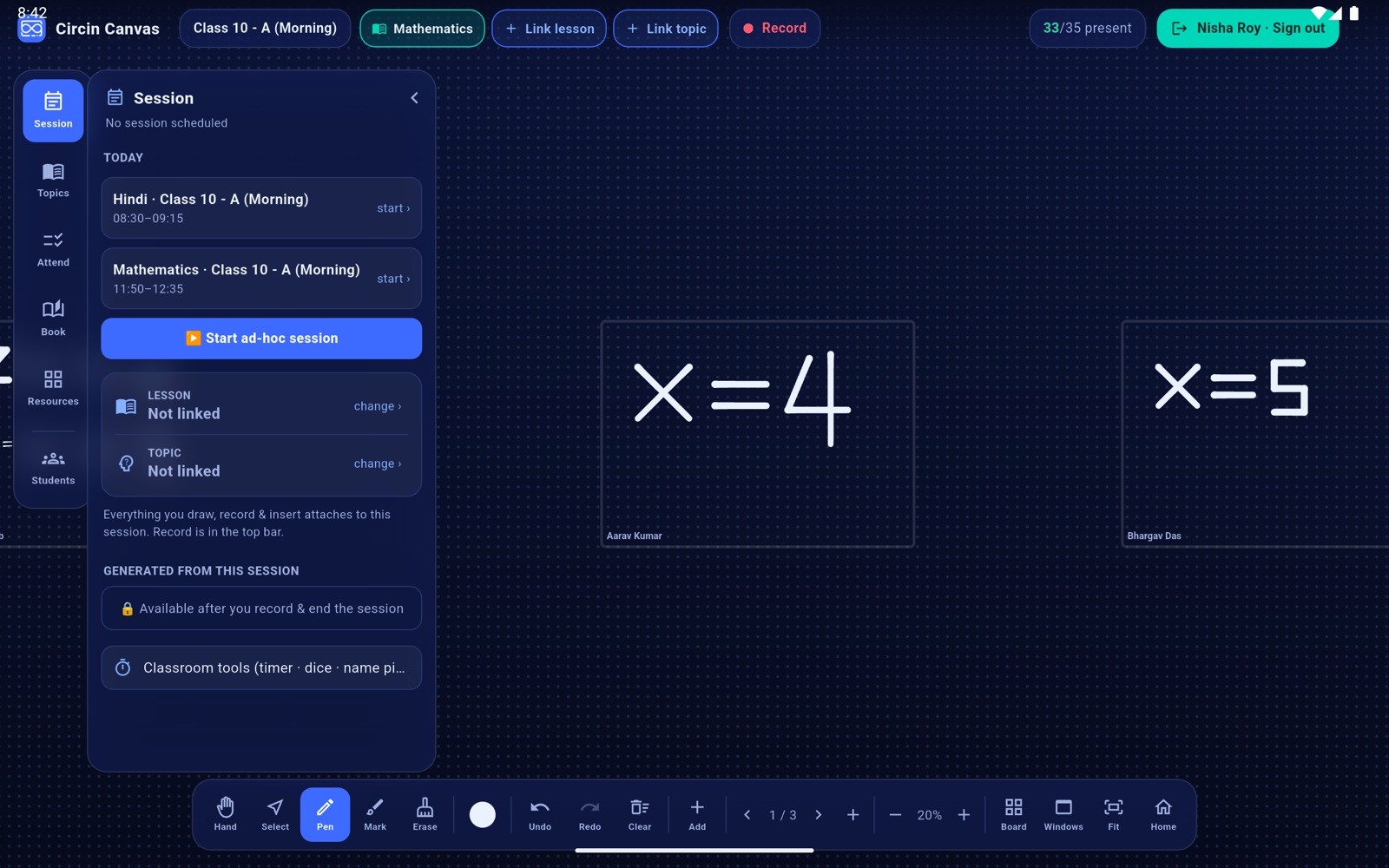
Tapping the slot above the one you meant is easy to do in a busy corridor minute. Change session unbinds the board from the wrong period and takes you back to today's list, without signing out and without dropping anything that has already been saved.
How do I change the session?
- Tap Session on the left rail.
- Tap Change session (picked the wrong one?).
- The board unbinds the session and says Session unbound — pick the correct one. The panel closes, and the lesson and topic links clear.
- Tap Session again to bring back today's list, then tap the right slot, or start an ad-hoc session.
Rules and gotchas
- Changing the session clears the lesson and topic links, the time range, the working transcript and any generated materials held on screen, so the new period never inherits the old one's content.
- It does not delete the session record already created. It only unbinds this board from it; the board has no way to remove a session started by mistake, so a period you never taught stays in the records as started.
- It will not run while something is still being written. You get Stop the recording — the current session is still being saved or Saving the current session… try again in a moment instead. Stop the recording, wait for the save, then try again.
- Your writing on the board is untouched — only the session binding changes.
This is also the way to change subject mid-period: while a session is live the subject chip is locked, so unbind first and then pick the right slot.