Search a circled region in Google AI Mode
Send a region of the Circin Canvas board to Google AI Mode and read the real Google result in a card on the board, hands-free.
Updated
Teacher
When you want Google's own answer rather than Circin's, the Google verb opens the real Google AI Mode page in a card on the board and submits your clipped image to it for you. Nothing is reworded in between — the class reads Google's page as Google wrote it.
How do I search a region in Google?
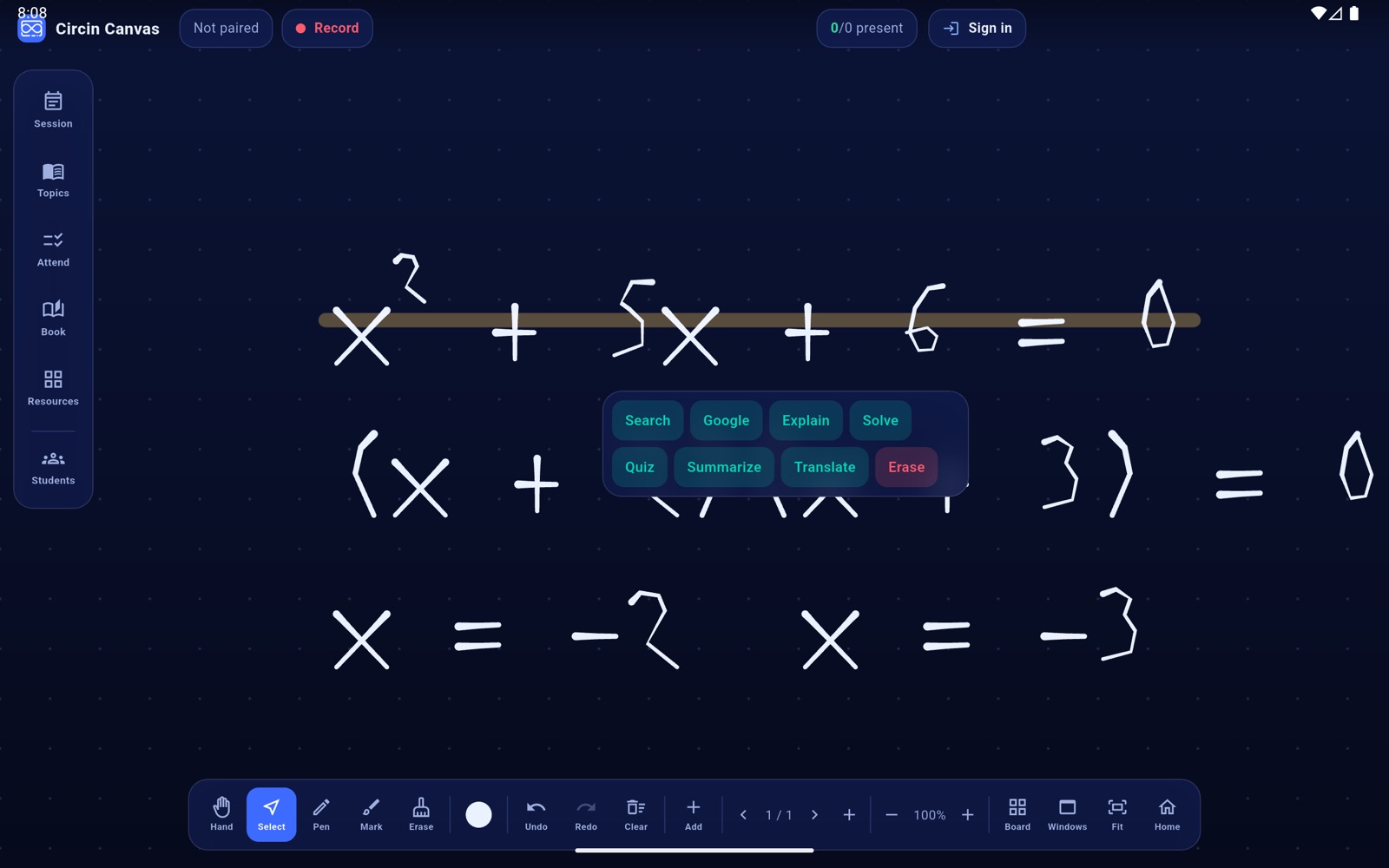
- Tap Select in the bottom dock and drag a rectangle round the region.
- Choose Google from the menu that appears.
- A card titled ✨ AI opens on the canvas with Google AI Mode inside it. The board hands your clip to Google's image field and submits it — you do not have to upload anything.
- Read, scroll and tap inside the card as you would in a browser. Drag, resize and close it like any other card.
Rules and gotchas
- This is Google's page, rendered as it is. Circin does not read it, rewrite it or republish it. Google's header, logo and sign-in links are hidden so the class sees the answer rather than the browser furniture.
- With nothing selected you get Nothing to search — draw or place something first. If the clip cannot be prepared: Couldn't prepare the image — try again.
- If Google changes its page and the automatic hand-off misses, the fallback is manual — tap the camera icon in Google's own search box and choose the image.
- Every clip is written to a temporary file on the panel, and all clips are deleted when you sign out, because they can contain a student's work.
- On iPad and on Windows the card asks Google for its mobile page, which is the only version that offers the image field.
For an answer that stays on the board and cites its sources in a Circin card, use one of the other verbs — see Circle anything on the board and ask AI.