Open a subject in Circin
Open the Subjects tab in Circin to see every subject with its progress, then read the overview and filter it down to one chapter or topic.
Updated
The Subjects tab is the school side of Circin: every subject you are taught, how far each one has got, and everything your teacher has put behind it.
How do I open a subject?
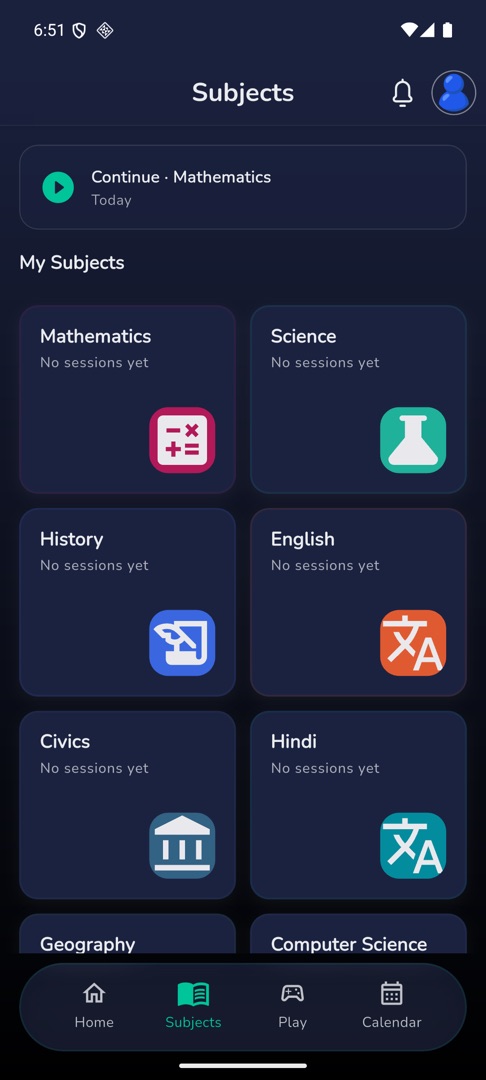
- Tap Subjects in the bottom bar.
- If you opened a subject recently, a "Continue · " strip sits at the top — tap it to go straight back in.
- Under "My Subjects", each card shows the subject name,
{done}/{total} Completed(or "No sessions yet"), a percentage and a progress bar. - Tap a card. Pull down on the grid any time to refresh it.
What is inside a subject?
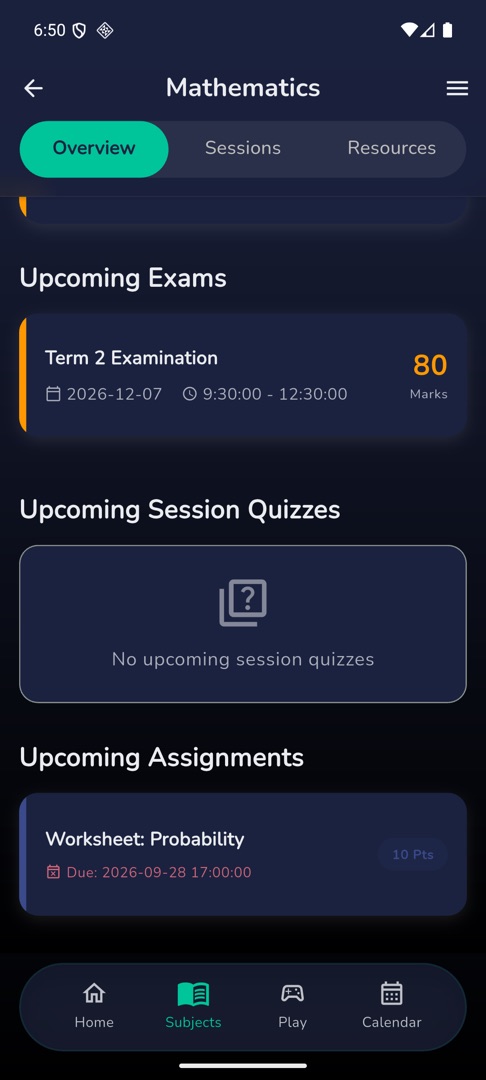
Three tabs: Overview, Sessions and Resources.
Overview opens with "Recent Announcements" for the subject, then "Upcoming Exams", "Upcoming Session Quizzes" and "Upcoming Assignments" as three separate lists — school exams and in-app quizzes are never mixed together. Each list has its own empty state, so a quiet subject shows "No upcoming exams", "No upcoming session quizzes" and "No upcoming assignments" one under the other.
Sessions is the lesson-by-lesson timeline. Resources is everything your teacher has attached.
How do I look at just one chapter?
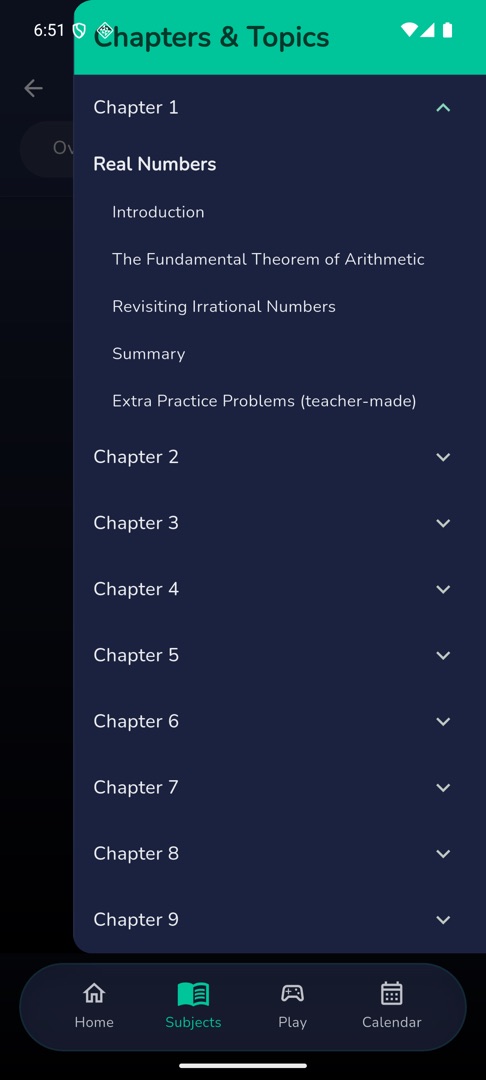
- Tap the ☰ icon in the subject's app bar to open "Chapters & Topics".
- Chapters are listed as Chapter 1, Chapter 2 and so on — expand one to see its name and its topics.
- Tap a chapter or a topic. All three tabs filter to it and the header becomes
Chapter: <name>orTopic: <name>. - Tap the subject name in the app bar to clear the filter again.
Rules and gotchas
- The Continue strip disappears if that subject leaves your list — a dropped elective, for example.
- Empty states you may meet: "No subjects available.", "No chapters found", "No upcoming exams", "No upcoming session quizzes", "No upcoming assignments".
- Your subjects are set by your school. If one is missing, ask the school office rather than looking for an add button.