Review your Session Quiz results in Circin
Open a completed Session Quiz in Circin for your marks, the correct and incorrect counts per mark value, and the answers when your teacher releases them.
Updated
Student
Every Session Quiz you finish stays in the Completed tab with its marks, and — once your teacher releases the answers — a question-by-question review.
How do I open a past attempt?
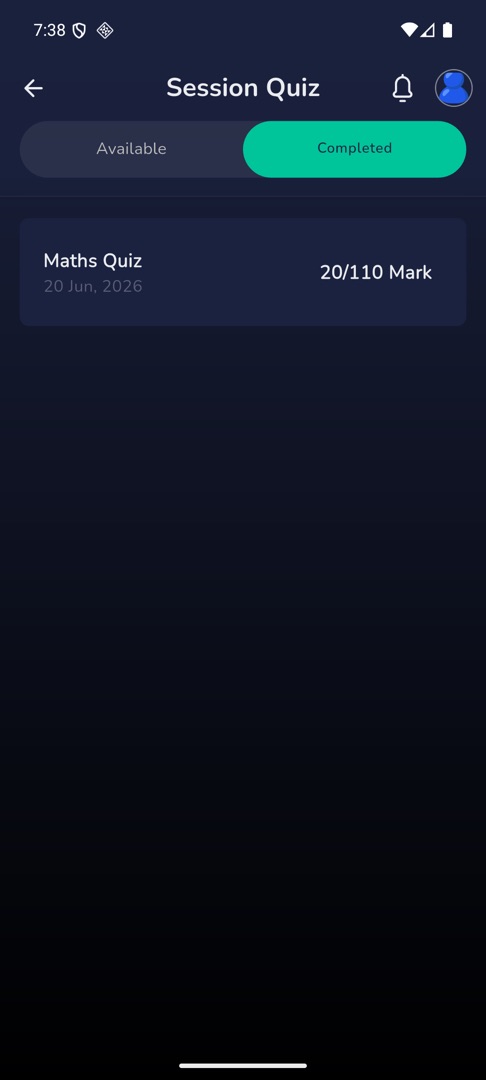
- Open Session Quiz and tap the Completed tab. Each attempt is listed with its title, date and a
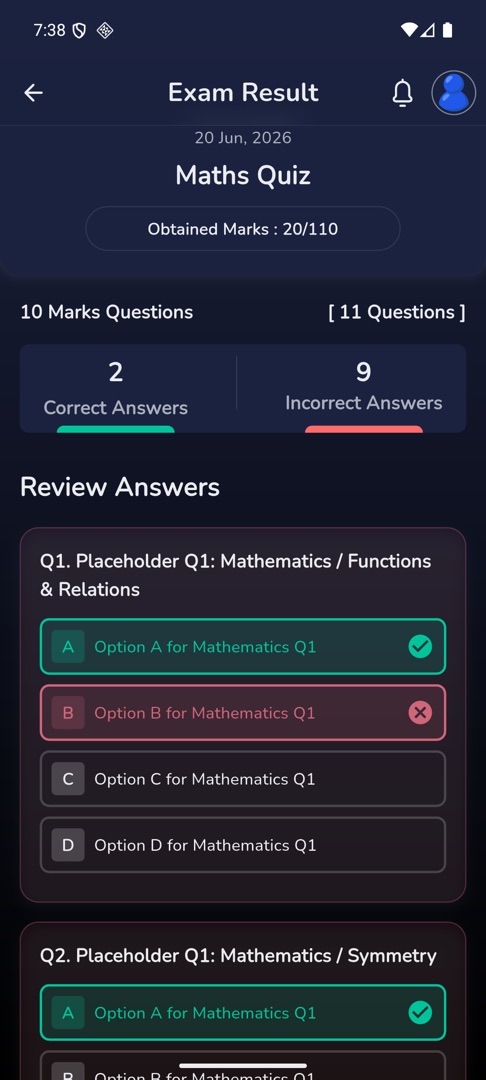
{obtained}/{total} Markchip. The View Results button on a session card in Subjects lands in the same place. - Tap an attempt. "Exam Result" opens with the date and
Obtained Marks : {obtained}/{total}. - Under it, a breakdown per mark value:
{n} Marks Questions,[ {n} Questions ], Correct Answers and Incorrect Answers.
Where are the right answers?
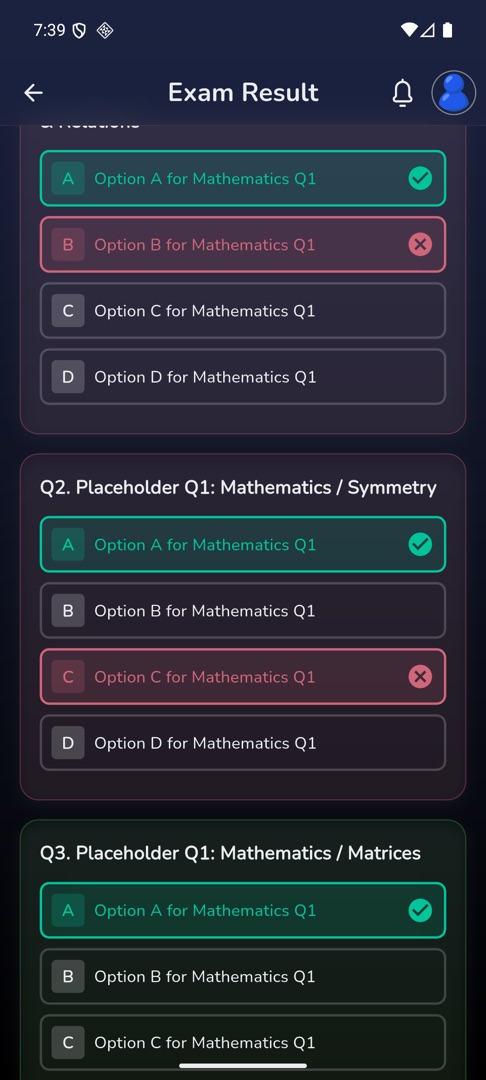
When your teacher has released them, a Review Answers section lists every question with its options colour-coded: the correct one ticked in green, the one you picked crossed in red when it was wrong.
Rules and gotchas
- If Review Answers is not there, your teacher has not released the answers. Nothing on the screen says so — the section is simply absent, and it appears on its own once they do.
- Your marks are worked out by your school's server, not by the app, so the figure here is the one your teacher sees.
- The screen you get straight after finishing a quiz is the quick result. This itemised one is reached afterwards, from the Completed tab.
- With no finished quizzes: "Have not completed any exam yet".
- School exam results are separate, under Results — see your exam results.