Message a teacher in Circin
Start a conversation with a teacher or staff member from Circin's Chats tile, and send messages and photos that they can reply to.
Updated
Student
Chat in Circin is two-way with your teachers and your school's staff. It is not a class group and not a way to message other students — those do not exist in the app.
How do I start a conversation?
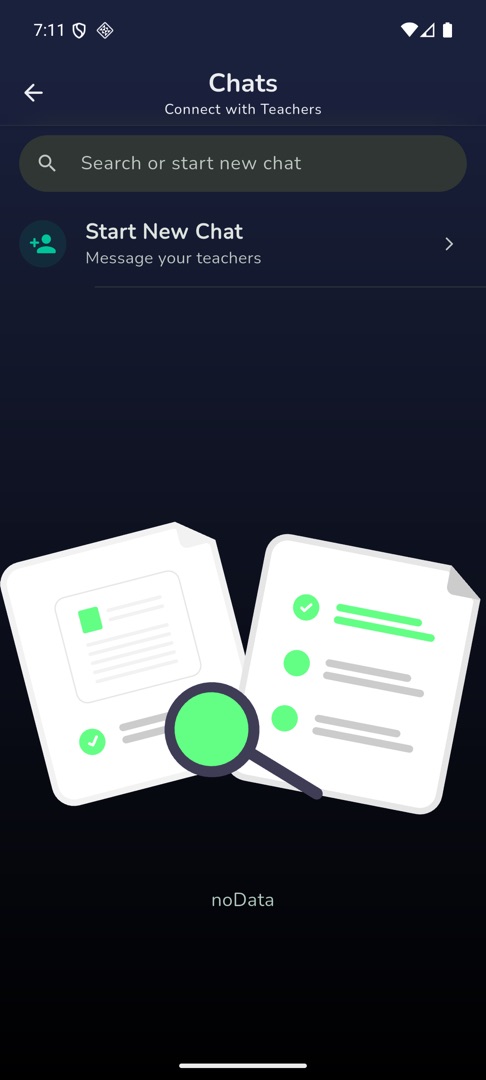
- On Home, scroll to "Quick actions" and tap Chats. The screen is headed "Chats" with "Connect with Teachers" beneath it.
- The search field, hinted "Search or start new chat", filters conversations you already have by name.
- Tap the Start New Chat row.
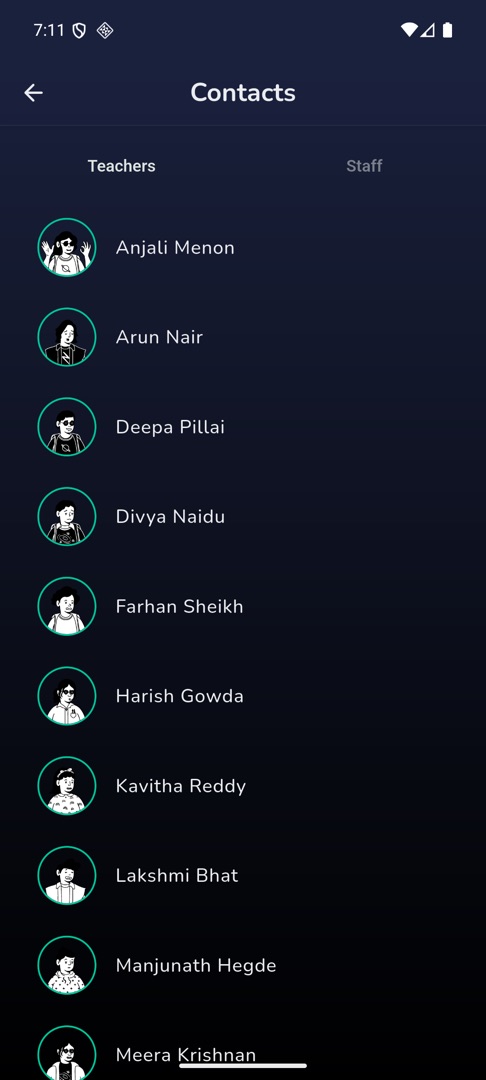
- "Contacts" opens with two tabs, Teachers and Staff, with Teachers selected. The list loads more as you scroll; pull down to refresh.
- Tap a person to open the conversation.
How do I send a message or a photo?
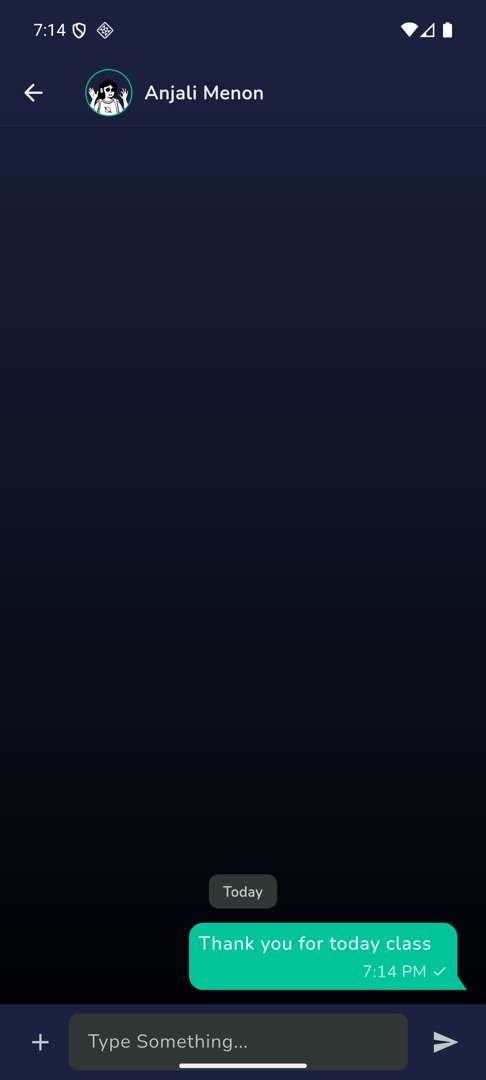
- Type in the box at the bottom, hinted "Type Something...", and tap the send arrow. The box grows to four lines.
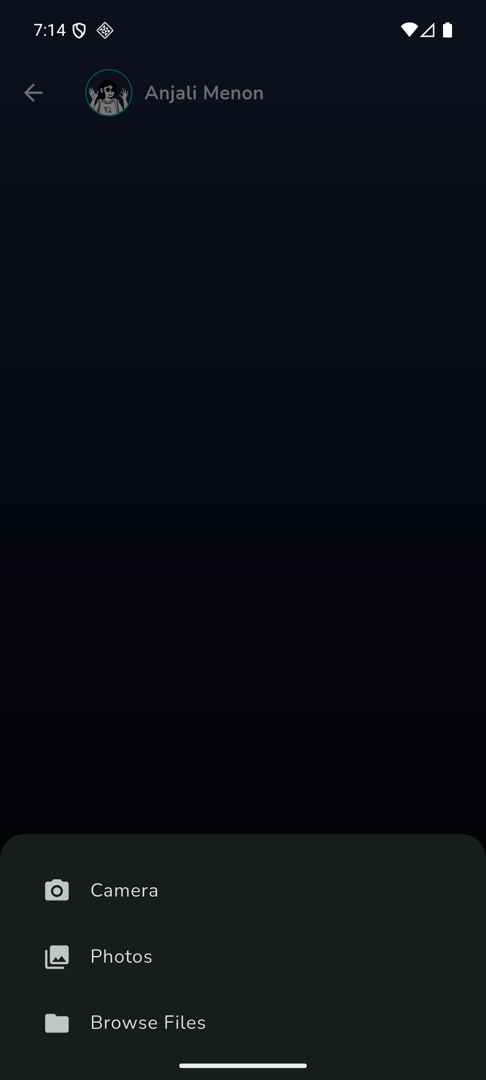
- To attach something, tap + to the left of the box and pick Camera, Photos or Browse Files. Photos and files can be multi-selected.
- Attachments send immediately, as their own message — there is no caption box and no preview step, so check what you picked before you tap.
- Tap an image in the conversation to open it full screen and swipe between the attachments in that message.
- A single tick means sent; a blue double tick means your teacher has read it. Opening a conversation marks their messages read.
Rules and gotchas
- New messages arrive while the conversation is open — there is nothing to refresh.
- Send anything that is not an image and it shows as a broken tile, with no filename and no way to download it. Photos work; a PDF is better sent another way, and a PDF your teacher sends will look the same to you.
- When you have no conversations yet the empty area shows the placeholder text noData rather than a sentence. It means the list is empty, nothing more.
- A conversation you start from the Staff tab may not reappear in the Chats list afterwards, which loads teacher conversations. Reopen it from Start New Chat → Staff.
- A failed message shows the server's reason, or "Failed to send message".