Open your profile in Circin
Tap your avatar to reach your Circin profile — photo, name and email, plus badges, theme, sound and the sign-out and delete options.
Updated
Student
Your profile lives behind the round avatar in the top right of the app bar. There is no Profile tab at the bottom for a learner — the bar is Home · Subjects · Play · Calendar — so the avatar is the way in.
How do I open it?
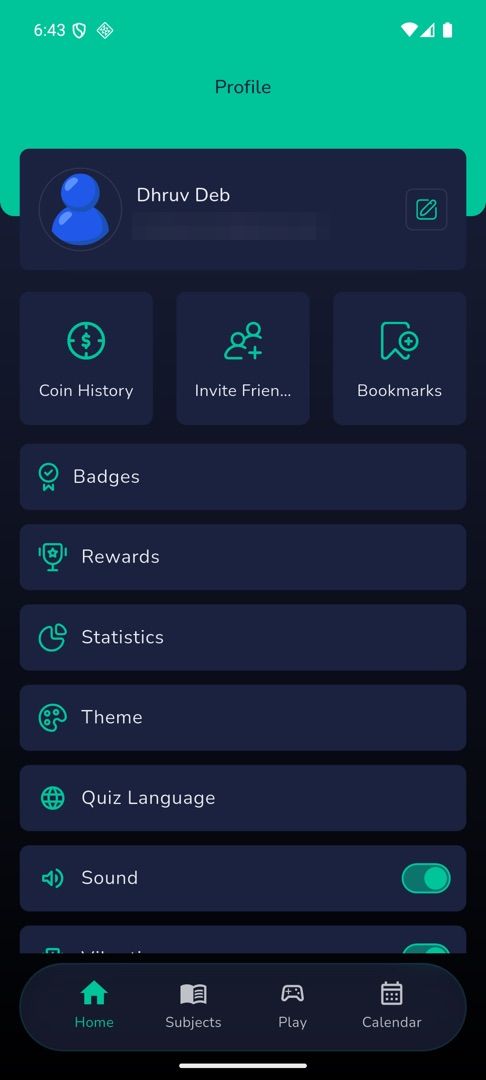
- Tap your avatar on any screen. A band headed "Profile" opens.
- The card at the top holds your photo, your name and your email address (or your mobile number, if you signed in by phone), with a pencil button on the right.
- Under it sit three tiles — Coin History, Invite Friends and Bookmarks.
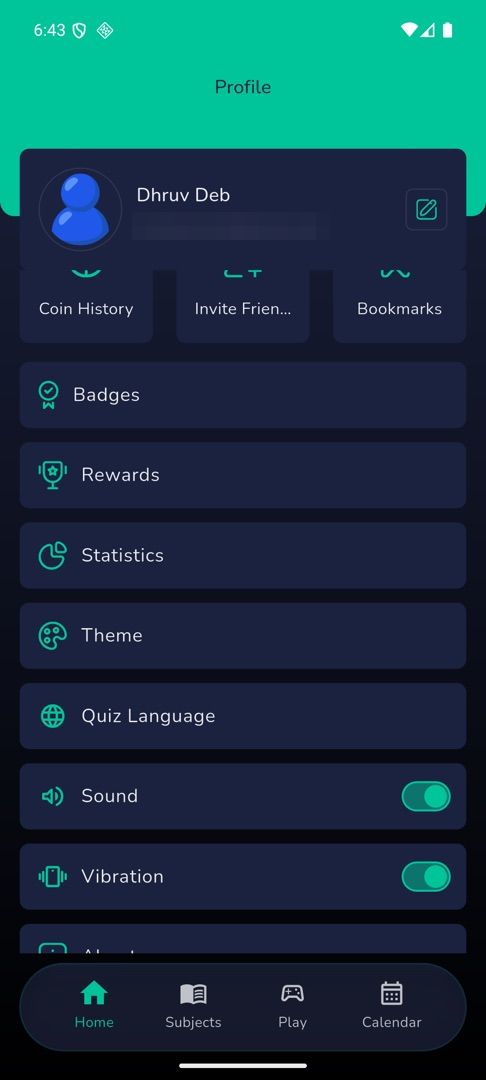
- Below those, a list: Badges · Rewards · Statistics · Theme · Quiz Language · Sound · Vibration · About · How to Play · Share App · Rate Us · Logout! · Delete Account.
What can I change from here?
- The pencil opens your profile details, which your school owns and you can read but not edit.
- Theme, Quiz Language, Sound and Vibration are the app's settings.
- About holds Contact Us, About Us, Terms & Conditions and Privacy Policy; How to Play explains the practice games.
- Logout! and Delete Account are at the bottom of the list.
Rules and gotchas
- Rows disappear when the feature behind them is off at your school: Quiz Language when only one quiz language is published, Bookmarks when no practice game is enabled, Ads Preference outside the regions that need it.
- The app interface itself is English today, so there is no app-language row to change.
- There is no notification setting anywhere in Circin. Pushes are controlled in your phone's own settings for the app.