See your profile details in Circin
Your name, email and phone number in Circin are held by your school and shown read-only. Here is where to look, and how to change your password.
Updated
Student
Your details in Circin come from your school's records, so the app shows them and your school changes them. The one thing you can change yourself is your password.
Where do I see my details?
- Tap your avatar in the top right, then the pencil button on the profile card.
- The screen is titled "Profile" and opens with the banner "Your profile is managed by your school administrator".
- Profile Name, Email Address and Phone Number are shown greyed out.
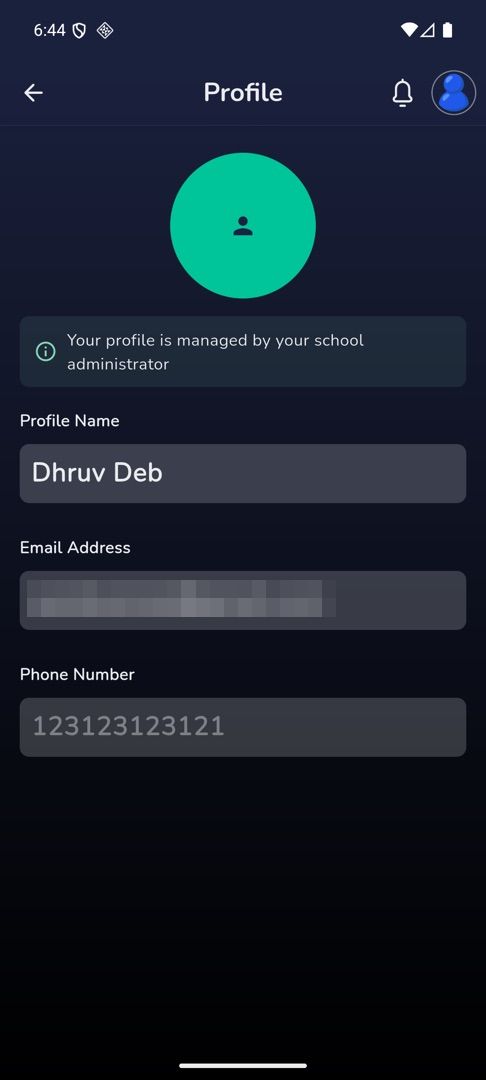
There is no avatar picker and no Save button — nothing on this screen is editable. To correct a spelling, an email address or a phone number, ask your school office; the change appears in Circin once they make it.
How do I change my password?
Change password is the only button on that screen, and it appears only if you sign in with an email address and a password.
- Tap Change password.
- Fill Current password, New password and Confirm new password. Each field has its own eye toggle.
- Tap Change password in the sheet.
- Circin confirms "Password changed successfully".
Rules and gotchas
- A new password shorter than six characters is refused with "Minimum password length is six characters".
- If the two new fields differ: "New password and confirm password must be same". If the current one is wrong: "Password is incorrect".
- Signed in with Google, Apple or your phone number? There is no Change password button, because there is no Circin password to change.
- Your school can also reset your password from the admin panel if you are locked out.