Check your timetable in Circin
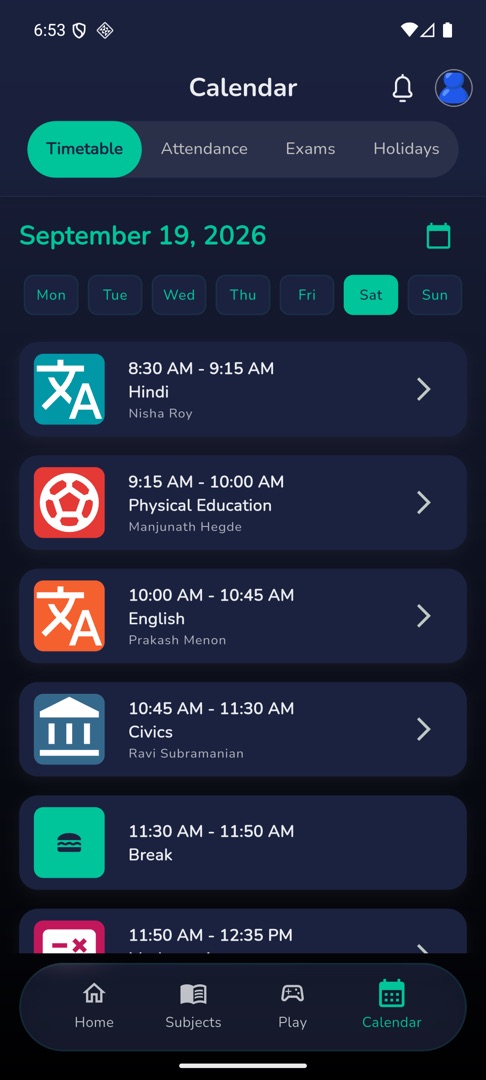
Open Calendar → Timetable in Circin to see each day's periods with start and end times, the subject and the teacher taking it.
Updated
Student
Also on Circin Maestro: See your timetable in Circin Maestro
Your timetable sits in the Calendar tab, one day at a time, with every period's time, subject and teacher.
How do I see my day?
- Tap Calendar in the bottom bar. The first tab is Timetable.
- The top row shows the selected date, with a calendar icon that opens a date picker.
- Under it, day chips run Mon to Sun with today's weekday already selected. Tap another chip to read that day.
- Each period card carries the subject image,
start - end, the subject and the teacher, with a › button on the right. - Pull down to refresh.
How do I open one period?
Tap the › on a period card. That opens the class session behind it — the topic, the lesson, the study material and any quiz or assignment attached.
Rules and gotchas
- The timetable repeats every week. Picking a date only changes which weekday you are looking at, so every Monday shows the same periods. It is not a diary of what happened on a particular date.
- A period with no subject is a break: it shows a lunch icon and whatever note your school wrote.
- A day with nothing on it reads "No lectures found for selected day woo hoo :)".
- Your next period, with a live countdown, is also on Home under "Up next" — quicker than opening Calendar between classes.
- The timetable is built by your school. A wrong period or a missing subject is a question for the school office.