See your exam timetable in Circin
Find your upcoming, ongoing and completed exams in Circin, and open the schedule with each subject's date, time and marks.
Updated
Student
Your school's exams reach Circin in two places — the Exams tile on Home and the Exams tab inside Calendar. Both show the same exams; they differ in how they group them.
How do I find an exam and its schedule?
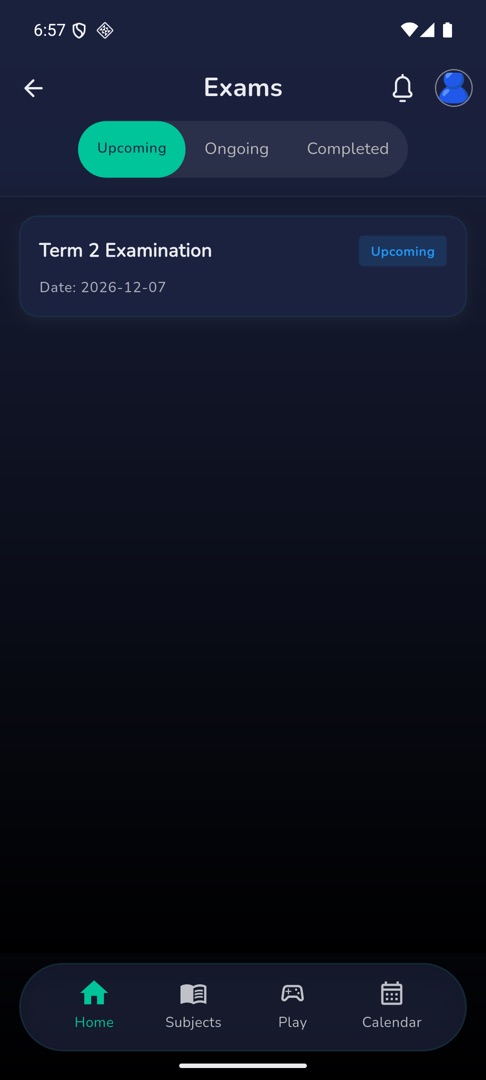
- On Home, scroll to "Quick actions" and tap Exams. The screen has three tabs: Upcoming, Ongoing and Completed.
- Each card shows the exam title, a status chip and
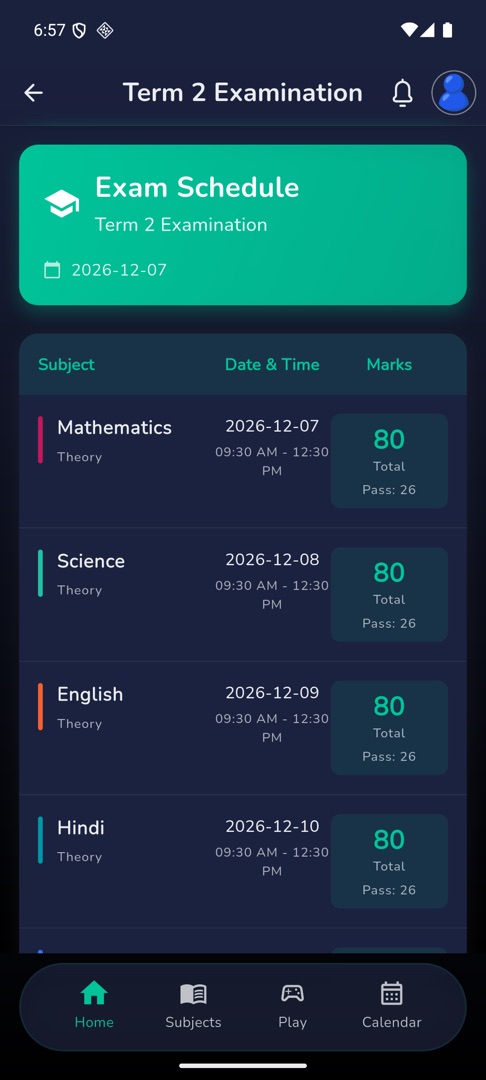
Date: {date}. - Tap an upcoming or ongoing card to open "Exam Schedule" — a table of Subject · Date & Time · Marks, each row giving the subject and its type, the date,
start - end, the Total andPass: {n}. - A completed card does not open. It grows two buttons instead: Timetable and Results.
What does the Calendar tab add?
Calendar → Exams starts with a "Select Exam" dropdown set to "All Exams", and groups every exam by name with its subject rows beneath, each reading {subject} - {type} and {start} - {end}, {date}. It is the quicker view when you want one long list rather than three tabs.
Once your school publishes results, a View Result button appears beside the exam name and each subject row gains Marks: {n}.
Rules and gotchas
- Results appear only after your school publishes them. Until then there is no result to open — the View Result button's absence is the answer. See your exam results.
- No exams at all reads "Yee.. No Exam found!"; an exam whose subject rows are not entered yet reads "No exam schedule available".
- Exams are created and scheduled by your school. A missing subject or a wrong time is a question for the school office.