Find your way around Circin
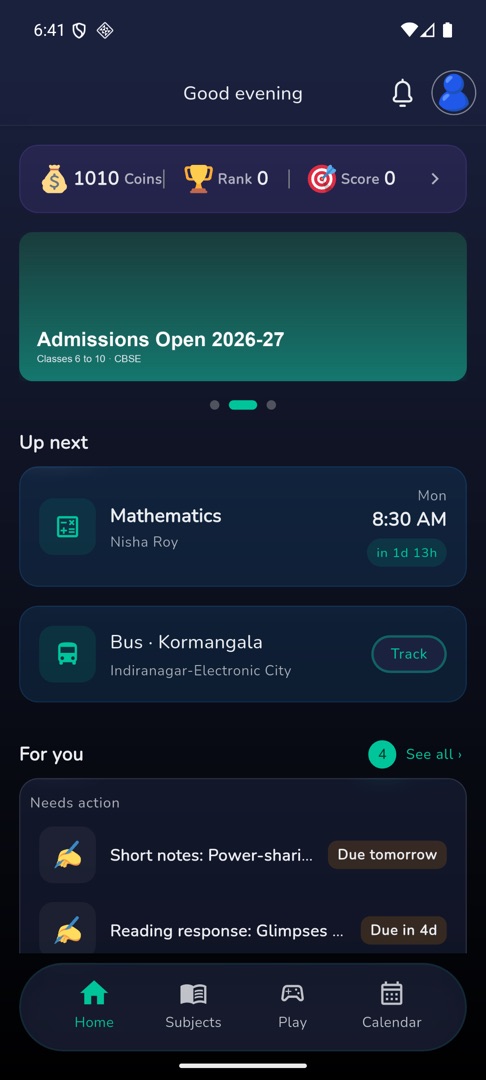
Home, Subjects, Play and Calendar at the bottom; your avatar and the bell at the top; and eight Quick actions that open every school screen.
Updated
Student
Circin has four tabs along the bottom, two buttons at the top, and one grid of Quick actions that reaches everything else. Once you know those three places you can find any screen in the app.
What are the four tabs?
- Home — a greeting ("Good morning", "Good afternoon" or "Good evening"), your Coins / Rank / Score strip, "Up next" with your next period and a live countdown, and "For you", which collects everything waiting on you.
- Subjects — your subject grid with progress, and the way into lessons, sessions and resources.
- Play — the practice games your school has switched on.
- Calendar — four tabs of your own: Timetable, Attendance, Exams and Holidays.
Where is everything else?
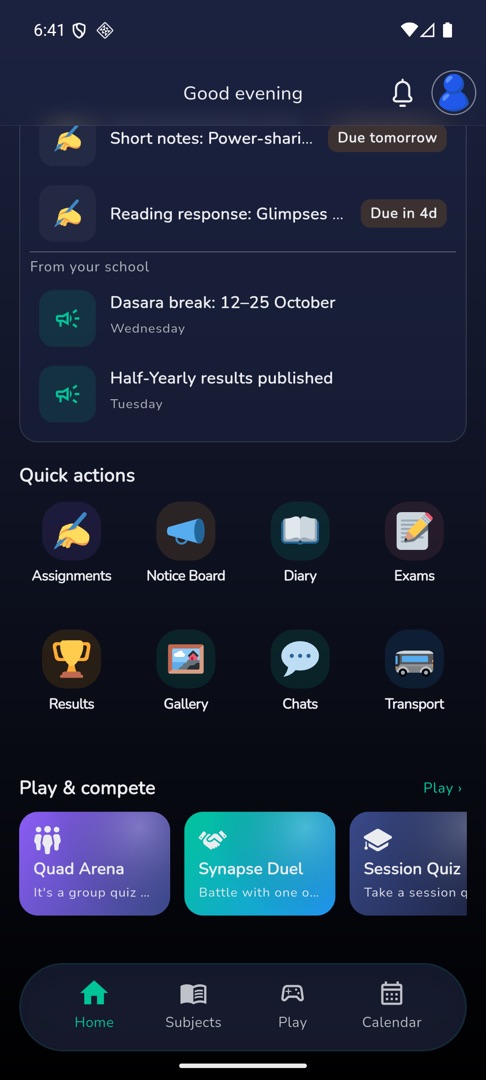
Scroll Home to "Quick actions" — eight tiles, always in this order:
Assignments · Notice Board · Diary · Exams · Results · Gallery · Chats · Transport
That grid is the only way into those screens; there is no Transport, Chats, Notices or Gallery tab.
What do the two buttons at the top do?
- The bell opens your notifications, with an unread count that stops climbing at 9+.
- Your avatar opens your profile — there is no Profile tab in the bottom bar.
Rules and gotchas
- "For you" splits into "Needs action" (session quizzes, assignments due, the attendance nudge) and "From your school" (recent notices). Tap "See all" to open Notifications.
- With nothing pending it reads "All caught up" / "No quizzes, assignments or fees pending". If it cannot load, "Couldn't load what's due" with Try Again.
- Pull down anywhere on Home to refresh every section at once.
- Sections appear only when there is something in them, so a quiet week makes for a short Home.
- All eight Quick actions always show, including Transport when you have no bus plan.