Check your attendance record in Circin
See which days you were present or absent, month by month, with your attendance percentage and present and absent totals in Circin.
Updated
Student
Also on Admin Panel: View attendance Circin Maestro: View attendance for another date in Circin Maestro
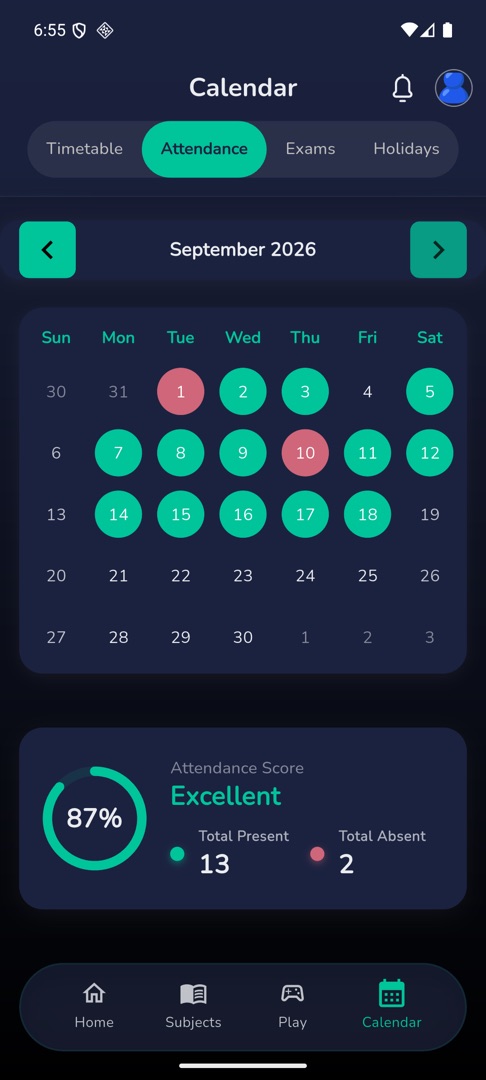
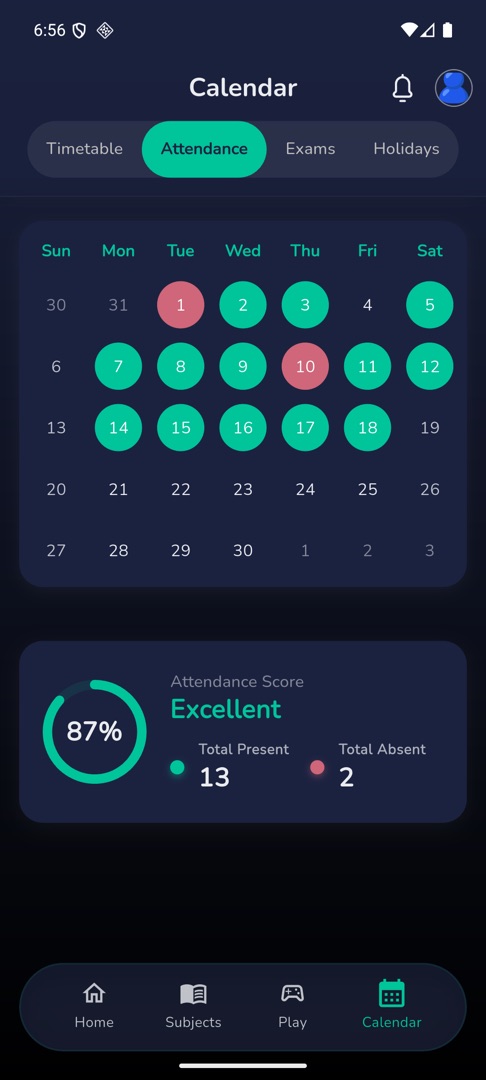
Your attendance lives in the Calendar tab as a month at a time: a coloured calendar for the days, and a score card for the totals.
How do I see my month?
- Tap Calendar in the bottom bar, then the Attendance tab.
- Use ‹ and › beside
{Month} {year}to move between months. - On the calendar, days you were present are filled in the app's colour; days you were absent are filled red.
- Below it, a card shows your percentage as a ring labelled "Attendance Score", a status word, and "Total Present" and "Total Absent" counts.
- Pull down to refresh the month.
What does the status word mean?
It is set by fixed thresholds, not by your school:
- Excellent — 75% or more
- Average — 50% to 74%
- Needs Attention — below 50%
Rules and gotchas
- › is switched off on the current month; there is nothing to see in the future.
- Tapping a date does nothing. There is no per-day detail and no period-by-period breakdown — a day is present or absent.
- The record is what your school entered, whether that was a teacher marking the register or your own face scan. If a day looks wrong, ask your class teacher to correct it; nothing here is editable.
- A month your school has not marked yet simply shows no coloured days.