Follow a subject's sessions in Circin
Read the session timeline for a subject in Circin — what was taught when, the study material for each lesson, and the session quiz attached to it.
Updated
Student
A session is one lesson your teacher taught, with whatever they attached to it. The Sessions tab is the record of them, newest first, and it is where you pick up a lesson you missed.
How do I read the timeline?
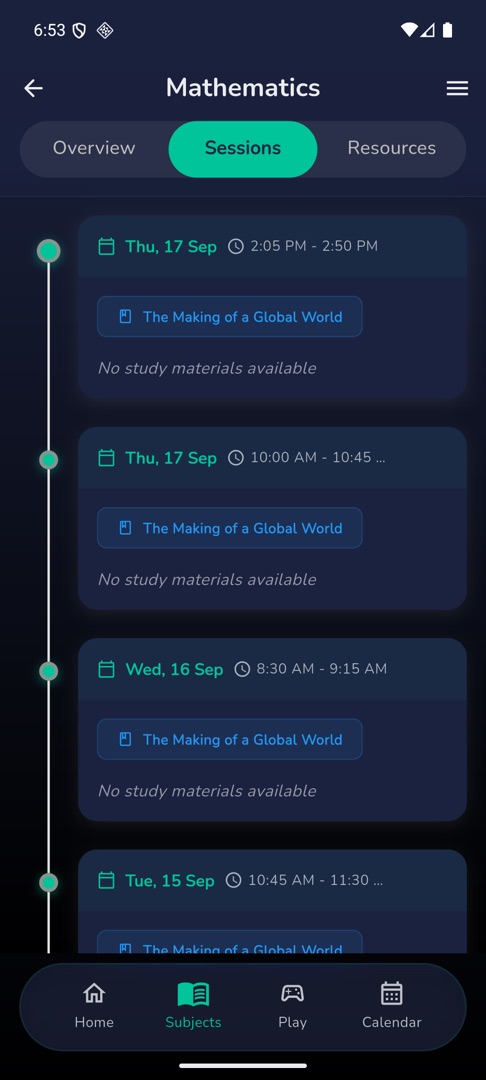
- Open Subjects, tap a subject, then the Sessions tab.
- Past and current sessions are listed newest first. Each card shows the date and time, the session title, chips for its lesson and topic, and an icon for each study material that exists — Summary, Mind Map, Flashcards, Slides.
- Future sessions are collapsed behind "Upcoming Sessions". Tap it to expand them, and "Hide Upcoming" to fold them away again.
- Tap any material icon to open it — see study material and resources.
What is the quiz block on a session card?
When your teacher attached a quiz to that lesson, the card carries a block with the quiz title and {duration} min • {date}:
- "Enter Session Quiz" if you have not taken it — see take a session quiz.
- "View Results" and a green
{n} Marksif you already have.
Rules and gotchas
- A session quiz on an old session is still takeable. There is no "only on the day" lock — if the quiz is listed, you can enter it.
- Sessions your teacher never filled in do not appear at all, so a gap in the timeline is usually a lesson that was not recorded.
- If a card shows no icons it reads "No study materials available" — the lesson was taught, the material was not generated.
- "View Results" needs your completed list to have loaded. If it has not, you get "Result details not loaded. Please check the Exams tab." — open the quiz results from the Completed tab instead.
- With nothing at all in the subject: "No sessions found".