Read your school's notices in Circin
Open the Notice Board from Circin's Quick actions to read every announcement your school has published, newest first, in full.
Updated
Student
The Notice Board carries your school's announcements. Each notice is shown in full on the list, so there is nothing to open — you read straight down.
How do I open it?
- On Home, scroll to "Quick actions" and tap Notice Board.
- Each notice is a card: a megaphone chip, the title, the date and time as
dd MMM yyyy, hh:mm a, the full text, and any attachments listed as file-name chips. - Scroll to load older notices.
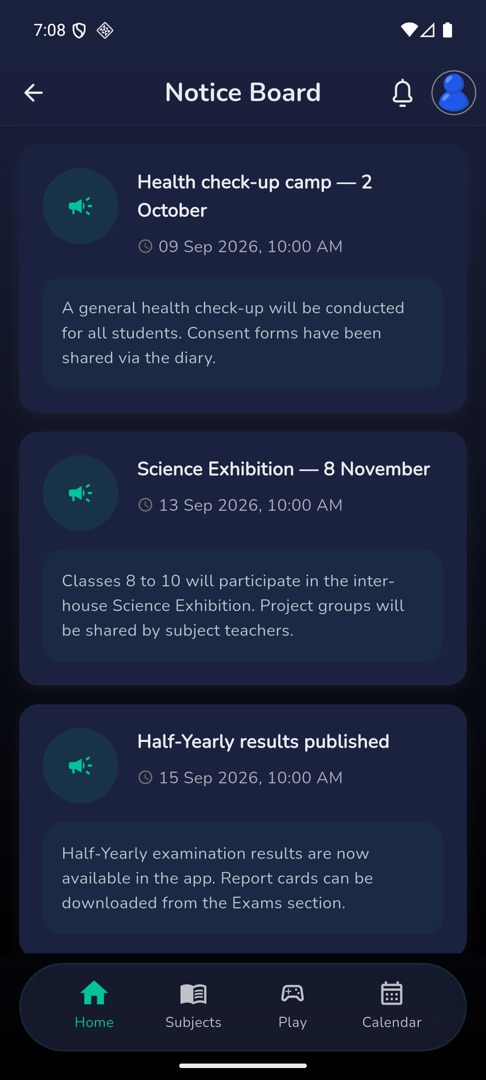
The most recent notices also appear on Home, in the "From your school" half of "For you". Tapping one opens this list.
Rules and gotchas
- The attachment chips are not tappable. A notice's file cannot be opened or downloaded from Circin — ask your school for it directly, or look for the same file in your subject's resources.
- There is no notice detail page, no search and no filter. The full text is already on the card.
- A notice published without a title shows "No Title", and one without a date shows "No date".
- With nothing published: "No announcement available."
- Notices are written by your school in the admin panel; Circin only reads them.