Open a class session from your Circin timetable
Tap the arrow on a period in Circin to see what was taught — topic, lesson, study material, the assignment and the session quiz for that class.
Updated
Student
Every period your teacher records becomes a session: what was taught, the material generated for it, and anything attached. The Sessions tab inside a subject is how you get there.
How do I open it?
- Open Subjects, tap the subject, then the Sessions tab.
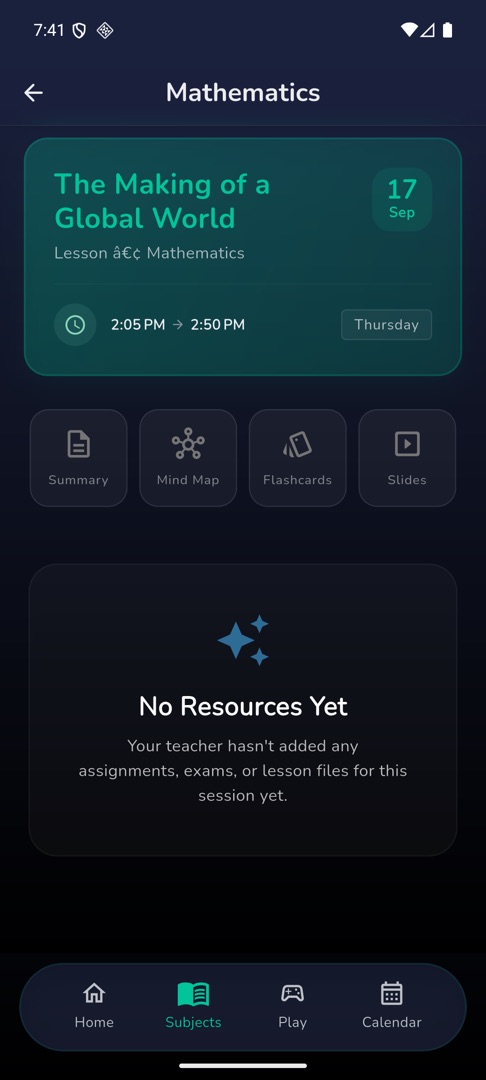
- Tap a session card. The screen takes the subject's name.
- A header card shows the date and the topic, with the lesson beneath it.
- A row of four icons — Summary · Mind Map · Flashcards · Slides — sits under the header. Tap one to read that material.
- Below it, expandable sections: "Lesson Materials", "Assignment" with a View Assignment button, and the Session Quiz card. A session with none of those reads "No Resources Yet" — "Your teacher hasn't added any assignments, exams, or lesson files for this session yet."
Why is a material icon greyed out?
Because that material has not been generated for this session yet. Tapping a greyed icon says so — for example "Mind Map Not Available", explaining that the content has not been generated for this session.
Rules and gotchas
- "Lesson/Topic not linked" in the header means the teacher has not linked this period to a lesson and topic. The session is still there; only the labels are missing.
- The assignment, exam and lesson panels each load separately, so one can fail on its own — "No assignment details available" or "No exam details available" — while the rest of the screen is fine.
- If your teacher never created a session for that period, the screen shows a placeholder rather than a sentence: you will see the raw text
teacherNotCreatedSession. It means there is nothing recorded for that class, not that something broke. - The same sessions, in one list per subject, are on the Sessions tab of the subject.
- The › button on a period card in Calendar → Timetable is meant to open the same screen. It is not working at the moment, so use the Sessions tab.