Undo an assignment submission in Circin
Withdraw work you have already submitted in Circin, while your teacher has not reviewed it and the due date has not passed, and send different files.
Updated
Student
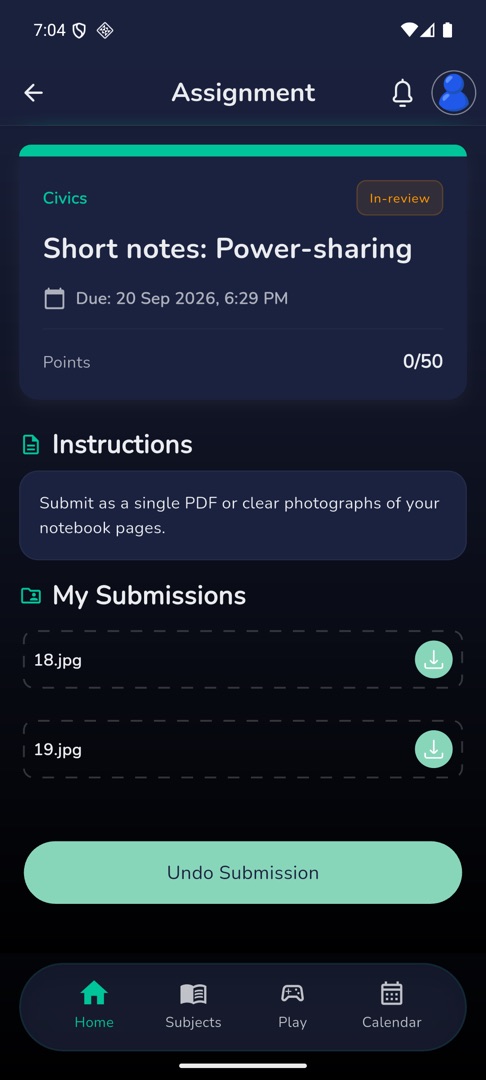
Sent the wrong photo? While an assignment is still In-review and the due date has not passed, Circin lets you take the submission back and send different work.
How do I undo it?
- Open the assignment from the Submitted tab. If undo is available, the button at the bottom reads Undo Submission instead of Upload Assignment.
- Tap Undo Submission.
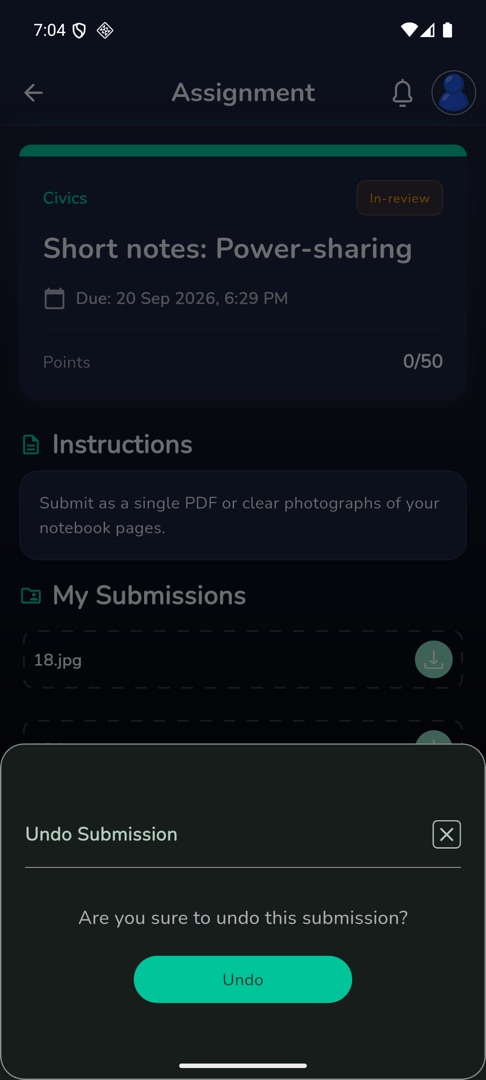
- A sheet asks "Are you sure to undo this submission?" — tap Undo.
- The button reads Undoing... while it runs, and the sheet cannot be dismissed until it finishes.
- Your submission is cleared and the Upload Files sheet opens straight away, so you can add the right files and submit again.
Rules and gotchas
- Undo disappears the moment your teacher accepts or rejects the work, and again once the due date passes. If the button is not there, one of those two has happened.
- A Rejected assignment has no undo — there is nothing to withdraw. You upload again instead, and only if your teacher enabled resubmission and you are inside the extra-days window they set.
- Undoing removes the files you sent. Keep them on your phone until the new submission has gone through.
- Your teacher sees the withdrawal, so undoing a submission is not invisible to them.