Pay for your transport plan in Circin
Once your school approves your transport request, pay by card in Circin to confirm the seat and start the plan.
Updated
Student
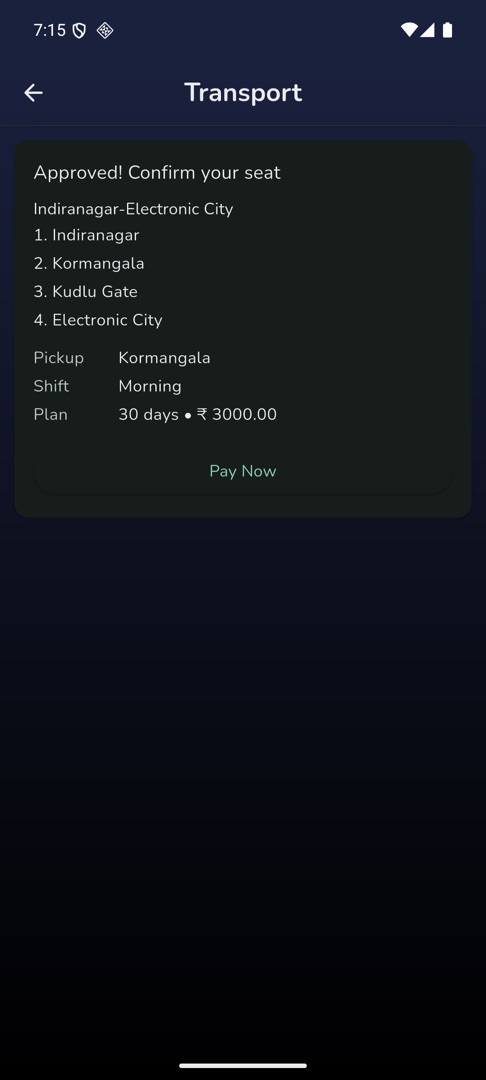
Approval comes first, payment second. When your school has approved the request, the Transport screen changes to an "Approved! Confirm your seat" card and the plan starts the moment the payment goes through.
How do I pay?
- On Home, scroll to "Quick actions" and tap Transport. The approved card shows the route you have been allocated, its stops as
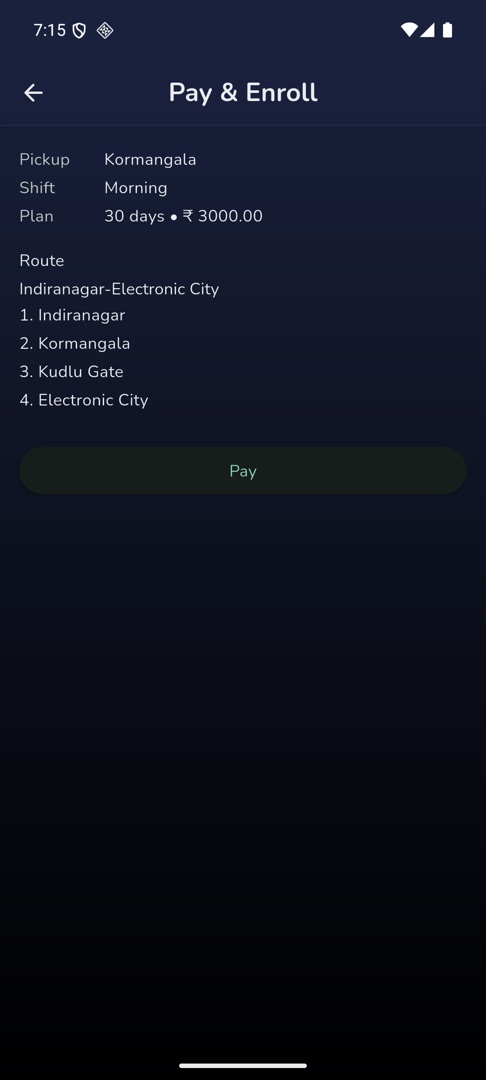
1. <stop>,2. <stop>and so on, and your pickup, shift and plan. - Tap Pay Now. The "Pay & Enroll" screen repeats the same summary read-only, with the Route and its numbered stops — there is nothing to choose here.
- Tap Pay.
- Your card sheet opens. It is your phone's own payment sheet, not a Circin screen. Enter the card and confirm.
- Circin returns to Transport with "Plan activated" and the active plan card in place.
Rules and gotchas
- There is no pay-first path. The payment screen opens only from an approved request and refuses anything else with "Open this from your approved request."
- Card payment is the only transport payment method in Circin. If your school has not connected a payment gateway you get "Transport payments aren't set up for your school yet — please contact the admin." and pay the school directly instead.
- A cancelled or declined card shows "Payment was cancelled or failed. Please try again." and Pay becomes tappable again.
- If Circin cannot confirm a payment it says "We could not confirm your payment. If you were charged, contact admin." Do that rather than paying twice — your school can see the transaction.
- Once the plan is active, your route and stops are on the same screen.