See your exam results in Circin
Open published exam results in Circin, read the subject-by-subject marksheet with your grade and percentage, and download the PDF.
Updated
Student
Once your school publishes an exam's results, it appears under Results with your marks, your grade and a downloadable marksheet.
How do I open my result?
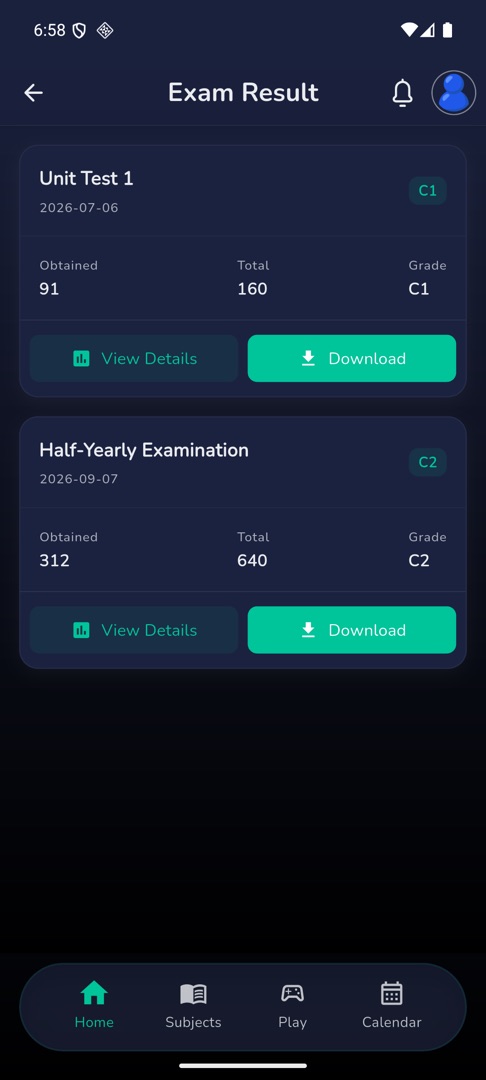
- On Home, scroll to "Quick actions" and tap Results. The screen "Exam Result" lists each published result: the exam name, the date, a grade chip (green when you passed, red when you did not), then Obtained, Total and Grade.
- Tap View Details for the marksheet.
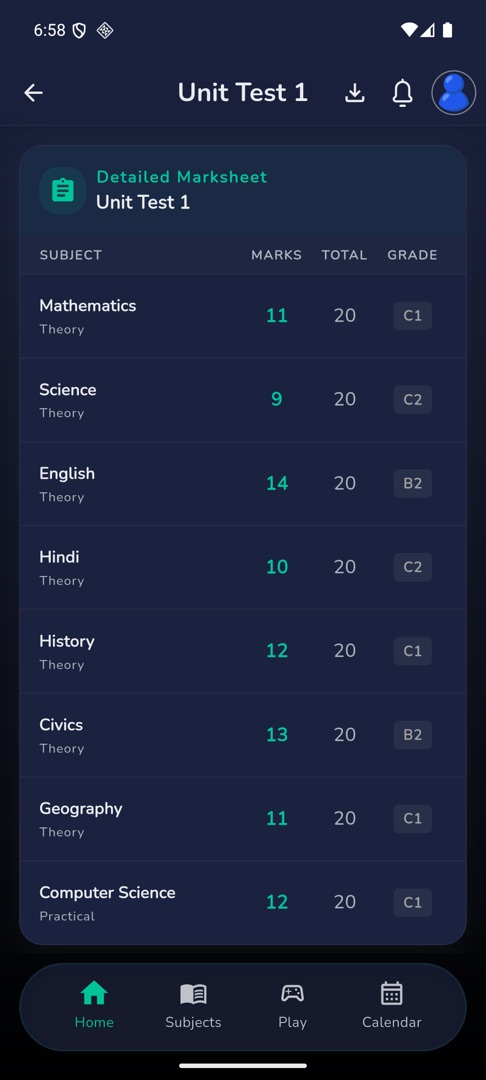
- "Detailed Marksheet" lays out SUBJECT · MARKS · TOTAL · GRADE, showing any subject below its pass mark in red.
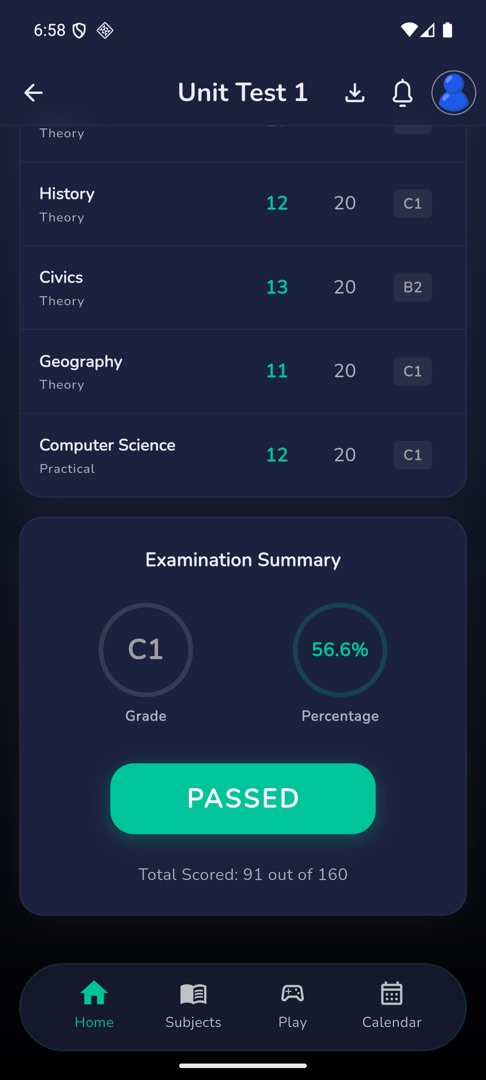
- Scroll on to "Examination Summary" — your Grade and Percentage as rings, a PASSED or FAILED banner, and
Total Scored: {obtained} out of {total}. - Scroll the list to load older results.
How do I download the marksheet?
Tap Download on the result card, or the download icon on the marksheet itself. The PDF opens in your phone's own viewer, from where you can save or share it. A failure shows "Something went wrong. Please try again later" — try again on a better connection.
Rules and gotchas
- An unpublished exam simply does not appear here. There is no pending row and no date. With nothing published at all the screen reads "Results not published yet..!"
- The marks are what your school entered. A mark you think is wrong is a question for your subject teacher, not something the app can change.
- These two screens are in English whatever language the rest of the app is in.
- Results for in-app quizzes are separate — see your session quiz results.