Find your assignments in Circin
Open Assignments from Circin's Quick actions to see what is due and what you have handed in, filtered by subject and sorted the way you want.
Updated
Student
Assignments has two tabs — Assigned and Submitted — so what is still owed and what is already handed in never sit in the same list.
How do I open the list?
- On Home, scroll to "Quick actions" and tap Assignments.
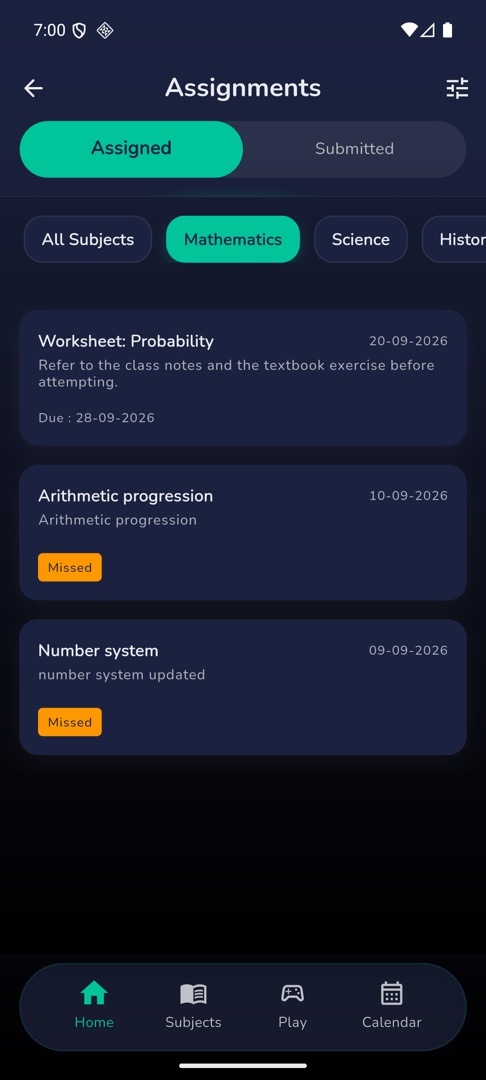
- Start on Assigned. A row of subject chips begins with All Subjects — tap a subject to narrow the list.
- Each card shows the assignment name, up to two lines of the instructions, the subject, and on the right either
Due : {date}or an amber Missed chip when it is overdue and unsubmitted. - Tap a card to read it and hand your work in.
- Scroll to load older ones.
How do I sort them?
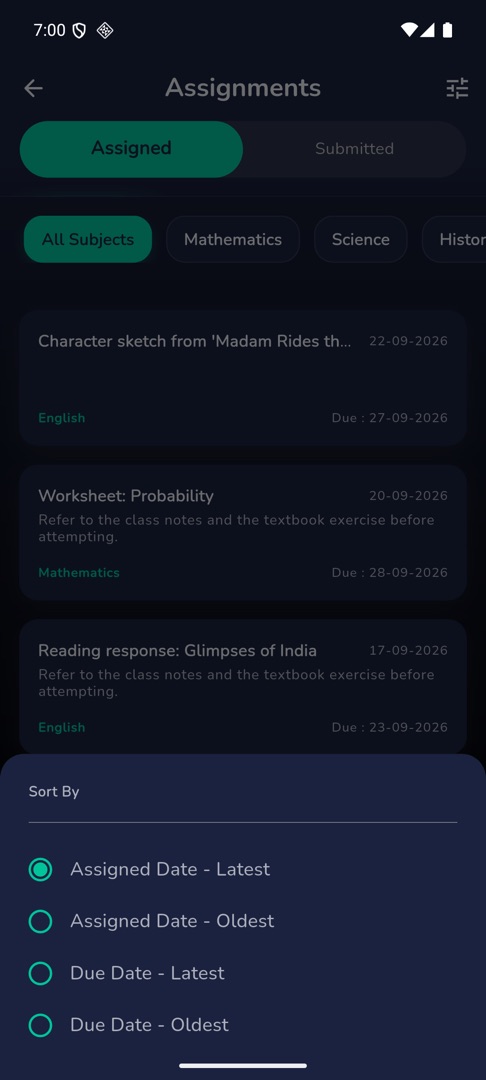
Tap the filter icon in the app bar for the "Sort By" sheet: Assigned Date - Latest (the default), Assigned Date - Oldest, Due Date - Latest and Due Date - Oldest. Sorting by due date is the fastest way to see what is closest.
What do the chips on the Submitted tab mean?
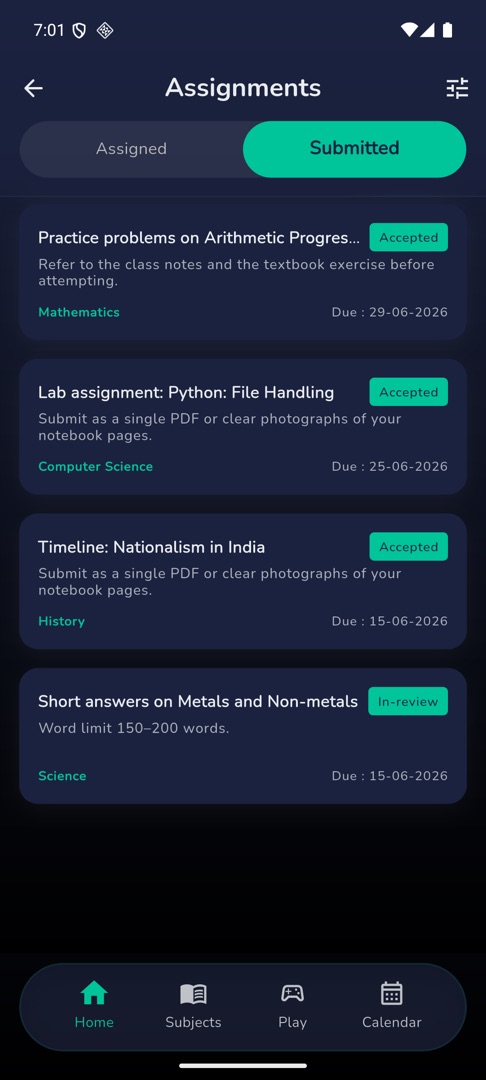
Each submitted assignment carries your teacher's verdict: In-review while they have not looked yet, Accepted, Rejected, or Resubmitted after you have sent work a second time.
Rules and gotchas
- An assignment moves to Submitted the moment you upload, whether or not the due date has passed.
- The empty states read "No assignments to submit woo hoo :)" on Assigned and "Not submitted any assignment yet :(" on Submitted.
- What is due soonest also appears on Home under "For you", with an amber Overdue, Due today, Due tomorrow or Due in {n}d badge.