View attendance
Open View Attendance in Circin, pick a class section and date, and see exactly who was present or absent that day, with a status filter and export.
Updated
Also on Circin Maestro: View attendance for another date in Circin Maestro Circin: Check your attendance record in Circin
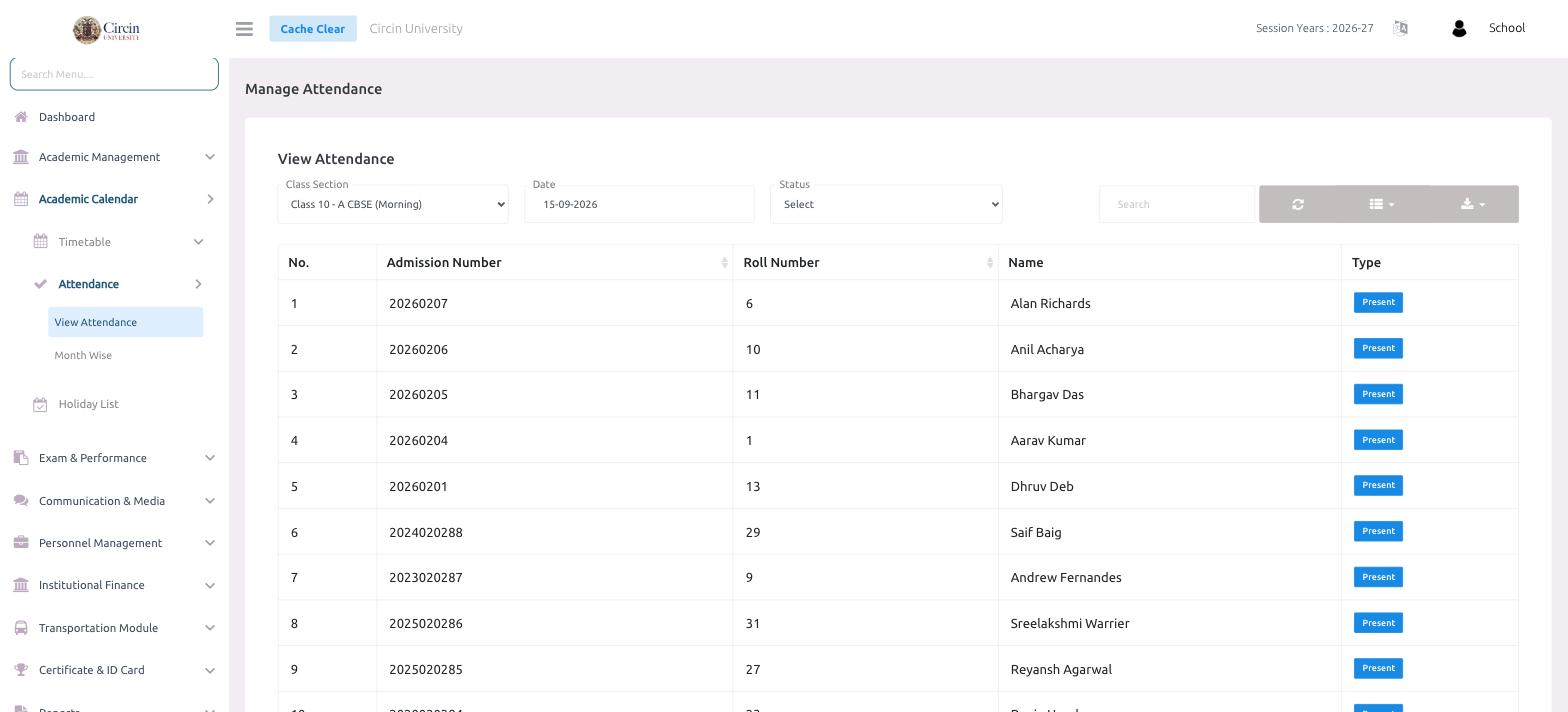
To see what was recorded for a class on a given day, use View Attendance. Choose a Class Section and a Date, and Circin lists every student with their Type — Present or Absent — so you can confirm the day or find who was missing.
How do I view attendance for a class?
- In the left menu, open Academic Calendar → Attendance → View Attendance.
- Choose the Class Section, for example Class 10 - A CBSE (Morning).
- Pick the Date you want to review, such as 15-09-2026.
- Circin loads the roster with each student's recorded status in the Type column.
- Use the Status dropdown to filter the list — for example, show only absent students.
What does the table show?
Each row shows the student's No., Admission Number, Roll Number, Name, and a Type badge marking them Present or absent for that date. Use the Search box to find a student by name or admission number, and the toolbar icons to refresh, change the column view or export the day's attendance.
Tips
- Both the Admission Number and Roll Number columns are sortable, so you can order the roster whichever way suits you.
- To correct a mistake, go back to the attendance screen for that class and date, change the student, and submit again.