Create an exam
Create an offline exam in Circin by naming it, picking the session year, and choosing the classes it applies to — then track it in the exam list.
Updated
School Admin
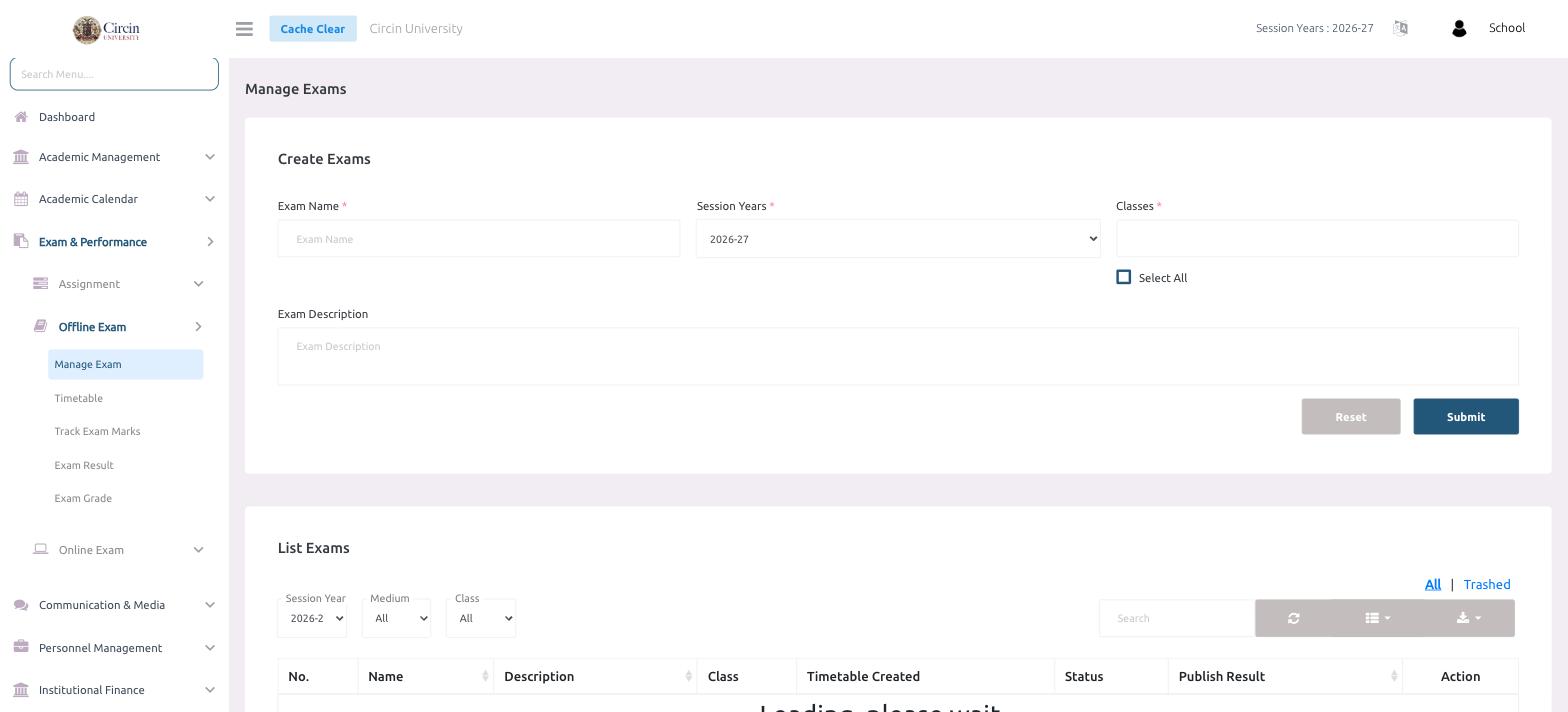
Creating an offline exam in Circin takes three fields: name the exam, pick the session year, and choose the classes it covers. Every exam you create then appears in the List Exams table below, where you track its timetable, status, and published result.
How do I create an exam?
- In the left menu, open Exam & Performance → Offline Exam → Manage Exam.
- Under Create Exams, type the Exam Name (for example, Half-Yearly Examination).
- Confirm the Session Years — it defaults to the active year, 2026-27.
- In Classes, select every class this exam applies to. Tick Select All to add all classes at once.
- Optionally add an Exam Description.
- Click Submit. Use Reset to clear the form and start over.
How do I find an existing exam?
Scroll to List Exams. Filter by Session Year, Medium, or Class, or use the Search box. You can switch between the All and Trashed views.
The table shows No., Name, Description, Class, Timetable Created, Status, Publish Result, and Action — so you can see at a glance which exams still need a timetable or a published result.
Tips
- An exam has to exist here before you can add its Timetable, enter marks in Track Exam Marks, or publish an Exam Result.