Transport requests
Review and approve student transport requests in Circin, then track them from pending, to awaiting payment, to enrolled.
Updated
School Admin
Also on Circin Maestro: Request school transport in Circin Maestro Circin: Request school transport in Circin
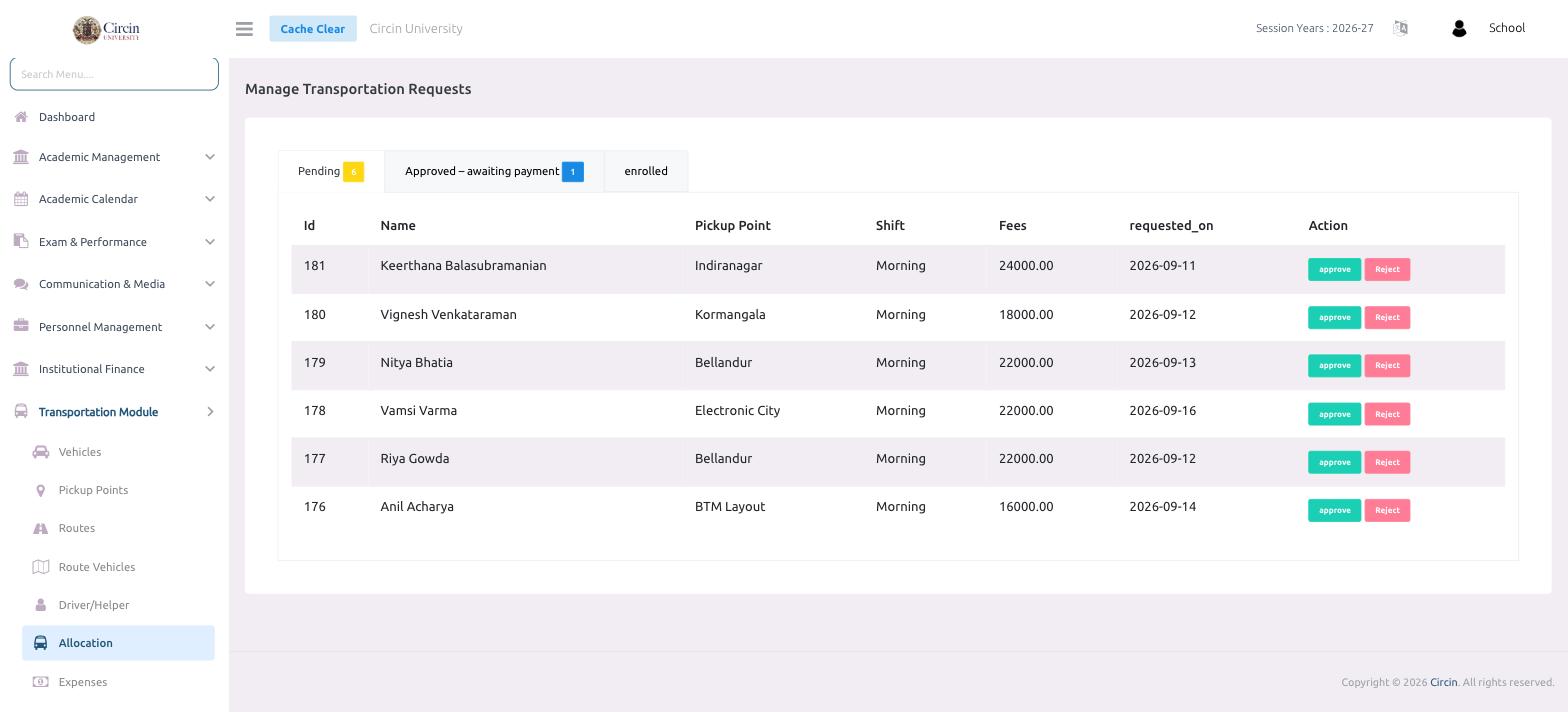
Transportation requests are the seats students apply for on your buses. From this page you approve or reject each request and watch it move through three stages: Pending, Approved – awaiting payment, and enrolled.
How do I approve a transportation request?
- In the left menu, open Transportation Module → Allocation.
- On the Manage Transportation Requests page, stay on the Pending tab to see new requests.
- Read each row — Id, Name, Pickup Point, Shift, Fees and requested_on (the date it was raised).
- In the Action column, click approve to accept the request, or Reject to decline it.
What do the tabs mean?
- Pending — new requests waiting for your decision. The badge shows how many are open.
- Approved – awaiting payment — requests you've approved that are waiting for the transport fee to be paid.
- enrolled — students whose payment is done and who are now on the bus.
Tips
- Check the Pickup Point and Shift against your routes before approving, so the student can actually be seated on a running trip.
- A request only becomes enrolled once the fee is paid — approval alone leaves it in Approved – awaiting payment.