General settings
Open Settings then General Settings to set your school name, email, phone, tagline, address, date and time formats, and logos.
Updated
School Admin
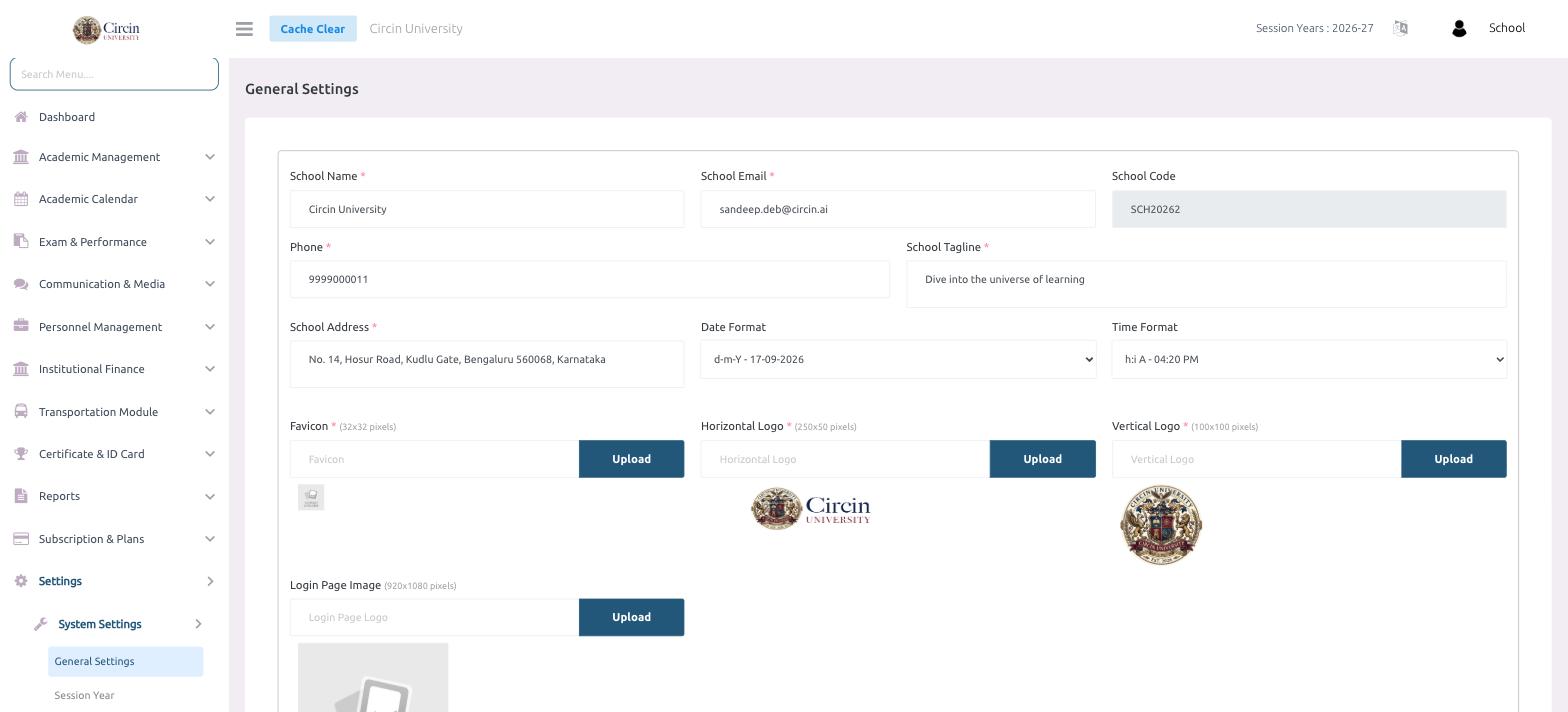
General Settings is where your school's identity lives — its name, contact details, tagline, address, date and time formats, and the logos that appear across Circin. Open it from Settings → System Settings → General Settings.
What can I set here?
- In the left menu, open Settings → System Settings → General Settings.
- Edit the school profile fields: School Name, School Email, Phone, School Tagline and School Address. School Code (for example SCH20262) is shown read-only.
- Choose a Date Format (for example, d-m-Y - 17-09-2026) and a Time Format (for example, h:i A - 04:20 PM). These control how dates and times display everywhere in the panel.
- Upload your branding using the Upload buttons — Favicon (32x32 pixels), Horizontal Logo (250x50 pixels), Vertical Logo (100x100 pixels) and Login Page Image (920x1080 pixels).
- Save the form to apply your changes.
Tips
- Fields marked with a red asterisk are required.
- Match the pixel size shown next to each upload label so your logos and favicon render crisply.