Student ID cards
Generate student ID cards in Circin by choosing a class section and session year, then selecting the students to print cards for.
Updated
School Admin
Once your student ID card design is set, this page prints the cards. Pick the Class Section and Session Year, tick the students, and generate.
How do I generate student ID cards?
- In the left menu, open Certificate & ID Card → Student ID Card.
- On the Generate Student ID Cards page, choose the Class Section from Select Class.
- Confirm the Session Year (for example, 2026-27), or use the Search box to find a student.
- In the List Students table, tick the checkbox next to each student (or the header checkbox to select all).
- Generate the ID cards for the selected students.
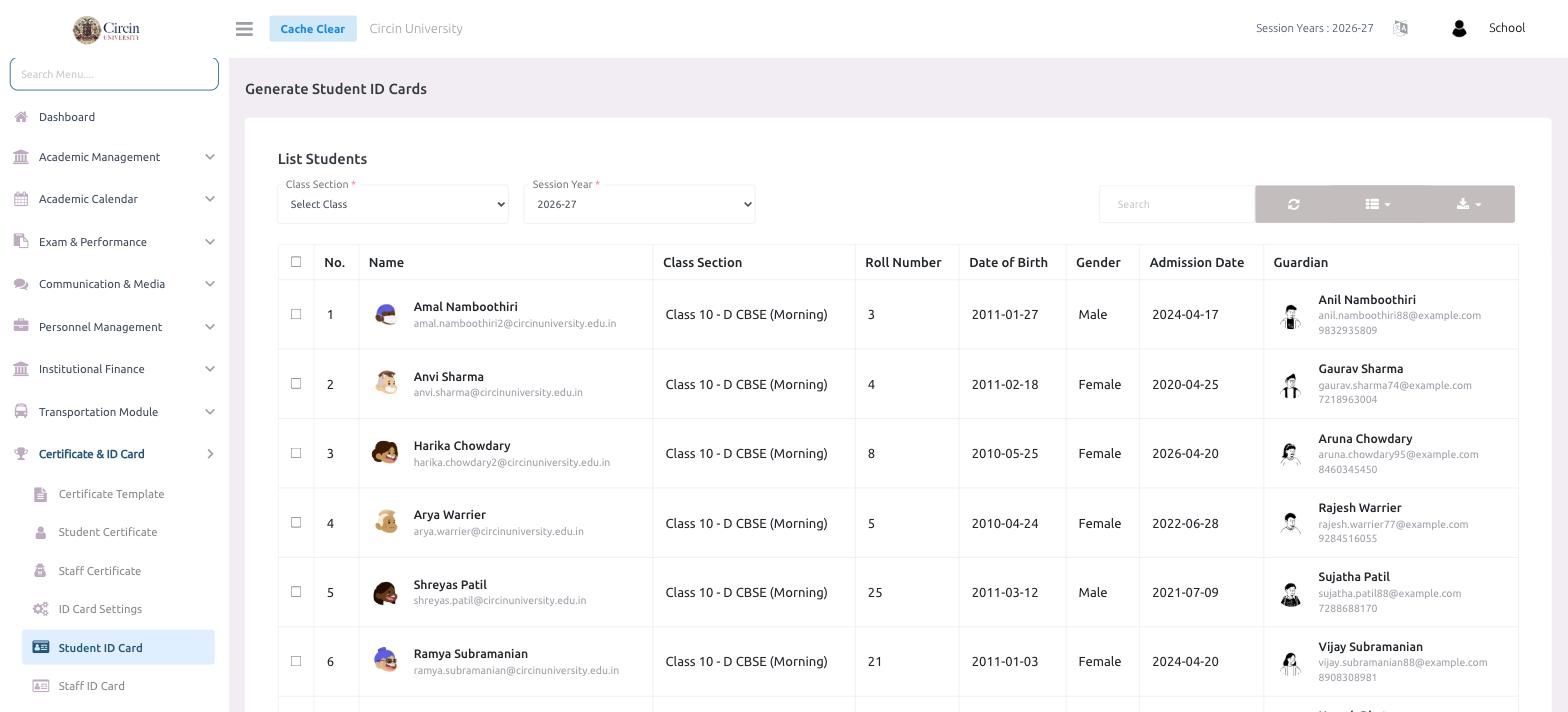
The table lists each student with No., Name, Class Section, Roll Number, Date of Birth, Gender, Admission Date and Guardian.
Tips
- The colours, fields and size on the printed card come from ID Card Settings — adjust the design there, not here.