Bulk-import students
Add many students at once in Circin from Add Bulk Data — download the dummy file, fill it as a CSV, pick the class section, and upload.
Updated
School Admin
Staff
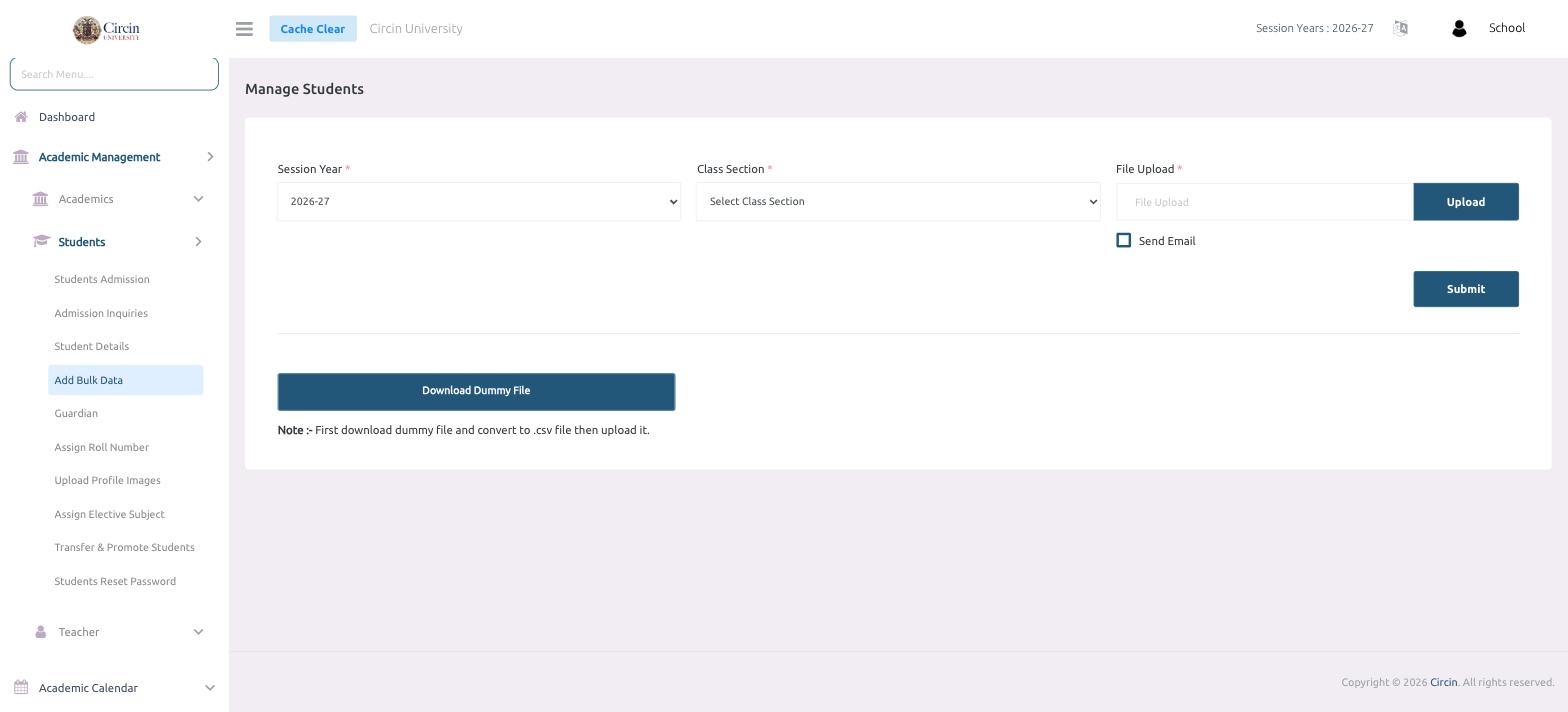
To add a whole class at once, use Add Bulk Data. Download Circin's dummy file, fill it in, save it as a CSV, choose the class section, and upload — every student in the file is created in one step.
How do I import students from a file?
- Open Academic Management → Students → Add Bulk Data.
- Click Download Dummy File to get the template. As the on-screen note says: first download the dummy file and convert it to a
.csvfile, then upload it. - Fill the template with your students' details and save it as a CSV.
- Back on the page, choose the Session Year (defaults to
2026-27) and the Class Section. - Under File Upload, click Upload and select your CSV file.
- Optionally tick Send Email to notify the imported students.
- Click Submit to create the students.
Tip: Keep the template's column order intact — matching the dummy file exactly is what lets Circin map each row to the right student field.