Admission inquiries
Review and approve prospective-student applications in Circin from Admission Inquiries, filtered by class and section, then activate approved students.
Updated
School Admin
Staff
Circin collects prospective-student applications under Admission Inquiries, where you filter by class, review each applicant, and approve them. Approved students are created as inactive — you activate them afterward from Student Details.
Where do I find admission inquiries?
Open Academic Management → Students → Admission Inquiries. The Manage Students panel lists applicants for the selected class.
How do I review and approve an application?
- Choose the Class, then the Assign Class Section to load matching applicants.
- Review each row — the table shows No., Name, Date of Birth, Image, Class Name, Gender, Admission Date, and Admission Status.
- Use the Action column to approve (or decline) an application. You can also use the Search box to find a specific applicant.
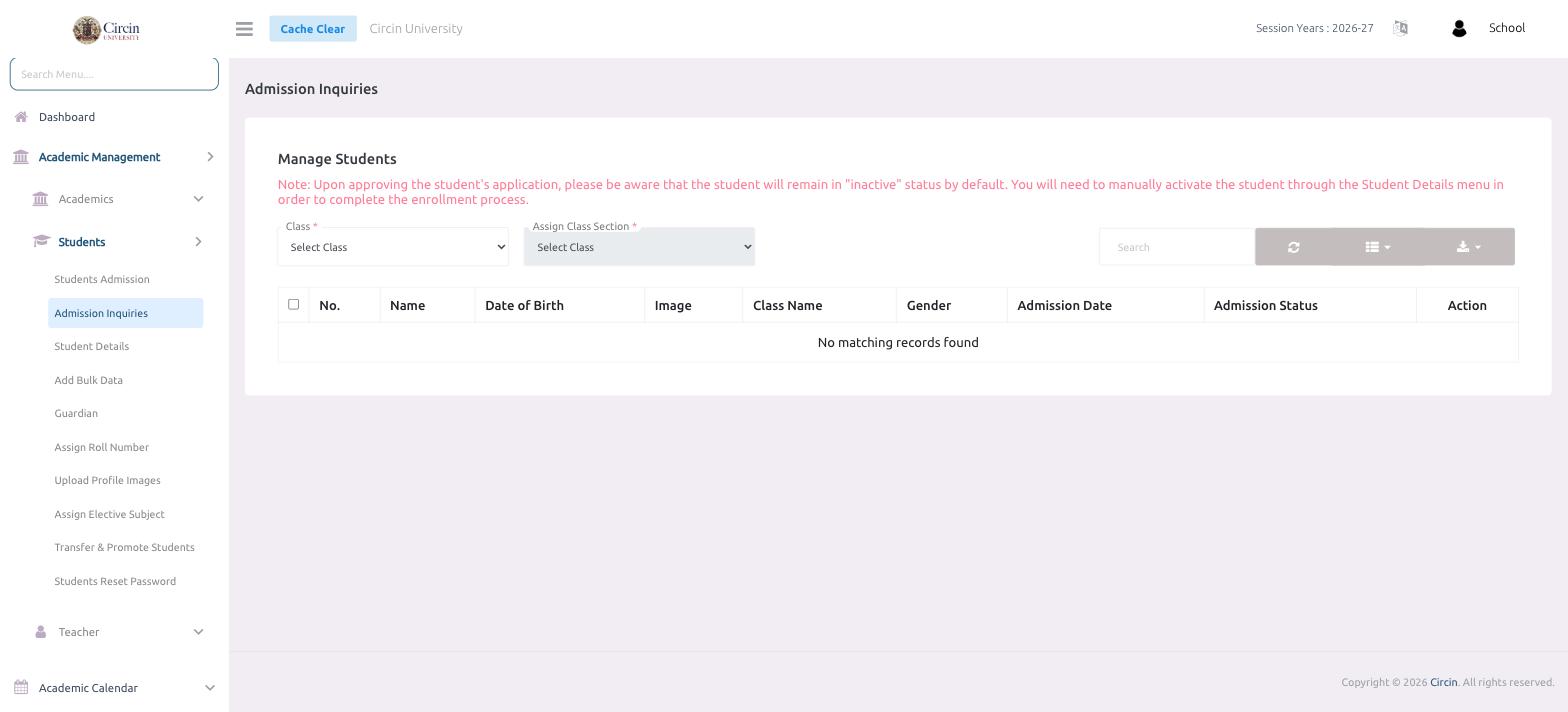
Note: After you approve an application, the student stays in Inactive status by default. Go to Student Details to activate them and complete enrollment.