Profile images
Add or update student and guardian profile photos in Circin from Upload Profile Images — pick a class section, attach photos per student, and submit.
Updated
School Admin
Staff
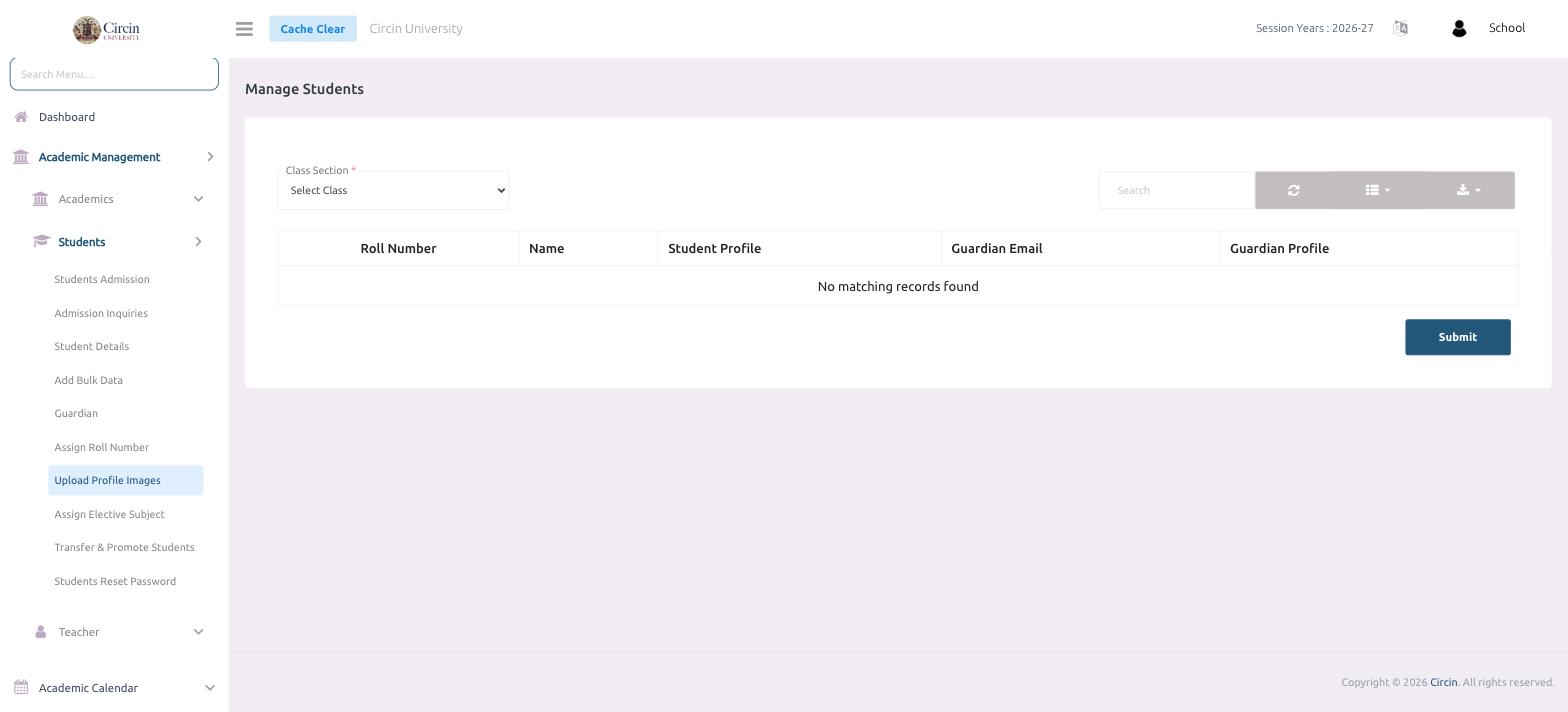
Upload Profile Images lets you add photos for a whole class section at once. Choose the section, attach a Student Profile and Guardian Profile image against each student, and submit.
How do I upload profile photos?
- Open Academic Management → Students → Upload Profile Images.
- Choose the Class Section to load its students. (Until you pick one, the table shows No matching records found.)
- For each student row, attach the images — the table has columns for Roll Number, Name, Student Profile, Guardian Email, and Guardian Profile.
- Click Submit to save the uploaded photos.
Tip: Use the Search box to jump to a student by name or roll number when a section is large.