Add a teacher
Add a teacher in Circin by filling the Create Teacher form — email, name, gender, contact, qualification, salary and status.
Updated
School Admin
You add a teacher in Circin from the Manage Teacher page by completing the Create Teacher form. The teacher's email doubles as their login, and setting the status to Active counts them against your subscription.
How do I add a teacher?
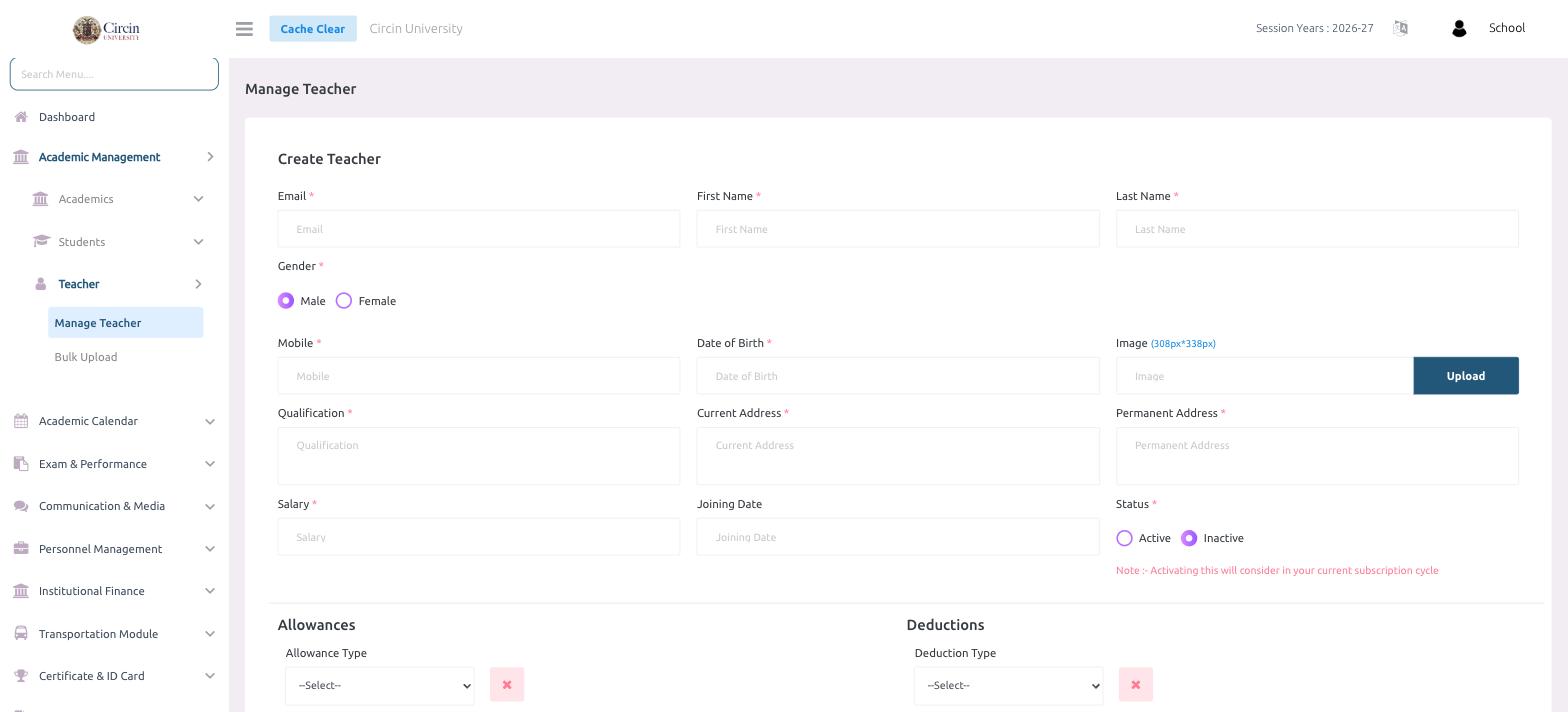
- In the left menu, open Academic Management → Teacher → Manage Teacher.
- In Create Teacher, fill the required fields (marked with a red asterisk): Email, First Name, Last Name, Gender (Male or Female), Mobile, Date of Birth, Qualification, Current Address, Permanent Address, and Salary.
- Optionally add a profile photo under Image — click Upload (the recommended size is 308px * 338px) — and set the Joining Date.
- Set the Status to Active or Inactive. A note reminds you that Activating this will consider in your current subscription cycle.
- Optionally add pay lines under Allowances (choose an Allowance Type) and Deductions (choose a Deduction Type).
- Submit the form to create the teacher.
Tips
- Leave a teacher Inactive until they start if you don't want them counted in your current subscription cycle yet.
- The Allowances and Deductions you set here feed the teacher's payroll.