Session years
Open Settings then Session Year to create an academic session with a name, start and end date, and set the default year for your school.
Updated
School Admin
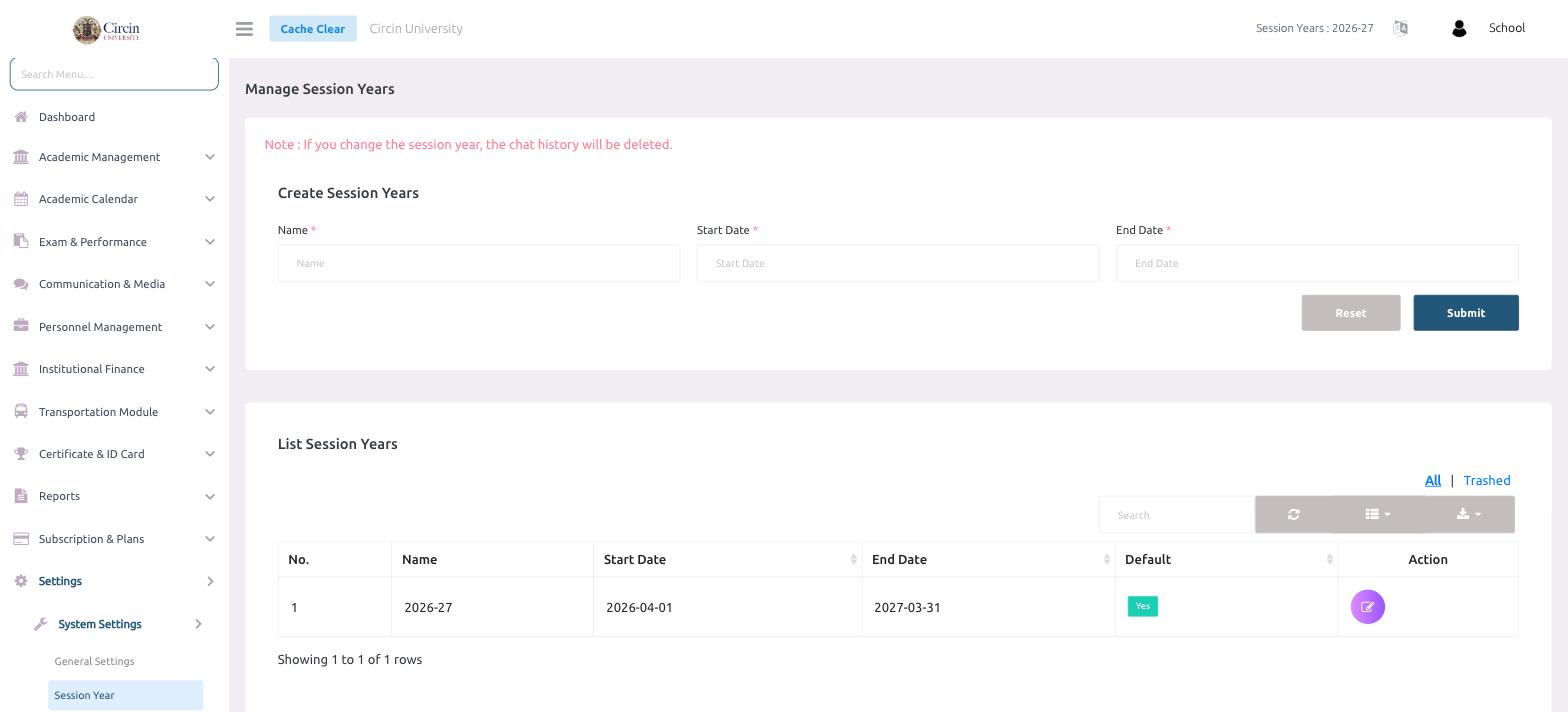
A session year is the academic year that scopes your students, attendance, exams and fees. On the Session Year page you create one by giving it a name and a start and end date. Open it from Settings → System Settings → Session Year.
Note: If you change the session year, the chat history will be deleted.
How do I create a session year?
- In the left menu, open Settings → System Settings → Session Year. The page opens on Manage Session Years.
- In the Create Session Years panel, enter a Name (for example, 2026-27).
- Set the Start Date and End Date for the academic year.
- Click Submit. Use Reset to clear the form and start over.
How do I see and edit existing years?
The List Session Years table below shows No., Name, Start Date, End Date and Default (a Yes badge marks the active year). Use the All / Trashed toggle to switch between current and deleted rows, and the edit icon in the Action column to change a year.