Exam report
Open Reports then Exam Reports, pick a session year, exam and class section to see each student's marks, percentage, grade and rank.
Updated
School Admin
Staff
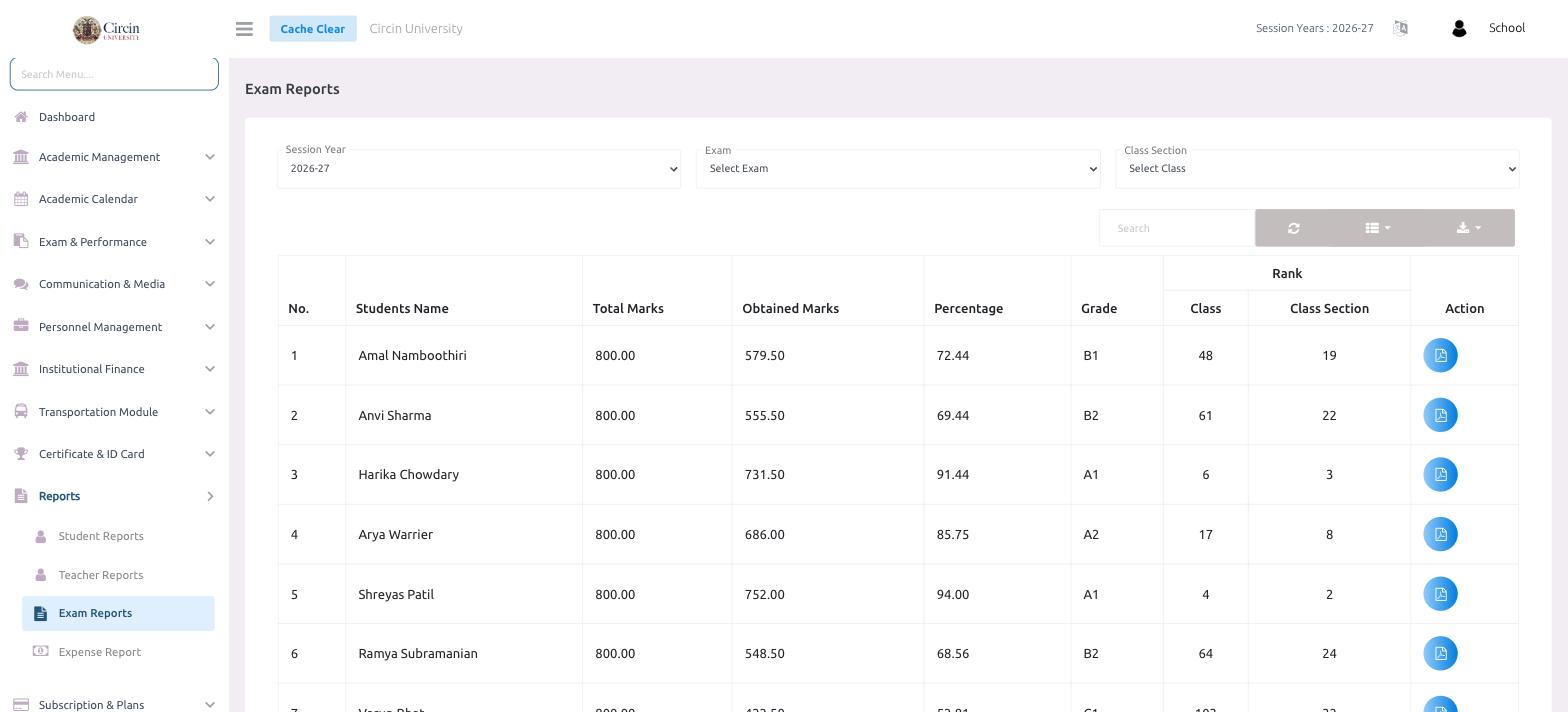
The Exam Reports page turns an exam's results into a ranked mark sheet — total marks, obtained marks, percentage, grade and rank for every student. Open it from Reports → Exam Reports.
How do I view an exam report?
- In the left menu, open Reports, then click Exam Reports.
- Choose the Session Year (for example, 2026-27).
- Choose the Exam from the dropdown, then the Class Section.
- The results load into a table with No., Students Name, Total Marks, Obtained Marks, Percentage and Grade.
- The Rank column shows two figures — Class rank and Class Section rank — so you can compare a student against the whole class and against their section.
- Click the PDF icon in the Action column to download an individual student's report.
Can I export the whole report?
Yes. Use the Search box to find a student, and use the column-picker and download icon on the right to export the full ranked mark sheet for the selected exam.