Gallery
Publish a titled gallery in Circin with a thumbnail, multiple images and YouTube links, scoped to a session year, for students and parents to view.
Updated
School Admin
The gallery lets your school share event photos and videos. You create an album with a title, a cover thumbnail, a set of images, and optional YouTube links, all scoped to a session year.
How do I create a gallery?
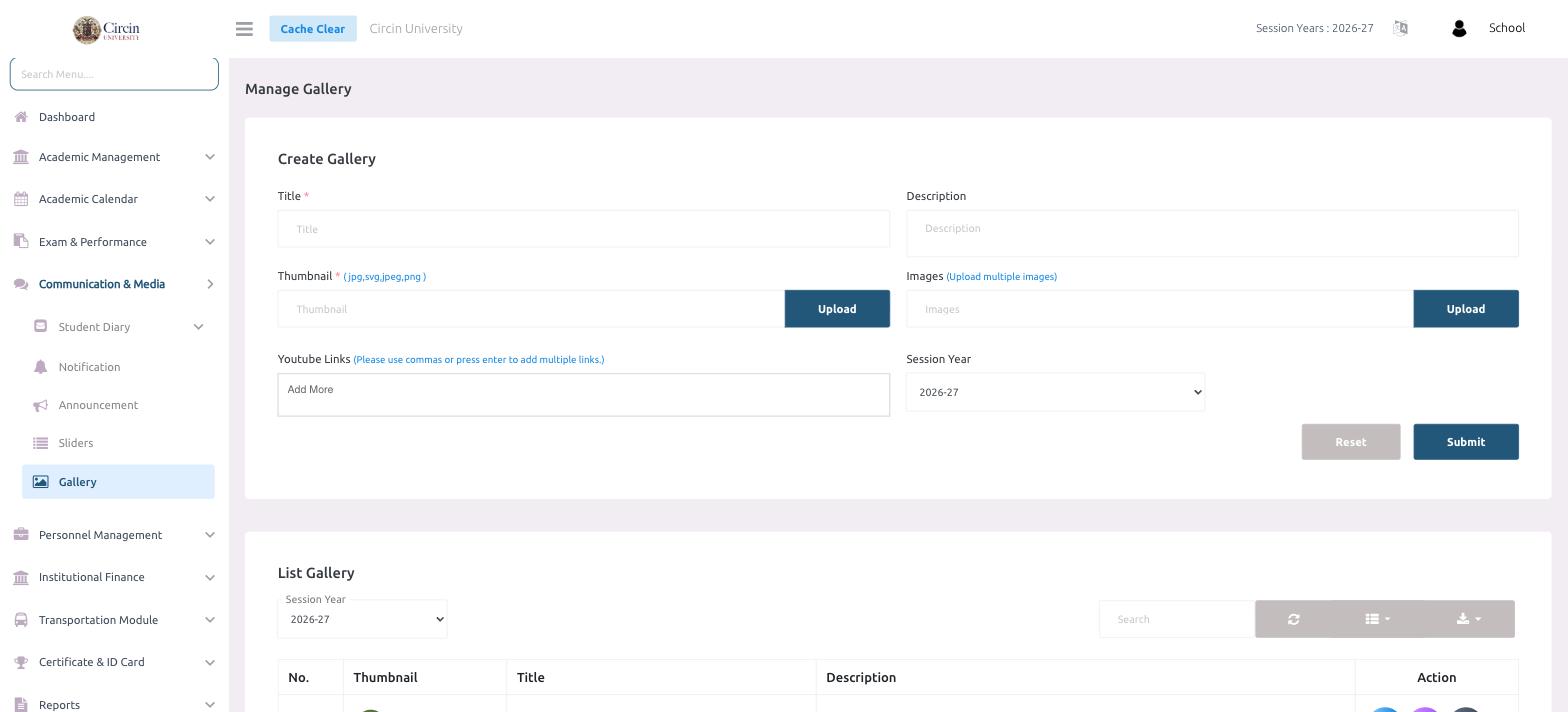
- In the left menu, open Communication & Media → Gallery. This opens the Manage Gallery page.
- In the Create Gallery panel, enter a Title and an optional Description.
- Under Thumbnail, click Upload to set the cover image — allowed formats are jpg, svg, jpeg, png.
- Under Images, click Upload to add multiple photos to the album.
- To include videos, paste Youtube Links — use commas or press Enter to add multiple links, and Add More for extra fields.
- Pick the Session Year (for example, 2026-27), then click Submit. Reset clears the form.
Where do published galleries appear?
The List Gallery table below shows each album by Thumbnail, Title, and Description, filtered by Session Year. Use the Action icons to edit or remove a gallery.