Exam results
Pull up an exam result in Circin by session year, exam, and class section — see each student's total marks, obtained marks, percentage, and grade.
Updated
Also on Circin Maestro: Enter and publish offline exam marks in Circin Maestro
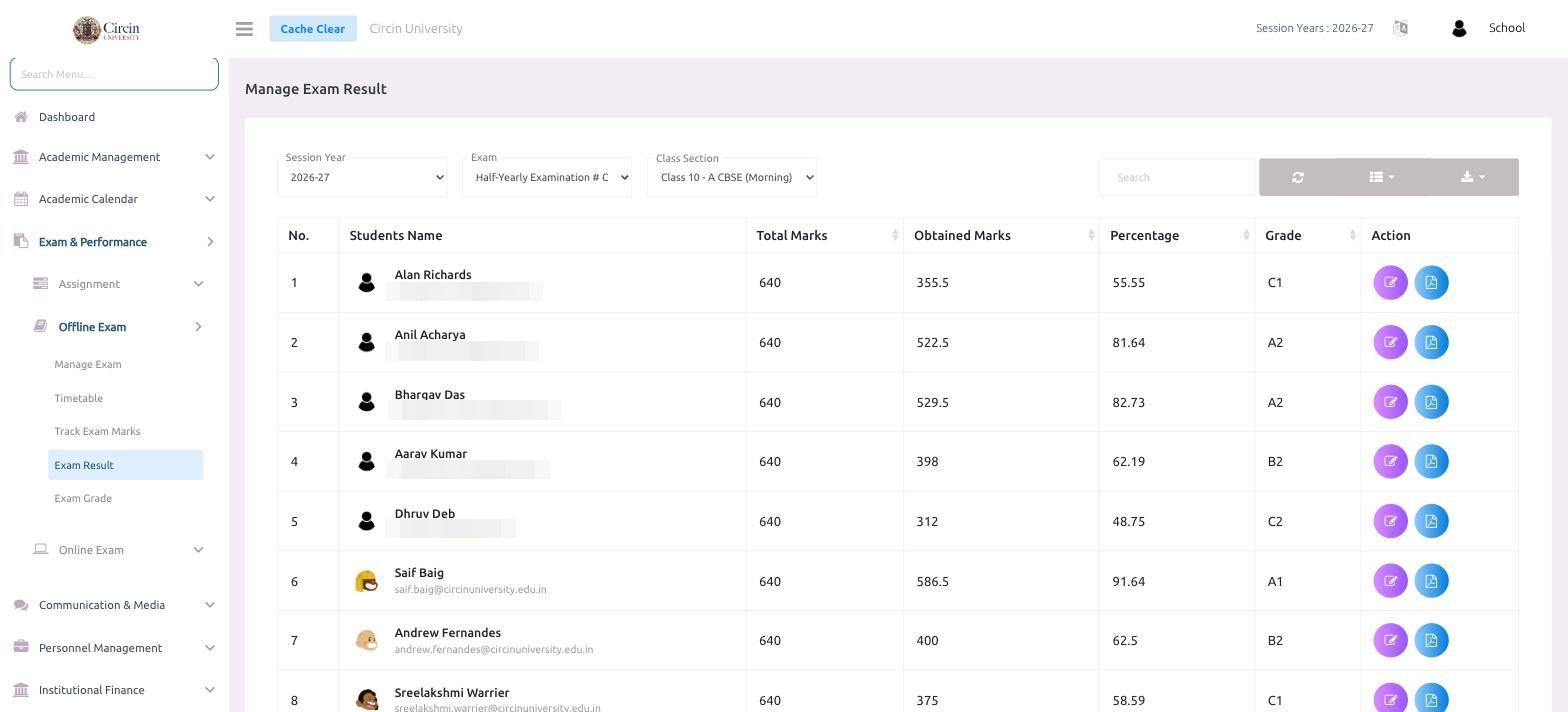
The Manage Exam Result page shows every student's result for a chosen exam and class: their total marks, obtained marks, percentage, and grade. Choose the session year, exam, and class section, and Circin builds the result sheet.
How do I view an exam result?
- In the left menu, open Exam & Performance → Offline Exam → Exam Result.
- Choose the Session Year (for example, 2026-27).
- Choose the Exam (for example, Half-Yearly Examination).
- Choose the Class Section (for example, Class 10 - A CBSE (Morning)).
The result table loads with these columns: No., Students Name, Total Marks, Obtained Marks, Percentage, Grade, and Action.
How do I edit a result or open a report card?
Each row has an Action column with two buttons: an edit button to adjust a student's marks, and a PDF button to open or download that student's result document.
Tips
- The Grade column uses the bands you define under Exam Grade — for example a percentage of 55.55 maps to grade C1, and 91.64 maps to A1.
- Enter marks under Track Exam Marks first; the result sheet is calculated from them.