Admit a student
Admit a new student in Circin from Students Admission — pick the class section, fill the profile, and save. The GR number is generated for you.
Updated
School Admin
Staff
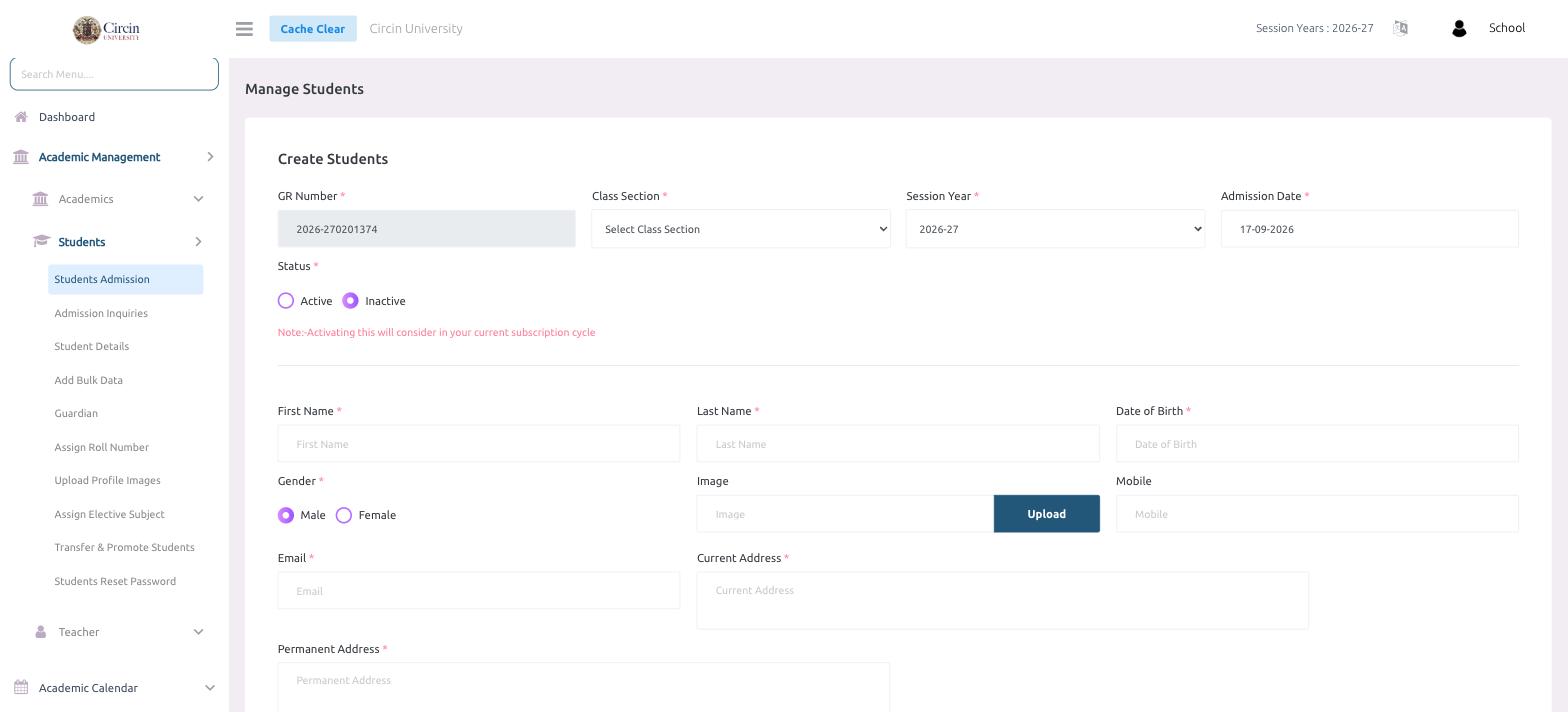
Admitting a student in Circin takes one form. Open Students Admission, choose the Class Section and Session Year, fill in the student's details, and save. Circin auto-generates the GR Number, so you never type it.
How do I admit a new student?
- In the left menu, open Academic Management → Students → Students Admission. The Create Students form opens.
- The GR Number is filled in automatically (for example,
2026-270201374) — leave it as is. - Choose the Class Section the student is joining and confirm the Session Year (defaults to the current year, e.g.
2026-27). - Set the Admission Date — it defaults to today.
- Set Status. New students default to Inactive. Note: activating a student counts toward your current subscription cycle, so switch to Active only when you're ready to enroll them.
- Enter the profile fields: First Name, Last Name, Date of Birth, and Gender (Male or Female).
- Optionally add an Image with the Upload button, and enter the Mobile, Email, Current Address, and Permanent Address.
- Save the form to create the student.
Why is the new student inactive?
Circin sets Status to Inactive by default so admissions don't automatically consume a paid seat. When you set it to Active, that student is counted in your current subscription cycle. You can also activate students later from Student Details.