Vehicles
Add your school buses to Circin with a name, vehicle number and capacity, then manage the full fleet from the List Vehicles table.
Updated
School Admin
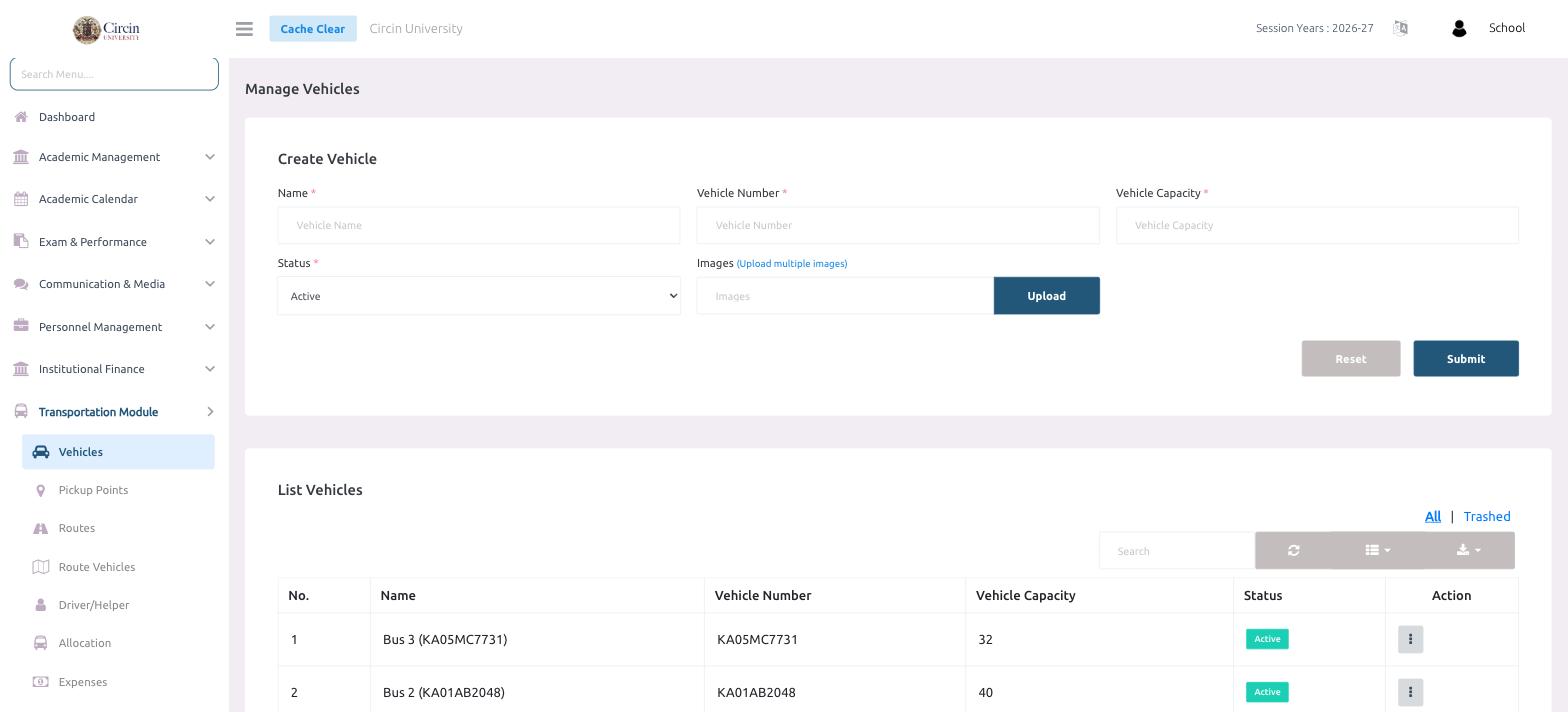
Your transport fleet is the foundation of everything else in Circin's transport module. Add each bus once — with its Name, Vehicle Number and Vehicle Capacity — and it becomes available to assign to routes, drivers and expenses.
How do I add a vehicle?
- In the left menu, open Transportation Module → Vehicles.
- Under Create Vehicle, enter the Name (for example, Bus 3).
- Enter the Vehicle Number — the registration plate, such as KA05MC7731.
- Enter the Vehicle Capacity — the number of seats, such as 32.
- Set the Status to Active (or Inactive to keep it off routes for now).
- Optionally use Images (Upload multiple images) and Upload to attach photos of the vehicle.
- Click Submit. Use Reset to clear the form and start over.
Where do I see all my vehicles?
The List Vehicles table below the form shows every vehicle with columns for No., Name, Vehicle Number, Vehicle Capacity, Status and Action. Use the Search box to find a vehicle, and switch between All and Trashed to review deleted records. The Action menu on each row lets you edit or remove a vehicle.
Tips
- The vehicle name and number appear together (for example, Bus 3 (KA05MC7731)) wherever you pick a vehicle later, so keep names short and recognisable.
- Set capacity accurately — it helps you avoid over-allocating seats on a route.