Transaction logs
Audit every online fee payment in Circin — filter by status, month, and session year to see the payer, amount, gateway, and result of each transaction.
Updated
School Admin
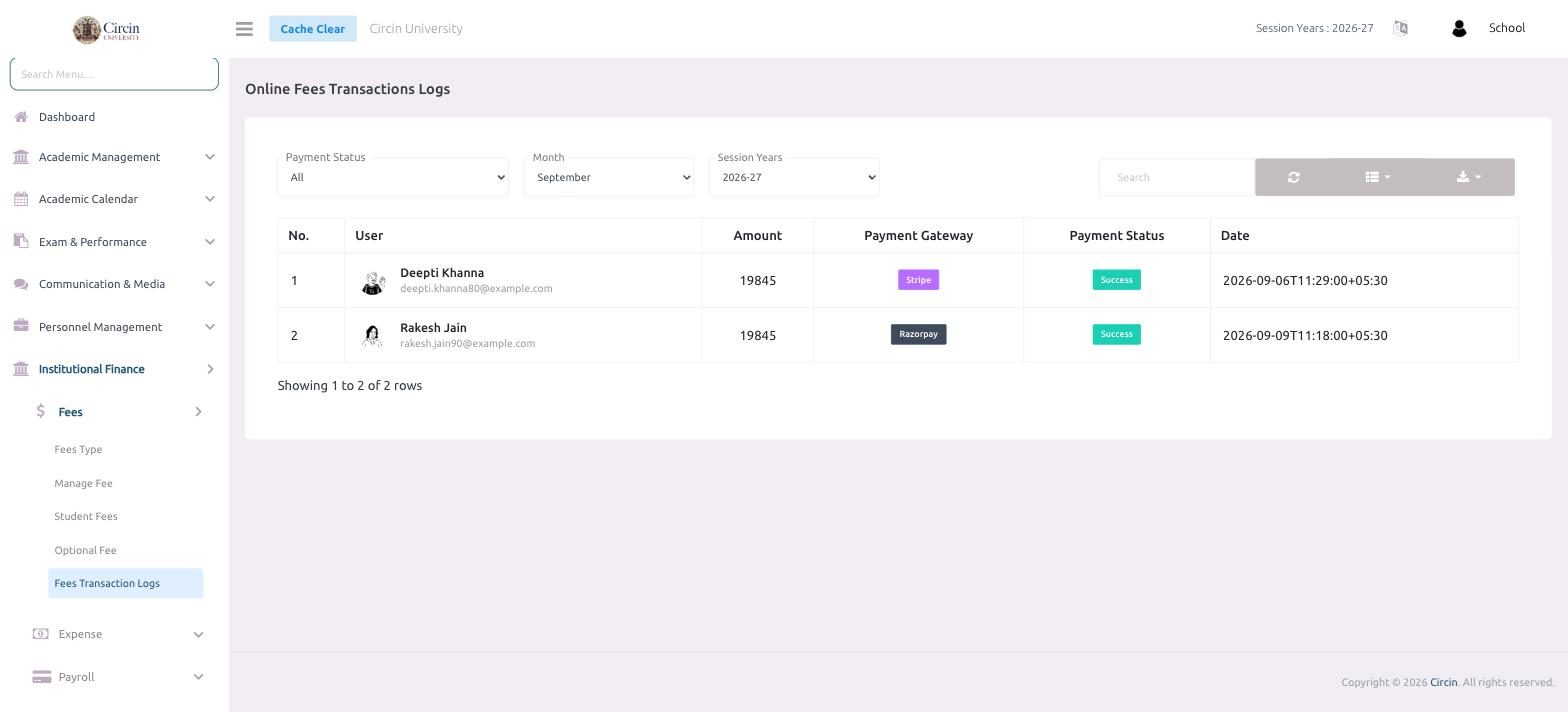
The Online Fees Transactions Logs screen is your audit trail for every fee paid through a payment gateway — who paid, how much, which gateway, and whether it succeeded.
How do I review online fee payments?
- In the left menu, open Institutional Finance → Fees → Fees Transaction Logs.
- Filter with Payment Status (for example All), Month, and Session Years.
- The table lists each No., User (name and email), Amount, Payment Gateway, Payment Status, and Date. Gateways such as Stripe and Razorpay appear as badges, and a completed payment shows a green Success status.
- A row count under the table (for example Showing 1 to 2 of 2 rows) confirms how many transactions matched.
Tips
- Use Payment Status to isolate failed or pending payments when reconciling collections.
- The Search box and export button let you pull a filtered log for your records.