Certificate templates
Design a reusable certificate template in Circin — set the page layout, size, image shape and background, and write the body in a rich-text editor.
Updated
School Admin
A certificate template is the reusable design you generate student and staff certificates from. Set its Page Layout and size, add a Background Image, and write the wording in the built-in editor once — then reuse it for everyone.
How do I create a certificate template?
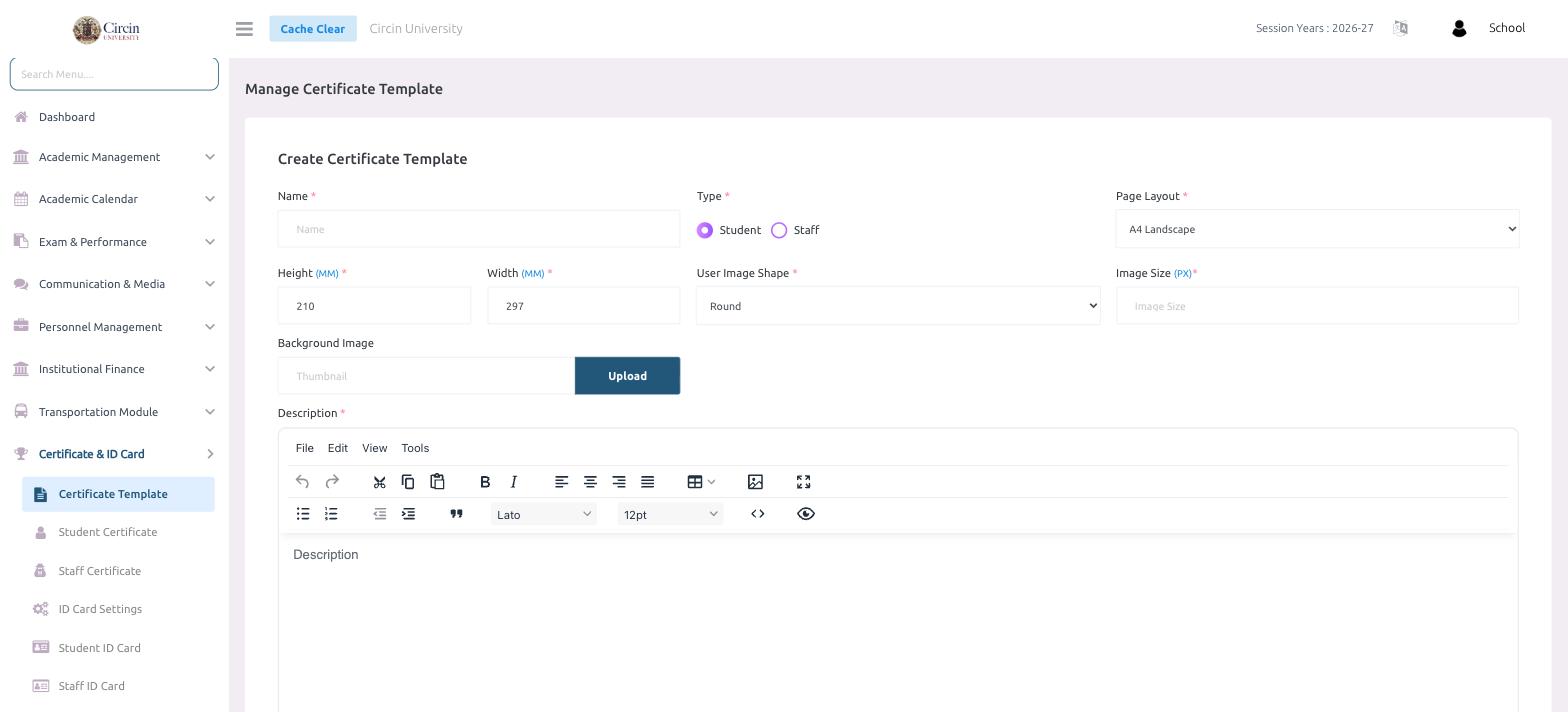
- In the left menu, open Certificate & ID Card → Certificate Template.
- Under Create Certificate Template, enter the Name.
- Choose the Type — Student or Staff — so it appears in the right generator.
- Pick the Page Layout (for example, A4 Landscape). The Height (MM) and Width (MM) fill in to match — for A4 Landscape that's 210 × 297.
- Choose the User Image Shape (for example, Round) and set the Image Size (PX).
- Optionally Upload a Background Image.
- In the Description editor, write the certificate body. Use the File / Edit / View / Tools menus and the toolbar (font, size, alignment, tables, images) to format it.
- Click Submit to save the template.
Tips
- Set the Type carefully — a Student template shows up in Student Certificate, and a Staff template shows up in Staff Certificate.
- Use the background image plus text formatting so the certificate is print-ready straight from the generator.