Routes
Build a bus route in Circin by naming it, setting its distance and shift, and adding pickup points with their scheduled times.
Updated
School Admin
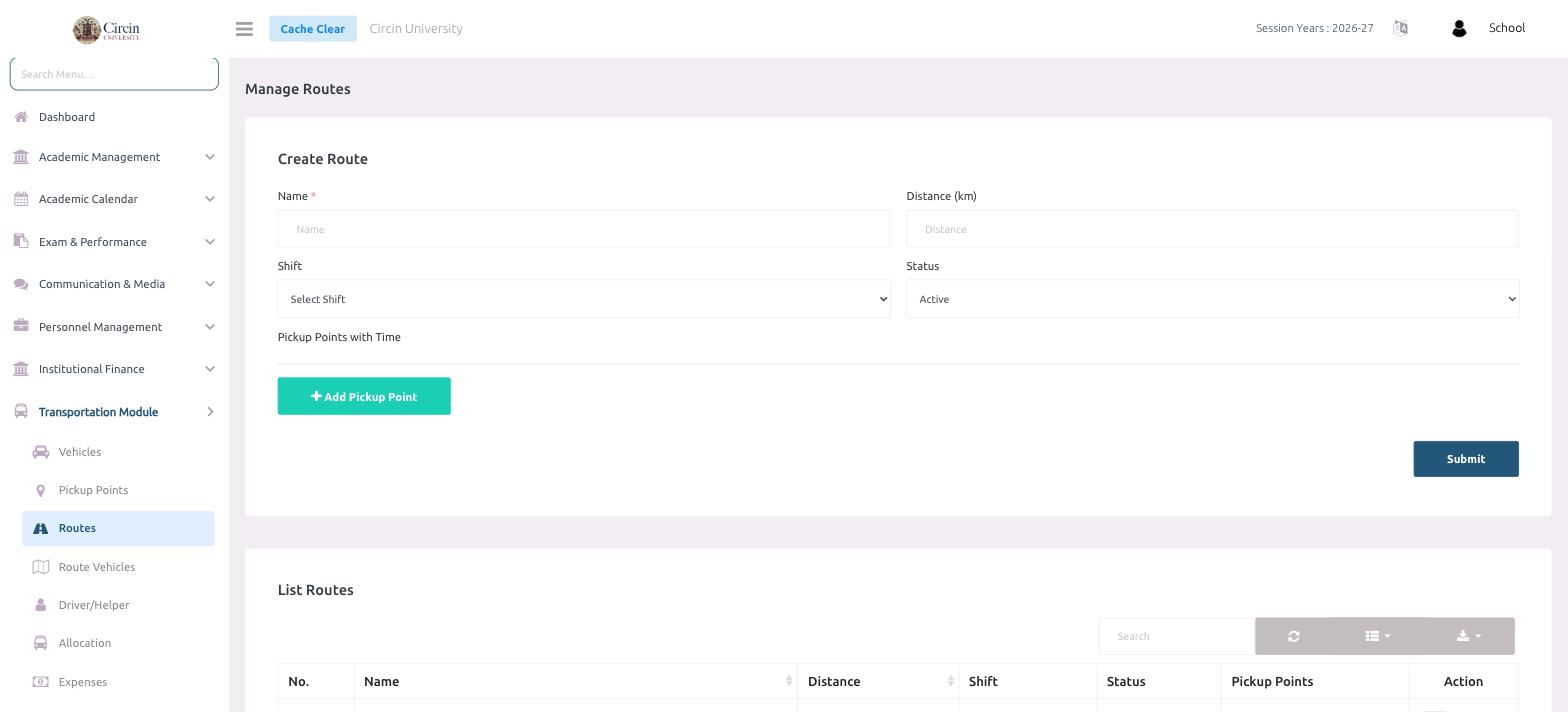
A route ties your pickup points together into an ordered trip. Give it a Name, choose the Shift it runs in, and add each Pickup Point with Time so drivers and parents know the schedule.
How do I create a route?
- In the left menu, open Transportation Module → Routes.
- Under Create Route, enter the Name of the route.
- Optionally enter the Distance (km) the route covers.
- Choose the Shift from Select Shift (for example, Morning).
- Set the Status to Active.
- Under Pickup Points with Time, click Add Pickup Point to add each stop and set its time. Repeat for every stop on the route.
- Click Submit.
Where do I see all my routes?
The List Routes table shows every route with columns for No., Name, Distance, Shift, Status, Pickup Points and Action. Use the Search box to find a route, and the Action menu on each row to edit or remove it.
Tips
- Add pickup points in the order the bus visits them, with times that step forward through the trip.
- The Shift you pick here should match the shift on the route vehicle assignment so the trip lines up.