Announcements
Post a school announcement to selected class sections in Circin, with an optional file attachment or link, for the current session year.
Updated
School Admin
Also on Circin Maestro: Send a school announcement from Circin Maestro
Announcements broadcast school news to whole class sections — an event, a circular, or a link. You write a title and description, optionally attach a file or a URL, choose the class sections, and publish.
How do I create an announcement?
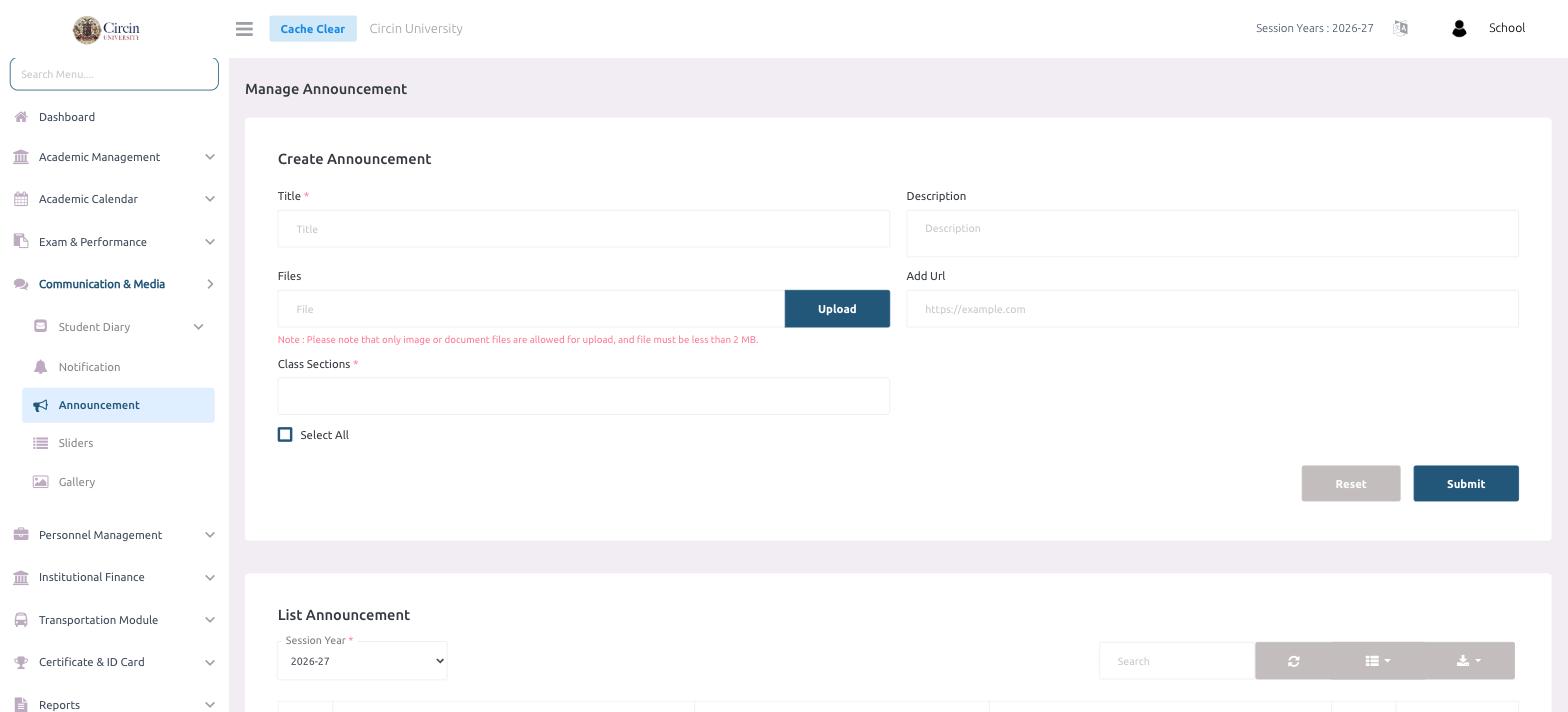
- In the left menu, open Communication & Media → Announcement. This opens the Manage Announcement page.
- In the Create Announcement panel, enter a Title and a Description.
- To attach a file, use the Files field and click Upload — only image or document files under 2 MB are allowed. To link out instead, paste a link in Add Url.
- Under Class Sections, pick the sections that should see it, or tick Select All for every section.
- Click Submit. Reset clears the form.
Where do posted announcements appear?
The List Announcement table below the form shows what you've published. Use the Session Year dropdown (for example, 2026-27) and the Search box to find a past announcement.