Send a school announcement from Circin Maestro
Office staff can announce to any set of class sections from Circin Maestro — title, description, attachments — without touching the admin panel.
Updated
Also on Admin Panel: Announcements
Office staff announce to whole class sections from the phone: title, description, attachments, and as many sections as the notice concerns. There is no subject on this flow — that is the teacher's version.
How do I send one?
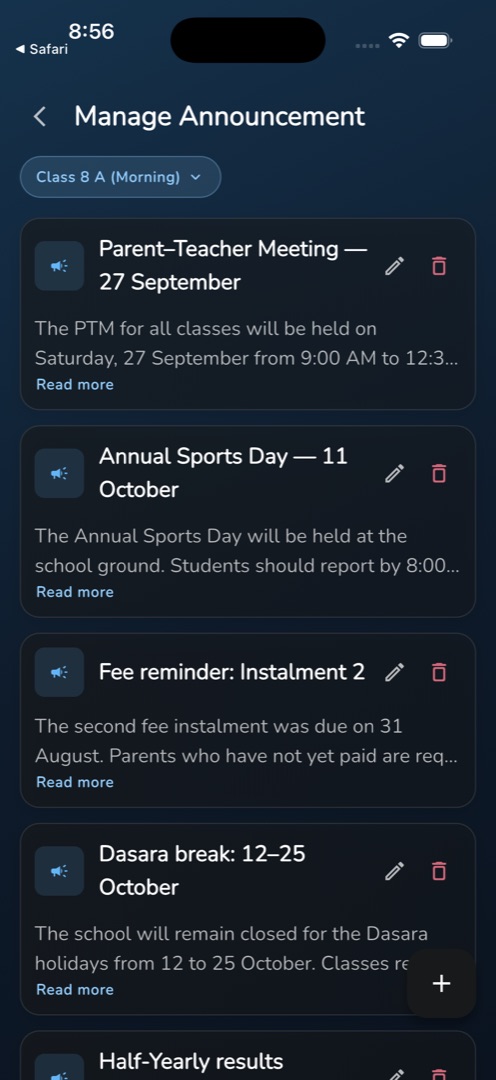
- Open Manage → People & comms → Manage Announcement. The screen opens with one unset Class pill and the message The class section id field is required. over a Retry button — that is not a failure, it just means no class is chosen yet. Tap the pill, pick a class section, and the list of past announcements for it loads.
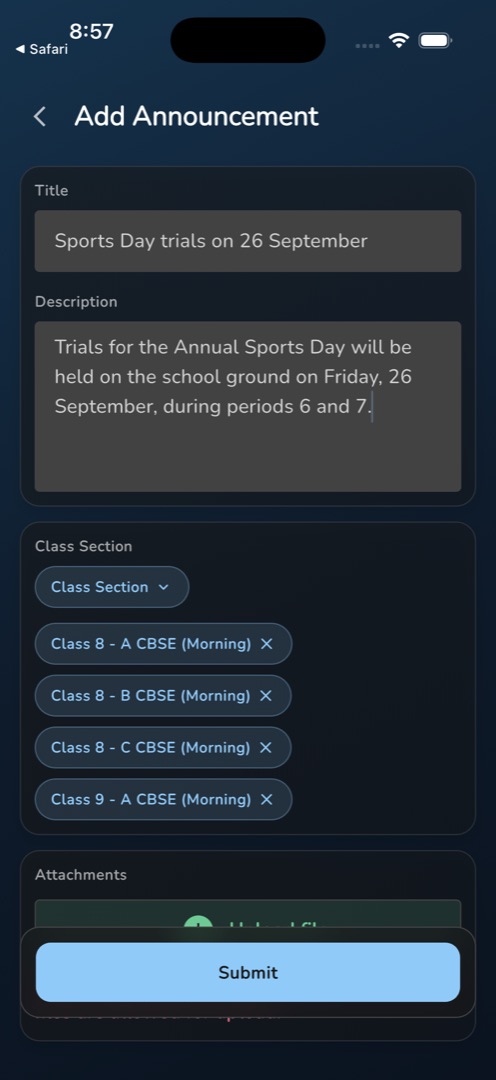
- Tap the + button to open Add Announcement.
- Type a Title — required — then a Description in the five-line box, which is optional.
- On the next card, tap the Class Section pill and tick every section that should receive it. Each one appears below as a chip with an ×.
- Under Attachments, tap Upload file to pick documents or images. The screen notes Note: Please note that only image or document files are allowed for upload.
- Tap Submit. You get Announcement sent successfully, every field clears, and the screen stays open for the next notice.
How do I read one back?
Cards on the list show the title, two lines of the description with a Read more link that opens the full text, and a Files row with a paperclip when there are attachments. Pencil and bin icons appear on each card if your role allows editing or deleting — see Correct or withdraw an announcement.
Rules and gotchas
- Empty title gives Please enter title; no class chosen gives Please select at least one class.
- There is no "all classes" shortcut. To make a notice school-wide, tick every section by hand.
- Submit only appears once the class list has loaded, and while a send is running both the back arrow and the system back gesture are blocked.
- Scrolling the list down about a screen swaps the + button for a scroll-to-top arrow. Scroll back up to compose.
- The + needs the announcement-create permission, the pencil needs announcement-edit and the bin needs announcement-delete. Without them the control is simply not there.