Link a lesson and topic to a session in Circin Maestro
Tag a teaching session with the lesson and topic it covered, so filters, resource grouping and the session title all line up.
Updated
Teacher
Tagging a session with its lesson and topic is what makes the rest of the subject navigable: the filter, the resource grouping and the session's own title all read from it. An untagged session ends up under UNFILED.
How do I link a lesson?
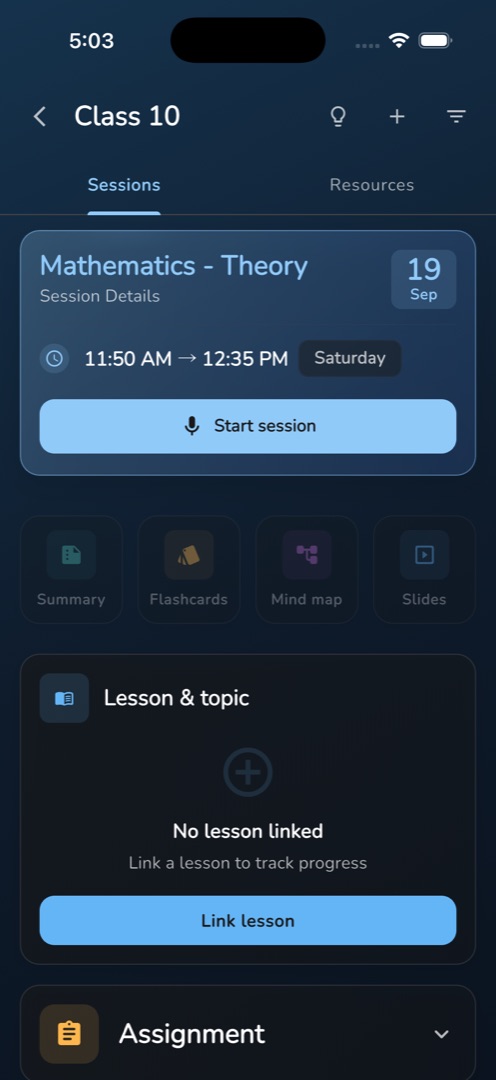
- Open the session from the Sessions tab and scroll to the Lesson & topic card.
- With nothing linked it reads No lesson linked and Link a lesson to track progress, with a Link lesson button. With something linked it shows a Lesson row, a Topic row and Change lesson.
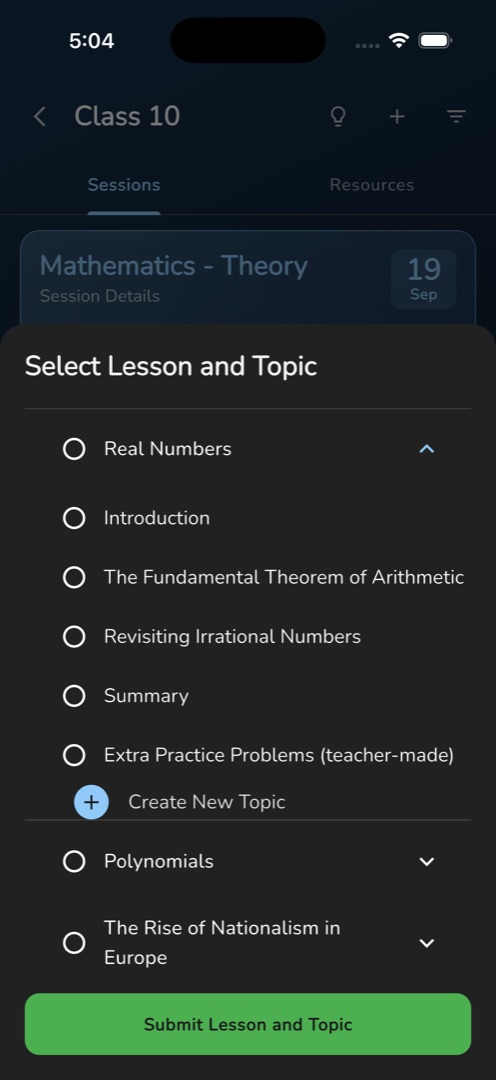
- Tap the button. The sheet Select Lesson and Topic opens with a radio per lesson; expand a lesson for a radio per topic.
- Pick the lesson, and the topic if you taught one.
- Tap Submit Lesson and Topic. The card, the session header and the row's chip in the list all update straight away.
Rules and gotchas
- A lesson is required. Selecting only a topic does nothing, and picking a different lesson resets the topic.
- Create New Lesson, at the end of the list, and Create New Topic, under each expanded lesson, open the curriculum forms with this class section and subject filled in, and the list reloads when you come back. See Add lessons and topics.
- Clear appears in the sheet header once a lesson is picked, to unlink.
- Opening a session from a notification can lose the subject scope. The button then reads Lesson picker isn't available for this session — reach the session from Home or the Sessions tab instead.
- Until the lessons finish loading, a linked lesson may show as Chapter <id>.
- The board does the same job from the classroom — see Link the lesson and topic.